Physical Address
304 North Cardinal St.
Dorchester Center, MA 02124
Physical Address
304 North Cardinal St.
Dorchester Center, MA 02124

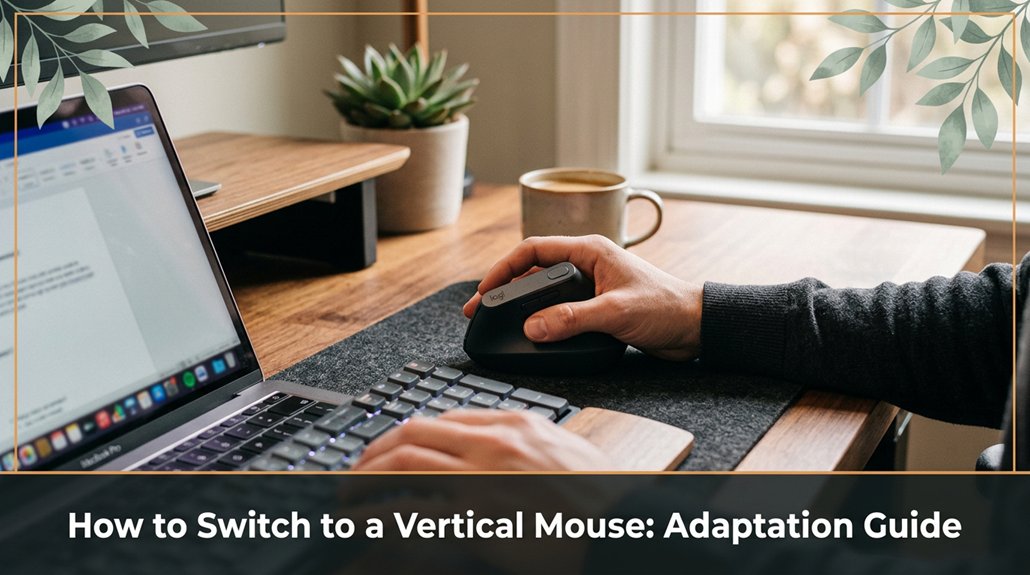
Switching to a vertical mouse can feel awkward at first, but trust me, you’re not alone in that adjustment. The key is to find one that naturally fits your hand size big hands need a larger model, while smaller hands do better with a compact design.
Make sure your workspace is set up to support this change: adjust your monitor to eye level, clear any clutter, and keep your mouse within easy reach so you won’t strain yourself reaching for it. Start by using the vertical mouse for just 15 minutes, then gradually increase your time maybe 20 minutes while alternating with your regular mouse.
Focus on keeping your wrist straight and use your whole arm rather than just your wrist to move it. Remember, muscles need time to adapt, so be patient and don’t rush the process. Pay close attention to how your hand feels if it throbs after an hour, something’s off. Stick with it, and you’ll gradually find your comfort zone and I’ll be here to help you navigate any tricky parts along the way.
This article contains affiliate links. If you purchase through them, I may earn a small commission at no extra cost to you. I only recommend products I genuinely believe in.
When you switch to a vertical mouse, you’re flipping the script. It keeps your wrist in a more natural position specifically, a handshake-like position rather than twisting or compressing the wrist.
Less tension in your wrist means less pain. You’ll notice the difference pretty quickly, especially if you’ve been pushing through those weird aches for months.
Keep in mind, it’s not magic. Your muscles need time to adapt. Once they do, your workspace becomes way more comfortable.
Important Measurement Fact:
Position the vertical mouse so that your wrist remains straight and your hand comfortably rests with a slight wrist bend, ideally around 10 to 15 degrees from a neutral position.
Step 1: Select an ergonomic vertical mouse, like the Logitech MX Vertical or the Anker Ergonomic Vertical Mouse, that fits comfortably in your hand because a well-fitting mouse reduces grip tension and muscle strain.
Step 2: Place the mouse on your desk at a height where your elbow is close to a 90-degree angle and your forearm is parallel to the ground, because this position minimizes shoulder and wrist strain.
Step 3: Adjust your chair height so that your feet rest flat on the floor and your knees are at a 90-degree angle, ensuring your entire upper body is supported and aligned.
Step 4: Position your monitor so that the top of the screen is at or just below eye level, approximately 20 to 30 inches from your face, because looking slightly downward reduces neck tension.
Common Mistakes to Avoid:
Additional Tip: Regularly stretching and relaxing your hand and wrist can further prevent repetitive strain injuries and promote long-term comfort.

When it comes to choosing the right vertical mouse, the first thing you need to do is figure out what feels comfortable in your hand because an ergonomic fit reduces strain and increases comfort during extended use. Think about your grip: do you prefer a larger, more ergonomic design like the Logitech MX Vertical or Anker Ergonomic Vertical Mouse, or something more compact like the Evoluent Vertical Mouse D?
Here’s a quick comparison to help:
| Feature | Why It Matters |
|---|---|
| Grip size | Larger for bigger hands, smaller for precision and control |
| Button layout | Fewer buttons for simplicity, more buttons for customization |
All right, now, consider your typical workload. Do you need extra buttons for frequently used shortcuts? Or just a basic model? For example, if you often switch between applications, opt for a mouse like the Logitech MX Vertical with programmable buttons because it allows for quick access to shortcuts.
Avoid buying purely based on looks, because appearances can be deceiving and might not provide the ergonomic support you need. Try holding different mice if you can this helps determine how each design feels in your hand.
Remember, the perfect fit might take a little trial and error because comfort and ergonomics vary from person to person. Understanding ergonomic principles can help guide your selection for better comfort and reduced strain during long hours at your workstation.
Here’s a key measurement: When gripping the mouse, your hand should rest naturally, with your wrist in a neutral position, which for most users means a wrist angle of approximately 0 to 15 degrees from the forearm.
Important Facts:
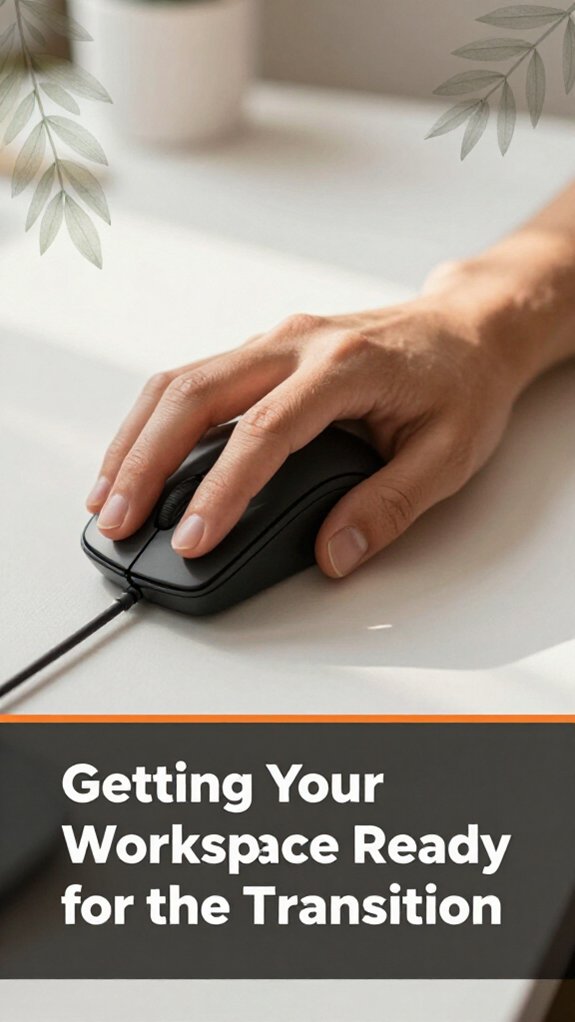
Most likely, your workspace isn’t set up with a vertical mouse in mind, because that’s okay. I’m sure you’ve already had that moment where you move your mouse and realize your desk isn’t giving you enough clearance.
Start by clearing space. Remove anything cluttering your workspace think cables, papers, and that half-eaten snack.
Check your current mouse location, and then decide where the vertical mouse will go. It should be within comfortable reach, close enough that you don’t stretch awkwardly.
Position the vertical mouse so that the hand remains relaxed and the wrist stays in a neutral position when holding it.
If your mouse pad is old or flimsy, replace it. Get one that supports precise movements without slipping.
Choose a mouse pad that measures at least 8 inches by 10 inches, with a non-slip rubber base for stability.
Finally, reposition your monitor if needed, because your neck shouldn’t be twisting to see your screen.
Adjust the monitor height so that the top of the screen is at or just below eye level, approximately 20 to 30 inches from your face, to promote good neck postureand reduce strain. Maintaining overall ergonomic awareness, such as consistent posture habits, can further enhance comfort and prevent injury.
And remember: keeping your workspace ergonomically sound helps prevent discomfort and injury, making your work session more comfortable and productive.
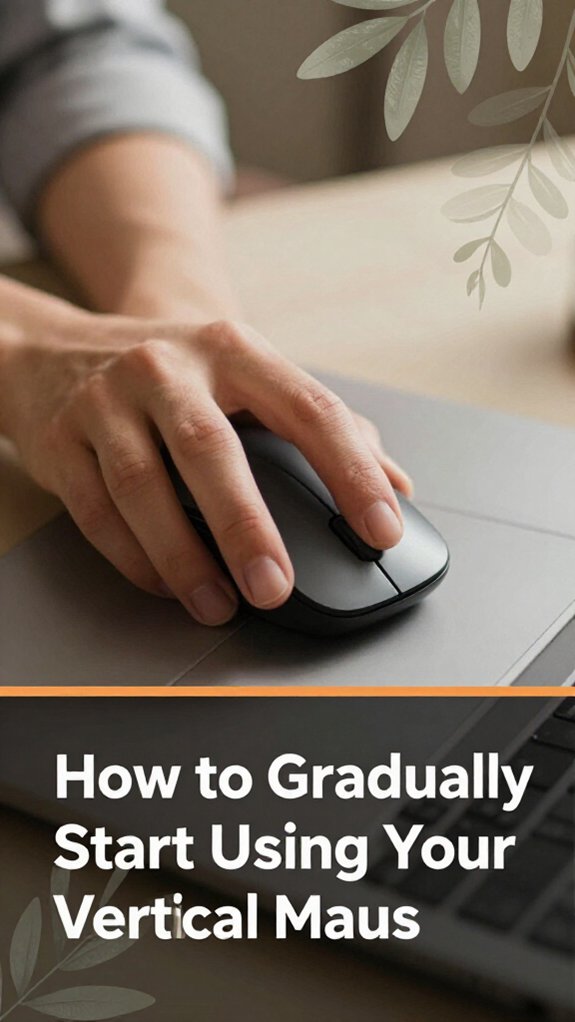
Start by giving yourself a few days or even a week to get comfortable with your new vertical mouse because adapting to a new ergonomic device takes time.
Use it for short bursts, like 15 or 20 minutes, then switch back to your regular mouse to rest your hand. The key is consistency without forcing it because your hand needs time to adjust. Don’t push too hard, even if you feel tempted to accelerate the process. All right, that’s obvious, but it bears repeating.
As you go, tweak your grip if needed some folks prefer a looser hold because a relaxed grip reduces tension and fatigue in your hand and wrist. Remember, this shift isn’t a race; quick wins happen only in beginner’s video game levels, not ergonomic makeovers. Stick with it, and you’ll begin to notice discomfort fading little by little.
Important Measurement:
– Position the vertical mouse so that your forearm is roughly parallel to the ground, with your elbow bent at about a 90-degree angle because this posture reduces strain and promotes natural wrist alignment.
Additional Tips:
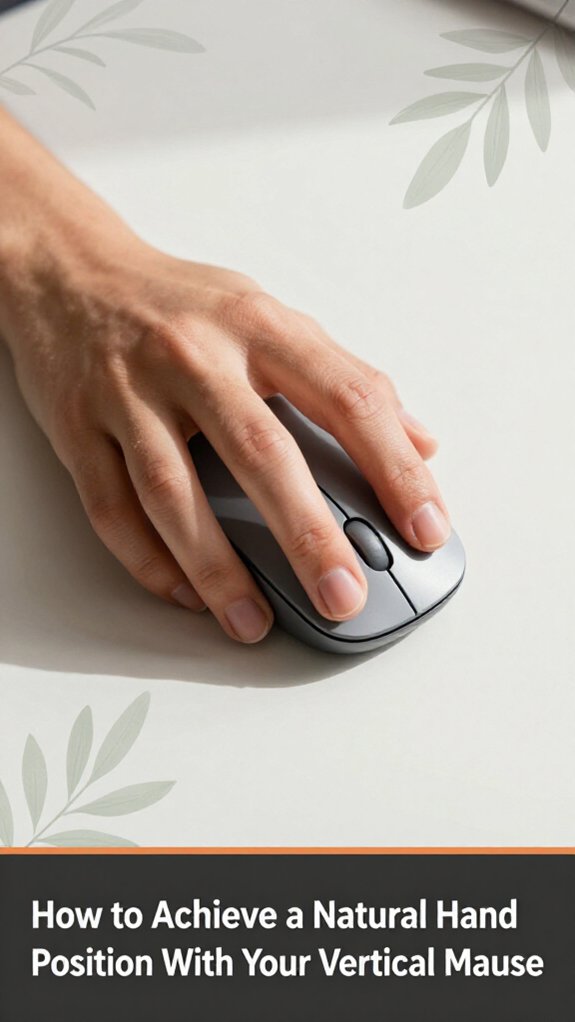
Ever wonder if you’re actually holding your vertical mouse the right way? Here’s the deal: your hand shouldn’t be twisted or strained because maintaining a relaxed posture prevents muscle fatigue and repetitive strain injuries. You want a handshake position relaxed, natural.
First, rest your palm on the mouse so your fingers gently curve over the buttons because this position supports a natural hand alignment. Keep your wrist straight; avoid bending it up or down because a neutral wrist position reduces pressure on the carpal tunnel and minimizes discomfort. Using a wrist rest at the right time can help maintain this healthy posture by providing support without encouraging your wrists to remain fixed in a strained position.
Now, your thumb naturally rests on the side or a designated grip area this depends on your mouse model, such as the Logitech MX Vertical or Anker Ergonomic Vertical Mouse. Think of it like giving your hand a break from a pronated, palm-down grip because this position aligns the wrist and forearm naturally.
The goal? No tension, no awkward angles because sustained tension leads to strain and discomfort.
– Adjust your grip so it feels comfortable because every hand is different.
Note: This doesn’t happen overnight, but a relaxed, neutral position is the first step toward comfort regardless of ergonomic guides suggesting otherwise.
Practicing good ergonomic habits isn’t just about buying the right mouse; it’s about building habits that keep your body happy every day. Because, let’s be honest, you’ve probably sat for hours bashing away on your keyboard without thinking.
So, you’ve swapped your traditional mouse for a vertical one, and now you’re staring at it like it’s a foreign object because honestly, it kind of is at first. You try to move it, but nothing feels right. All right, don’t panic.
First, double-check the USB or Bluetooth connection, because a loose or faulty connection can prevent the mouse from functioning properly yes, even if you have already done it five times. Sometimes, it just needs a little nudge.
If your cursor is moving erratically or “acting drunk,” tweak the DPI settings in the mouse’s software. Because your new mouse might be set to the lowest DPI setting by default, which makes the cursor move slowly and causes frustration.
Remember, it takes several days for your hand and wrist to adapt to the new grip. Keep practicing consistently because muscle memory develops over time.
Important measurements and tips:
Common mistakes and how to avoid them:
Long-term comfort and productivity don’t happen by accident; you actually have to keep them in mind every day. Here’s how:
Important Measurement Fact:
– Position your monitor so that the top of the screen is at or just below your eye level, which is approximately 20 to 30 inches (50 to 75 cm) from your face.
All right, small habits matter this isn’t a one-and-done thing.
Ever find yourself thinking, “Maybe I should get someone to look at this whole ergonomic setup,” but then dismiss it because what could possibly go wrong?
Well, here’s the thing: if you start experiencing persistent pain, numbness, tingling, or unusual discomfort that doesn’t go away after a few days, it’s time to seek professional advice.
Don’t ignore these signs; they’re your body’s way of saying, “Hey, something’s off.”
You might think you’re just adjusting to the new vertical mouse, but if discomfort lingers, an ergonomic specialist or a healthcare professional can spot issues you might miss.
All right, you’ve set up the thing you might need an expert to fine-tune it or diagnose something more serious.
Better safe than sorry don’t deal with ongoing pain or numbness without consulting a professional.
Yes, you can use a vertical mouse with your existing mouse pad. All you need to do is guarantee the pad’s surface is smooth enough for precise movement no sticking or bunching.
Some vertical mice might need a little extra space to navigate comfortably. If your pad’s a bit worn or textured, consider upgrading, but generally, it’s a straightforward swap.
Just move your new mouse around and see how it feels.
It usually takes around one to two weeks to fully adapt, but don’t be surprised if your muscles protest initially. Your hand’s basically learning a new dance awkward at first, then smoother.
All right, you might feel some discomfort or clumsiness for the first few days, but that’s normal. Keep practicing, and before you know it, your hand will feel the rhythm, and productivity will return probably with less wrist strain.
Yes, you can try simple exercises like wrist stretches, finger taps, and gentle rotations to speed up your adaptation.
All right, don’t overthink it just do a few reps multiple times a day. I’ve found that consciously relaxing your grip and doing light stretches during breaks helps your wrist get used to the new position faster.
Usually, these help bridge the gap between awkward and comfortable, but patience’s the real secret.
A vertical mouse will likely work with most setups, but there’s a catch. USB and Bluetooth connections are standard, so compatibility’s rarely an issue.
However, if you use specialized software or ergonomic hardware, double-check that drivers support your device.
All right, now, plug it in, install any necessary updates, and test.
Sometimes you need to tweak your settings, but honestly, most systems just recognize it and go.
Cleaning your vertical mouse is straightforward think of it like wiping down a fancy car interior. You should unplug it first, then use a soft cloth slightly dampened with mild detergent or rubbing alcohol.
Avoid abrasive cleaners they’re the equivalent of sneaker scuffs on a silk suit. Compressed air helps blast out dust from crevices.
All right, don’t overthink it they’re pretty resilient, just not immune to goo and grime.
So there you have it switching to a vertical mouse is less like turning a ship and more like easing into a comfy armchair. It takes a little patience, some trial and error, and maybe a few awkward moments. But trust me, once you find that sweet spot, your wrist will thank you. Stick with it, stay consistent, and you’ll be waving goodbye to discomfort faster than you can say “ergonomic win.”





