Physical Address
304 North Cardinal St.
Dorchester Center, MA 02124
Physical Address
304 North Cardinal St.
Dorchester Center, MA 02124

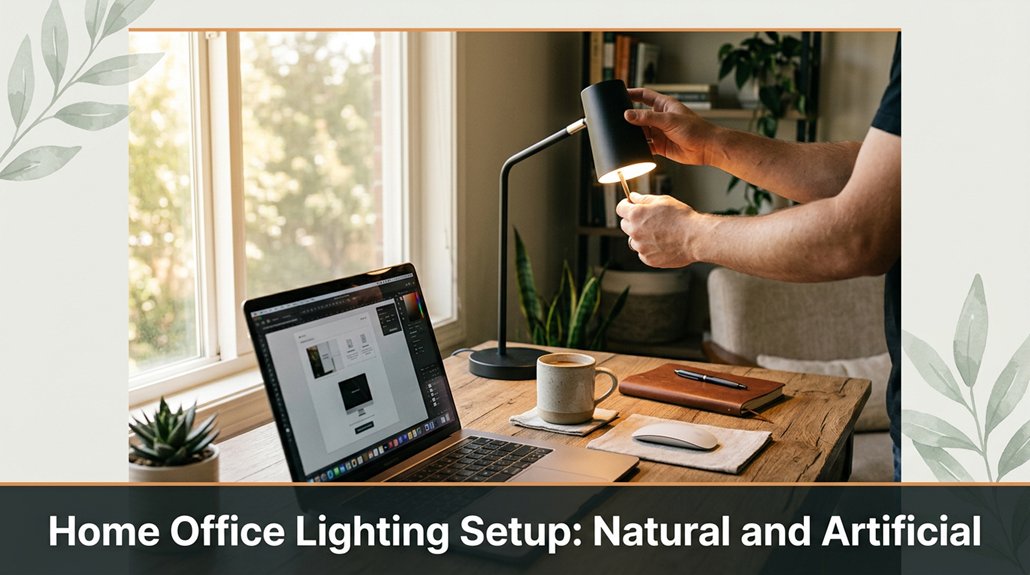
Balancing natural and artificial light in your home office can be tricky, especially if you’re tired of eye strain or glare. Push your desk near a window but avoid blocking the view harsh sunlight can be a real distraction.
Diffuse that sunlight with sheer curtains to make it more gentle. Then, add adjustable LED task lights with a 4000K tone flicker-free, of course and aim for about 300 lux to avoid overstimulation. Layer your lighting sources and keep natural light flowing in to boost focus and comfort. With these tweaks, you’ll be on your way to a well-lit space that minimizes eye fatigue.
This article contains affiliate links. If you purchase through them, I may earn a small commission at no extra cost to you. I only recommend products I genuinely believe in.
You might think, “Natural light is just a nice bonus,” but here’s the thing: balancing it with artificial lighting is actually a game-changer for your home office. This home office lighting setup prevents that annoying glare on your screen or harsh shadows that make work harder.
Start by positioning your desk near a window, because this allows natural light to illuminate your workspace. Keep in mind, direct sunlight can cause discomfort or glare; therefore, avoid placing your desk directly in the path of strong sunlight.
Next, add layered lighting to your setup. First, incorporate a good desk lamp, such as the BenQ e-Read LED Desk Lamp, because directed task lighting reduces eye strain.
Then, install overhead fixtures like LED recessed lighting, which provide general illumination without creating contrast. Finally, consider adding a subtle accent light, such as a Philips Hue Iris, for ambiance.
Ensure that the artificial lighting complements the natural light to create an even illumination across your workspace. The goal is to prevent bright spots or shadows that can lead to eye strain.
Key Fact:
The ideal lighting condition is an evenly lit workspace with no more than 300 lux difference between light sources.
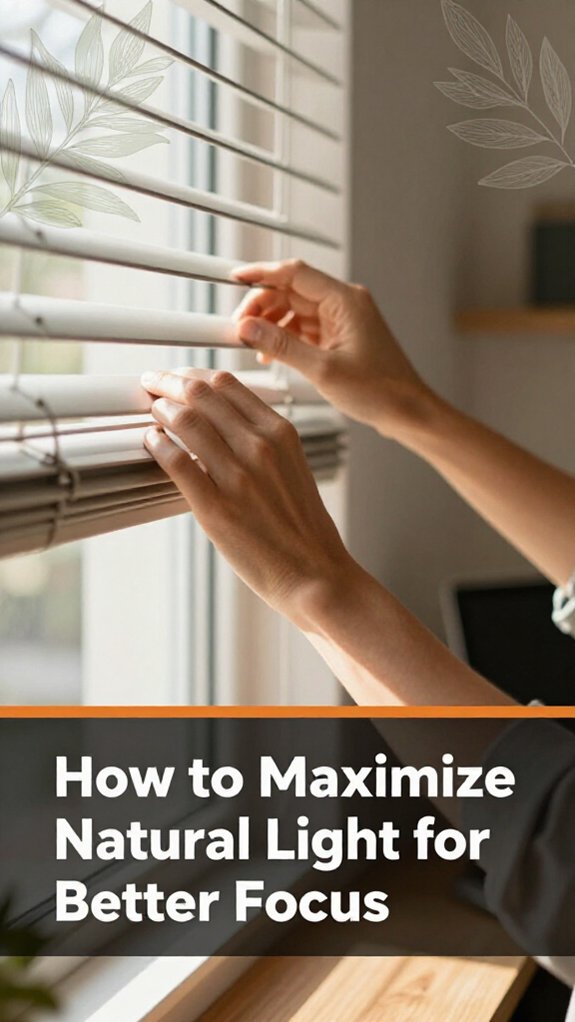
Maximizing natural light isn’t just about opening blinds and hoping for the best; it’s about working smarter, not harder, to get that sunlight working for you.
First, position your desk close to windows because proximity allows more light to reach your workspace without creating shadows or dark spots. Trust me, squinting at your screen all morning isn’t the goal.
Use light-colored curtains or sheer blinds to diffuse harsh rays because this reduces glare and prevents the feeling of being Sunbathing at your desk. Consider adjusting your desk angle or even your monitor height to catch that perfect beam without the glare.
Diffuse harsh rays with light-colored curtains reduce glare and avoid feeling like you’re sunbathing at your desk.
Raise the monitor until the top of the screen is at or just below your eye level to prevent neck strain because looking slightly down is less fatiguing on the cervical spine than looking straight ahead or upward.
If you’re fortunate enough to have multiple windows, play with their placement so natural light flows evenly across your workspace. This prevents uneven lighting that causes eye strain and fatigue.
Key Fact:
– Ideal monitor placement: the top of the screen at or just below eye level, 20 to 30 inches from your face for optimal comfort and reduced eye strain.
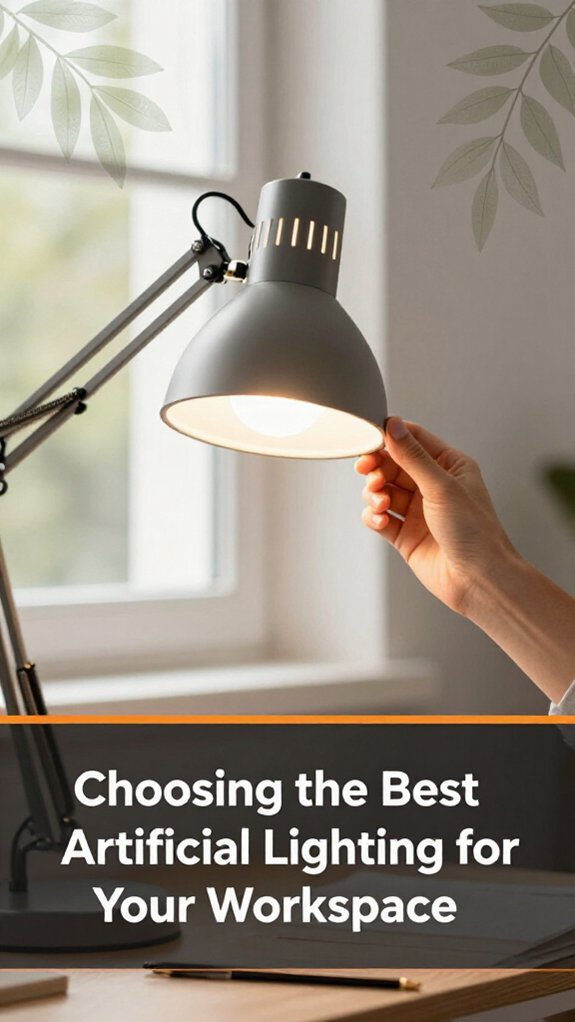
Ever find yourself squinting at the glow of the ceiling light, wishing it was a little kinder? Trust me, choosing the right artificial lighting isn’t rocket science, but it does take some thought.
You want lighting that’s bright enough without turning your workspace into a UFO landing pad. Choose LED bulbs with a color temperature around 4000K because this provides neutral light that isn’t harsh.
Lower the monitor until the top of the screen is at or just below your eye level, because looking slightly down reduces cervical spine strain and improves comfort during extended work periods.
Avoid overhead fluorescent flickers because they’re the visual equivalent of nails on a chalkboard, which can cause eye strain and headaches. Use emitters with a good CRI (Color Rendering Index) ideally above 90 because higher CRI makes your monitor and printed documents appear more natural and vibrant, reducing eye fatigue.
Stand-alone Fact:
CRI (Color Rendering Index) should be above 90 for optimal color accuracy in workspace lighting.
Select lighting fixtures that emit a consistent, flicker-free glow to prevent eye fatigue. Dimmable lights are recommended because they let you fine-tune the brightness to match your task, reducing glare and preventing overstimulation.
To avoid discomfort, set the brightness to approximately 300 to 500 lumens, depending on your workspace size and ambient light levels.
A key aspect for a comfortable workspace is light positioning, as proper placement can significantly reduce shadows and glare that contribute to eye strain.
Common Mistakes and How to Avoid Them:
When setting up task and ambient lighting, think of it like layering your favorite outfit each piece has a purpose, and together they create a look that’s both stylish and functional. You want your task lighting to be bright enough to avoid eye strain, but not so harsh it causes glare. An adjustable desk lamp, such as the BenQ e-Reading LED Desk Lamp, works best because it allows you to direct light precisely where you need it.
Step 1: Position your task lighting so that it illuminates your workspace without creating shadows or glare on your computer screen. For example, place the lamp to the side of your dominant hand to prevent shadows while writing or working.
Step 2: Adjust the brightness of the task light so that it’s 3,000 to 4,000 lumens because this range provides clear visibility without causing eye fatigue.
Now, add some ambient lighting soft, overhead light or wall sconces that fills the room without washing out your workspace. Usually, people forget the importance of balance; too much task lighting, and everything screams “look at me,” too little, and you’re squinting.
Step 3: Install ambient lighting fixtures such as dimmable ceiling lights or wall sconces at a height of 7 to 8 feet to distribute light evenly across the room. A good example is the Philips Hue White and Color Ambiance ambiance bulbs, which can be dimmed to suit your needs because softer light reduces eye strain and creates a relaxing environment.
Step 4: Set the ambient light brightness to approximately 100 to 150 lux, because this level provides enough general illumination without overpowering task lighting or causing visual discomfort.
Ineffective lighting setups often include overly bright task lights that cause glare or insufficient ambient lighting that forces you to strain your eyes. Avoid positioning task lights directly behind your monitor or facing you, which can cause reflections and make viewing uncomfortable. Instead, angle your task lighting and maintain a balanced mixture of ambient and task illumination.
Experiment with placement, brightness, and warmth of your lights. For example, use warm white bulbs with a color temperature of 2,700 to 3,000 Kelvin for ambient lighting, because warmer tones promote relaxation and reduce eye fatigue.
When fine-tuning your lighting, measure the distance of task lights from your work surface ideally, about 16 to 20 inches from your workspace for optimal brightness and coverage.
Get it right, and you’ll actually enjoy sitting at your desk instead of feeling like you’re under interrogation lights.
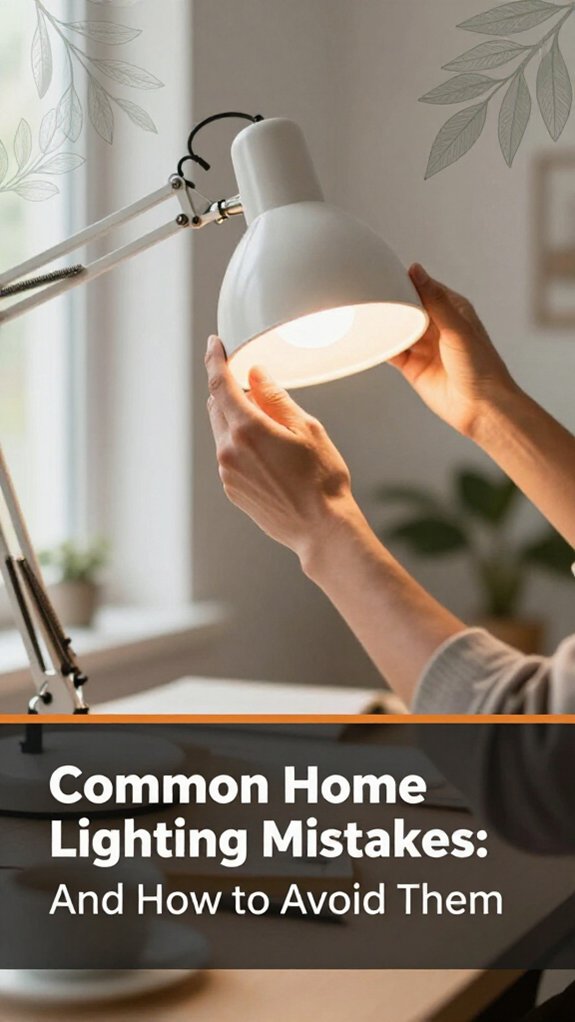
Have you ever finally plugged everything in, only to realize your home office lighting makes your monitor look like a headlights contest? That’s a common mistake. You probably overwhelmed your space with bright lights or placed fixtures behind your screen.
Here’s the thing: avoid glare by positioning lights to sidestep reflections on your monitor. When light reflects directly into your eyes or onto your screen, it causes glare, which reduces visibility and increases eye strain.
Don’t forget, uneven lighting causes eye strain. To prevent this, ensure your lighting setup is balanced and diffused.
| Mistake | Fix |
|---|---|
| Bright lights behind you | Place lights in front or to the side, not directly behind because backlighting can cause glare and reduce contrast on your screen. |
| Overly harsh fluorescence | Opt for softer, diffuse bulbs, such as LED bulbs with a color temperature between 2700K and 3000K, to create comfortable, even lighting. |
| Ignoring natural light | Use blinds or curtains to control natural daylight because unregulated sunlight can cause glare and flickering on your monitor. |
Here are specific tips to optimize your home office lighting:
Additionally, understanding the lighting environment of your home office helps prevent fatigue and visual discomfort.
Highlight Fact:
– Maintain your monitor at approximately 20 to 30 inches from your eyes, with the top of the screen at or just below eye level, because this position reduces neck strain and minimizes the need to squint or look up.
Remember: Don’t set your lighting and forget it. Continually adjust your setup for optimal comfort. Poor lighting will cause you to squint at your screen and question your life choices.
Adjusting your lighting for different tasks and times of day is where things get interesting because it requires flexibility and many people give up before mastering it.
Flexibility in lighting is key to mastering comfort and productivity throughout your day.
All right, let’s break it down:
1. Bright, cool light for intense work like writing or detailed design, because it keeps you alert and focused. Use daylight LED bulbs such as the Philips Hue White and Color Ambiance A19 or equivalent with a color temperature of 5000K to 6500K.
2. Softer, warmer light for meetings or reading something that doesn’t make you feel like you’re in an operating room. Opt for warm white bulbs, such as the GE Relax LED with a color temperature between 2700K and 3000K, to create a cozy atmosphere.
3. Use natural light in the morning because it’s richer in blue spectrum, which helps regulate your circadian rhythm. As the sun drops, gradually transition to artificial lighting. This switch supports your eye health by adapting to changing light conditions.
4. Adjust your lighting throughout the day by switching between natural and artificial sources to match your needs.
Specific Fact:
*Maximum natural light should be used between 6 am and 10 am to support alertness and mood.*
*Artificial light should be introduced gradually as natural light diminishes, starting around 4 pm in most latitudes.*
5. Don’t forget dimmable lights, because they help reduce eye strain during late-night or early-morning screen use. Use dimmable LED fixtures and dimmers compatible with your bulbs, such as Lutron Caséta Wireless Dimmer or Leviton Decora Digital Dimmer.
Look, it’s all about adaptability. Your lighting setup isn’t static; it’s dynamic just like your workday.
Remember to adjust your light levels based on the natural light available and your specific tasks to maintain optimal comfort and productivity.
Lighting heavily influences your mood and productivity. Bright, well-balanced light keeps you alert and focused, while dim or uneven lighting can make you sluggish or irritable.
Natural light boosts your energy and boosts your mood obviously, sunlight’s ideal, but if you’re stuck indoors, good artificial lighting is your best friend. You want enough brightness to avoid eye strain, but not so much that it causes headaches or glare.
Did you know eco-friendly lighting can cut energy bills by up to 75%? You should pick LEDs they last longer, use less power, and emit less heat, making them a win-win.
All right, you’re probably thinking, “Great, but I hate those harsh fluorescent bulbs.” No worries. Look for warm-colored LEDs, like 2700K, to mimic daylight.
Trust me, your eyes and wallet will thank you.
You can reduce glare by angling your monitor to avoid direct light hitting the screen, and using matte screen protectors helps diffuse reflections.
All right, toss some blackout blinds or curtains to block harsh sunlight, too. Make sure your light sources aren’t behind or directly above you; diffused, indirect lighting works best.
Honestly, it’s trial and error trust me, I’ve spent 20 minutes fiddling with placement before finding the sweet spot.
You want cost-effective lighting for your small home office, right?
All right, start with LED desk lamps cheap, energy-efficient, and adjustable. Avoid fancy smart bulbs if you’re on a budget.
Clip-on or wall-mounted lights save space and money. Think about using natural daylight whenever possible just make sure it doesn’t glare on screens.
And honestly, good task lighting beats fancy ambiance so pick simplicity and adjustability to keep costs down while brightening your workspace.
You should update or replace your home office lighting every 2-3 years, especially if it starts flickering, dimming, or your eyes feel strained.
I’m sure you’ve been 45 minutes into assembling something when you realize step 4 assumed something step 2 never told you.
Natural light may stay consistent longer, but LEDs or bulbs with flicker issues? They fade faster.
Replace to maintain clarity and comfort trust me, your eyes will thank you.
When it comes to lighting your home office, remember clear, balanced light beats all. Think of it like jazz you need both natural and artificial instruments playing in harmony. Set it up right, avoid common pitfalls, and you’ll work smarter, not harder. Because hey, no one wants to spend hours troubleshooting a flickering lamp or squinting at blurry screens. So, get it right the first time your eyes, focus, and sanity will thank you.





