Physical Address
304 North Cardinal St.
Dorchester Center, MA 02124
Physical Address
304 North Cardinal St.
Dorchester Center, MA 02124

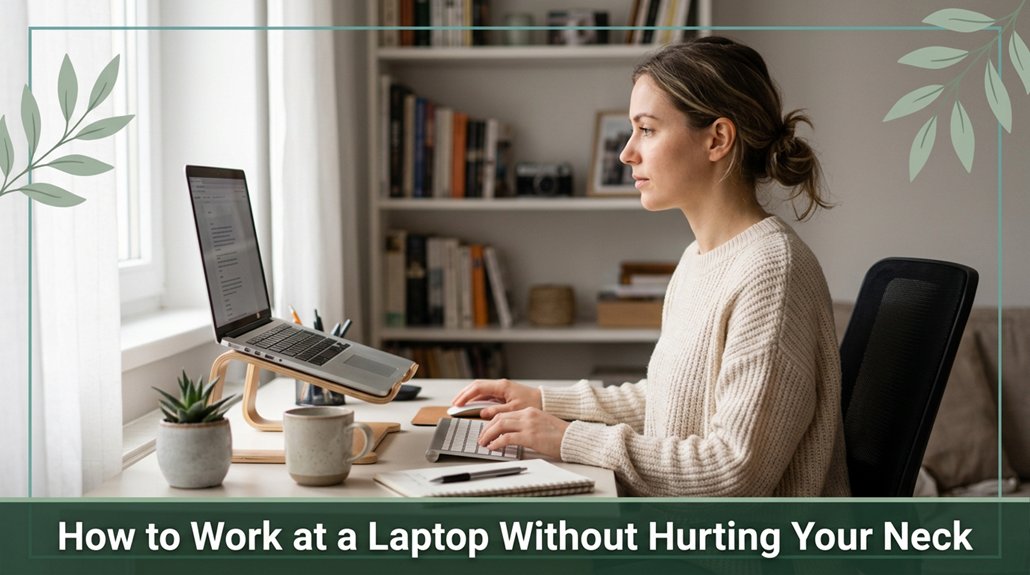
Looking at your laptop for hours can leave your neck feeling stiff and sore. The good news is, you can prevent that discomfort with some simple tips. Make sure your screen is at eye level so you don’t crane forward; sitting with your back supported, elbows at 90 degrees, and feet flat on the ground makes a big difference. Plus, taking tiny movements stretching and shifting positions every 30 minutes helps keep your spine happy. Keep reading for easy tricks to keep neck pain at bay all day long.
This article contains affiliate links. If you purchase through them, I may earn a small commission at no extra cost to you. I only recommend products I genuinely believe in.
If you have ever spent hours hunched over your laptop, you probably know that feeling of your neck becoming tighter and tighter, like an unwelcome brick sitting on your shoulders. That’s known as laptop neck pain, and it occurs because poor ergonomics puts extra stress on your cervical spine and surrounding musculature.
According to OSHA ergonomic guidelines, maintaining proper alignment of the head, neck, and shoulders helps reduce strain. When you sit in an awkward position, your intervertebral discs and ligaments endure increased pressure, and your neck muscles work overtime especially if your head juts forward or your upper limbs, like your arms and wrists, are unsupported.
Research on spinal biomechanics suggests that a forward head posture at an angle exceeding 20 to 30 degrees (which is common when looking down at screens) can significantly elevate strain on the cervical vertebrae and soft tissues.
Hunched over your laptop, causing neck tension and strain from poor ergonomics and misalignment.
Poor posture can also lead to long-term muscle imbalances, making it even harder to maintain proper alignment over time. All right, your muscles become fatigued, triggering discomfort and stiffness. If your head is positioned forward, the cervical extensor muscles must work harder to hold it up, leading to muscle fatigue.
The pain and stiffness often become noticeable around the third or fourth hour of sustained poor posture, which can impact your productivity and comfort. Adjusting your workspace to promote proper ergonomic alignment can help prevent these issues before they become chronic.
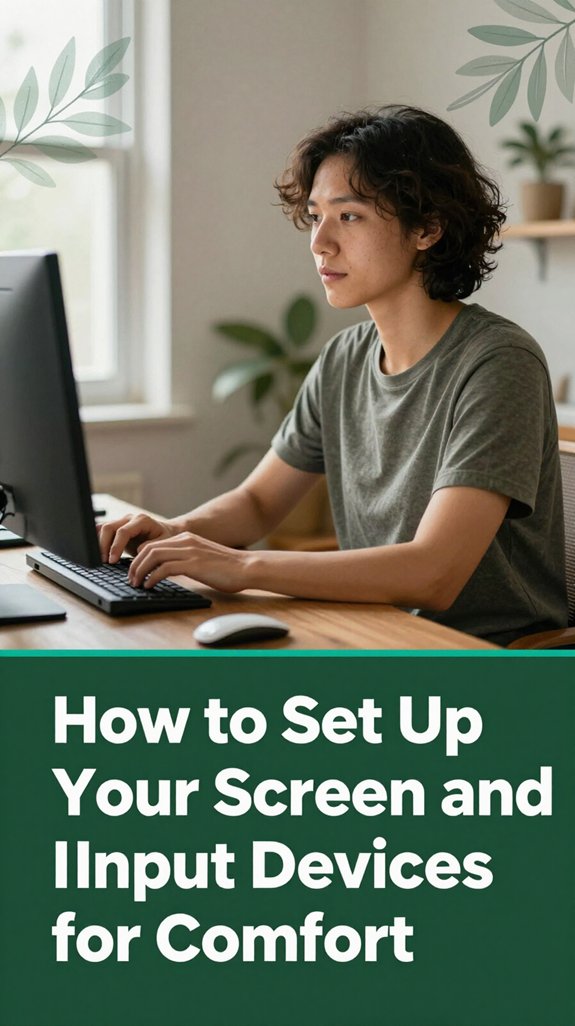
Getting your screen setup right is like giving your neck a much-needed vacation because, according to OSHA ergonomic guidelines, your eyes and neck are doing enough work without adding extra strain. You want your screen’s top edge at or just below eye level so you aren’t craning up or down all day.
Imagine your eyes landing on the top third of the screen that’s your quick check for comfort. Keep your monitor centered with your torso and keyboard so you don’t have to twist or bend repeatedly. For people who wear bifocals, lowering the screen slightly can reduce neck strain because they won’t have to stretch their neck to look through the lenses.
Additionally, proper placement of the monitor can prevent unnecessary neck rotation and improve your overall ergonomic setup. Good monitor placement also helps maintain healthy spinal biomechanics, reducing long-term discomfort. And for optimal posture, avoid placing laptops directly on your lap or flat on your desk, as forward head posture and rounded shoulders are associated with neck pain and thoracic kyphosis research on spinal biomechanics suggests.
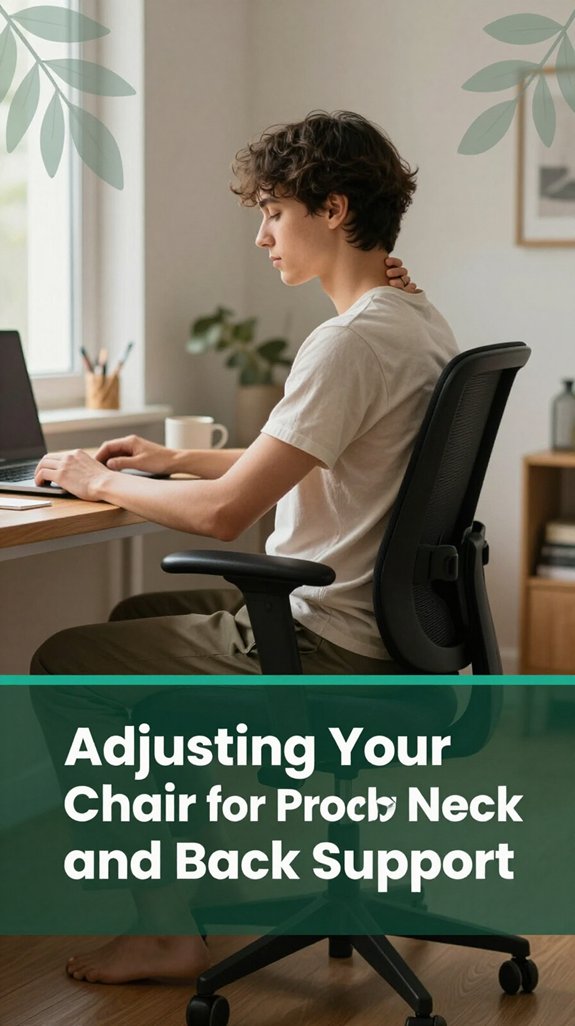
All right, let’s talk about your chair because it’s basically the foundation of your comfort and neck health. You want it set so your forearms are roughly parallel to the desk, elbows at about 90°, and shoulders relaxed. If it’s too low, you’ll find yourself shrugging or hunching trust me, I’ve been there and that strains your neck. According to OSHA ergonomic guidelines, a chair height that keeps your elbows at 90° reduces shoulder and neck strain.
If it’s too high, your wrists extend awkwardly, and you might lean forward, which also causes discomfort. Many ergonomists recommend adjusting your chair so your wrists are in a neutral position and not overly extended. Feet should be flat on the floor or supported by a footrest; having your feet elevated or dangling can increase pressure on your lower back and knees. Your knees should be at a 90–95° angle this helps maintain proper circulation and spinal alignment. If needed, use a footrest to achieve this better positioning.
Your hips should sit level or slightly higher than your knees, according to Mayo Clinic recommendations, to promote a healthy lumbar curve and reduce strain on your lower back. The lumbar support of your chair should align with the natural lumbar curve of your lower back; this encourages proper spinal alignment and can help prevent or alleviate conditions like lumbar disc herniation or sciatica. Proper back support ensures your thoracic and lumbar vertebrae maintain their natural lordotic curves, which is crucial for avoiding thoracic kyphosis and lower back pain.
Additionally, adjusting your chair’s lumbar support properly can significantly improve overall posture. Here’s a quick overview:
| Setting | Ideal Position |
|---|---|
| Chair Height | Elbows at 90°, shoulders relaxed |
| Feet | Flat on the floor or footrest |
| Hip Height | Level or slightly higher than knees |
| Back Support | Lumbar aligned with the lower back’s natural curve |
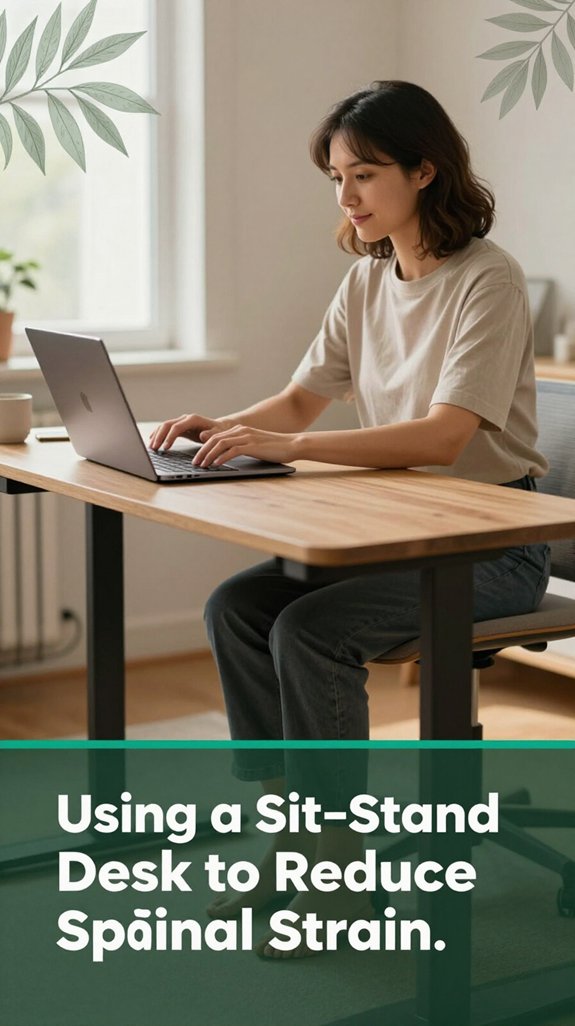
Studies show that sitting all day isn’t just uncomfortable it actually messes with your spine. That prolonged slump puts load on your intervertebral discs and tightens your back muscles, making you feel like a stiff board by lunch, according to OSHA ergonomic guidelines. Prolonged sitting increases spinal disc pressure, which can accelerate wear on these discs and heighten injury risk over time. Enter the sit-stand desk, which can be a game-changer for spinal health. Here’s the thing:
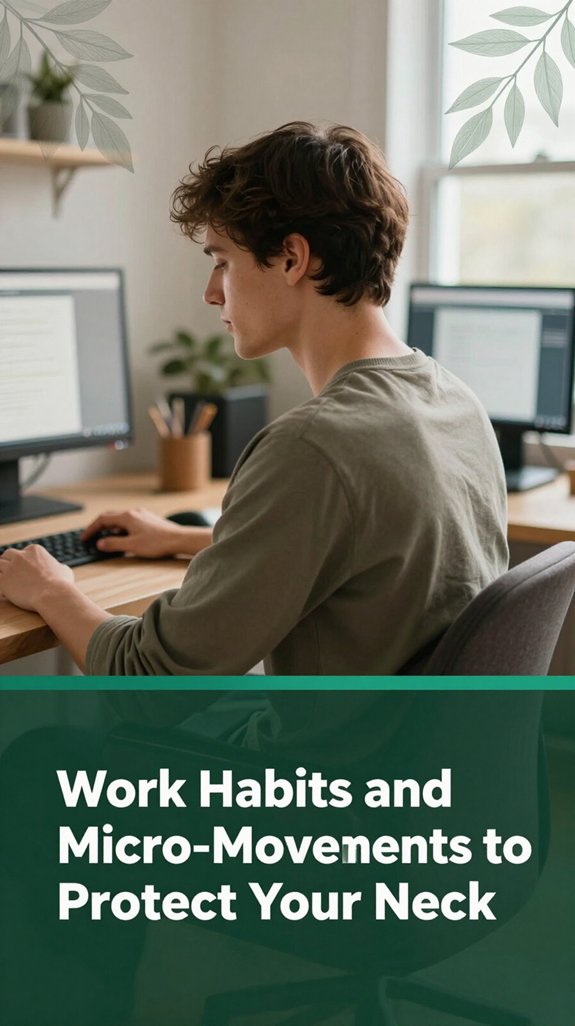
You’ve probably felt it your neck starting to ache after a few hours of staring at your screen, your shoulders creeping up just a little, that annoying tightness sneaking in.
Here’s the thing: frequent posture resets are your friends. Set a timer for every 30 to 60 minutes, even just 1 to 2 minutes, to check your position and move slightly away from that fixed gaze. This practice interrupts the constant forward head tilt that can load the cervical spine, as if your head weighs 60 pounds at a 60-degree bend, according to research on spinal biomechanics.
Try alternating tasks typing, reading, quick paperwork to distribute the load across different postural muscles. To reduce strain on your cervical and thoracic regions, avoid prolonged static postures.
Additionally, adopt smart visual habits: look 20 feet away for 20 seconds every 20 minutes, as recommended by ergonomists to prevent eye strain and neck discomfort. Incorporating regular micro-movements can also help reduce muscle tension and improve circulation, benefiting your overall spinal health. Your neck and eyes will thank you trust me.
Maintaining this micro-movement routine can help prevent the development of chronic neck conditions such as cervical disc degeneration or thoracic kyphosis. Proper ergonomics and regular movement are essential for preventing long-term neck issues and maintaining overall spinal health.
Ever notice how a simple stretch can feel like a mini miracle when your neck is tight after hours at the laptop? I’ve been there. Your neck gets stiff because you’re basically holding the same position, which causes the small cervical muscles to tire according to research on spinal biomechanics. Maintaining good posture while working helps prevent muscle fatigue and strain. Here’s what you can do to relieve that tension:
People who sit more than 6 hours a day should incorporate these exercises regularly.
Starting with these simple stretches can significantly reduce neck and shoulder discomfort, making your day more comfortable and preventing muscle fatigue.
When you’re hunching over your laptop all day, it’s easy to let your head drift forward, your shoulders shrug up, and your spine slouch per research on spinal biomechanics suggests this can lead to strain and discomfort.
Keep your head level with your ears directly over your shoulders to maintain proper cervical alignment. Position the top of your screen at or slightly below eye level, which is about 2–3 inches below the top bezel; this helps limit neck bending and reduces strain on the cervical and upper thoracic regions.
Maintain level head position with ears over shoulders to reduce neck strain and support proper cervical alignment.
Sit back with your buttocks against the back of the chair, maintaining a neutral pelvis meaning the lumbar lordosis is preserved to support the lumbar vertebrae properly. Proper posture adjustments can make a significant difference in preventing long-term discomfort.
Keep your elbows bent approximately 90–120° (which ensures your forearms are roughly parallel to the ground), with forearms supported on armrests or desk surfaces, and wrists kept straight to prevent median nerve compression associated with carpal tunnel syndrome.
According to OSHA ergonomic guidelines, shifting positions regularly about every 30 minutes is recommended because the body benefits from movement, which reduces cumulative musculoskeletal stress. Incorporating brief stretches or standing breaks can further improve circulation and decrease muscle fatigue.
A good ergonomic workspace isn’t about using fancy furniture or buying the latest tech gadgets; it’s about making small, smart adjustments that respect your body’s natural design. You should:
You should take a break every 50-60 minutes of laptop work, ideally 5-10 minutes, to prevent neck and eye strain.
All right, I know it sounds like a lot, but think of it as giving your muscles a mini-shutdown, like turning off a stubborn computer.
During that time, stretch, walk around, or just look away from the screen and focus on something in the distance.
Trust me, your neck will thank you.
You’ll notice signs like persistent neck ache, stiff or spasming muscles, headaches at the back of your head, or tenderness when you touch your neck.
If your head sticks forward, your shoulders slump, or your monitor’s too low or far away, you’re likely straining your neck.
All right, your body’s telling you something’s off probably because your setup’s asking your muscles to hold weird, awkward positions all day.
Yes, exercises really can prevent laptop-related neck pain. I’ve learned that doing simple stretches and strength moves like chin tucks or shoulder blade squeezes keeps your muscles balanced and your posture healthier.
You’re fundamentally training your muscles to hold your head up right and distribute forces more evenly. Regularly doing these short routines, especially before your neck starts complaining, can actually stop pain before it begins think of it as a pre-emptive shield.
You’re probably making the mistake of looking down at your laptop or phone, turning your head and stretching your neck like a curious cat.
The problem is, when you do that, gravity pulls your head forward, stacking weight like a yoke on your spine.
Sitting too low or far from your screen makes you hunch or crane your neck, turning a simple task into a pain parade.
All right, no wonder your neck’s protesting.
You’ll know your screen height’s right if the top of your display is around eye level no neck arching back or dropping chin too much.
When you’re seated, your eyes should naturally look slightly downward, about 15–20°, at the middle of the screen.
If you’re constantly tilting your head up or down, or straining to see, it’s a sign you need to tweak that height.
Trust your body if it feels good, you’re close!
Alright, just like a good tune, your neck needs to stay in sync with your workspace. If you’re mindful of your posture and take tiny breaks, you can avoid turning into a human question mark. Remember, prevention is smarter than rehab. So, treat your neck like a vintage sports car regular checks, proper alignment, and a little love and you’ll keep rolling smoothly through those long workdays. Trust me, future you will thank present you at the barbecue.





