Physical Address
304 North Cardinal St.
Dorchester Center, MA 02124
Physical Address
304 North Cardinal St.
Dorchester Center, MA 02124

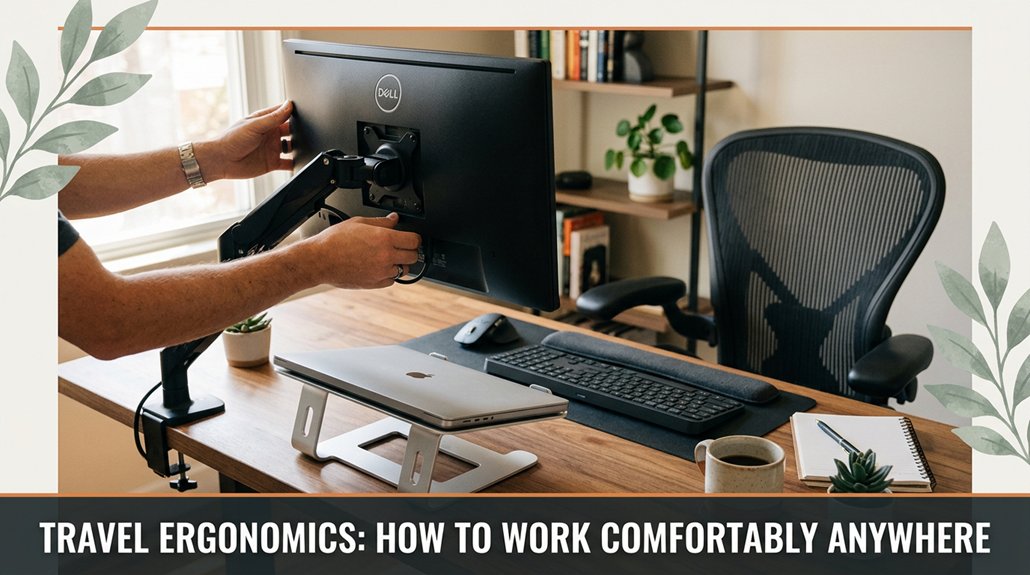
Look, you know how frustrating it is to juggle a laptop, mouse, and snacks in tight spaces. Here’s the thing: set up your device on a stable, foldable surface at waist height, so your elbows stay at 90 degrees and your neck isn’t a pain in the back.
Use a lightweight, adjustable laptop stand and an ergonomic mouse trust me, this keeps you sane. Keep your monitor just below eye level, and take regular breaks. Want more tips? Keep going.
This article contains affiliate links. If you purchase through them, I may earn a small commission at no extra cost to you. I only recommend products I genuinely believe in.
Here’s the thing: if your travel setup isn’t ergonomically sound, you’re basically asking for trouble back pain, neck stiffness, and a headache that lasts longer than the flight itself.
When you’re doing remote work on the go, travel ergonomics matter more than you think.
You may think, “It’s just a quick setup,” but that’s when post-work aches sneak in. You want to avoid cramped keyboards and screens that are too low or too high.
All right, it sounds obvious, but you’d be surprised how often it’s ignored.
Your goal? Keep your neck aligned with your screen, elbows at a 90-degree angle, and feet flat on the ground.
Specific Ergonomic Recommendations:
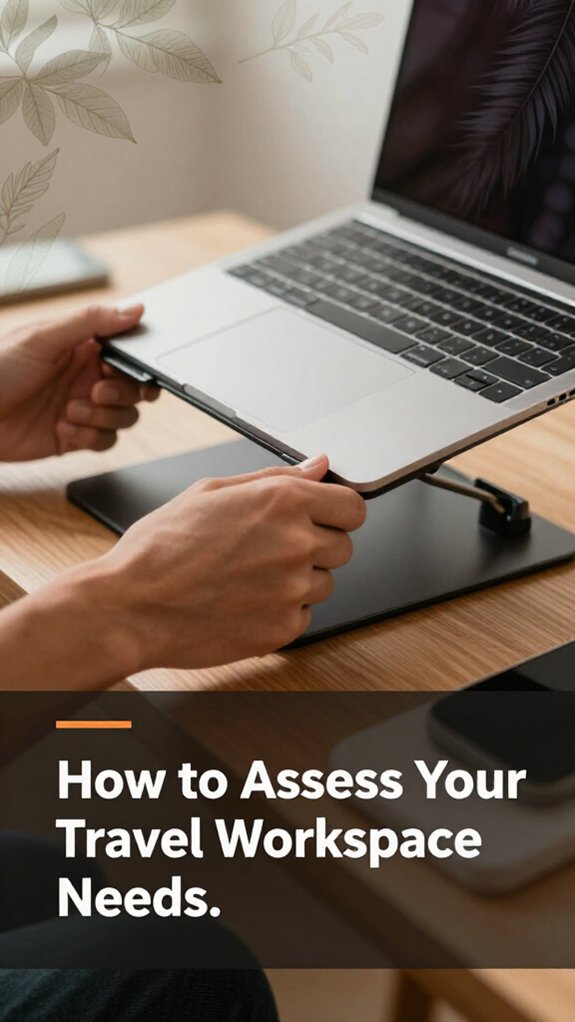
Before you start packing that portable Logitech MX Keys keyboard or hunting down the perfect travel mouse, you’ve got to figure out what your workspace actually needs because understanding your requirements makes your setup more efficient and comfortable.
Here’s the deal:
Specific measurement guideline:
Position your laptop or monitor so the top of the screen is at or just below eye level, approximately 20 to 24 inches from your eyes, to promote neutral neck positioning. Additionally, understanding ergonomic support principles can help you make the most of limited or variable workspace conditions during travel.

When it comes to choosing ergonomic gear for travel, the key is balancing comfort with portability because if your setup isn’t easy to carry, it’s probably not going to make it past your taxi ride. You want gear that’s lightweight but still offers decent support.
Think foldable keyboards like the Logitech K380, slim laptop stands such as the Twelve South Curve, ergonomic mice like the Logitech MX Vertical, and collapsible footrests such as the Roost. All right, avoid gadgets that feel like they weigh a ton because you’ll regret lugging them around all day.
Now, look for adjustable features because a one-size-fits-all solution clearly doesn’t apply here. Adjust the height of your laptop stand so the top is at or just below your eye level, which is approximately 20 to 30 inches from your face. This helps prevent neck strain because looking slightly down reduces cervical tension.
Here’s the thing: the perfect gear fits your workflow, your destination, and your carry-on limits. Measure your elbow height when seated to set your workspace at an optimal level because an elbow height of about 45 degrees helps keep your shoulders relaxed and reduces strain. Additionally, understanding ergonomic positioning can greatly enhance your comfort during travel.
Obviously, you’re not assembling an entire ergonomic lab, but a little effort upfront saves you from back pain later.
Common mistakes to avoid:
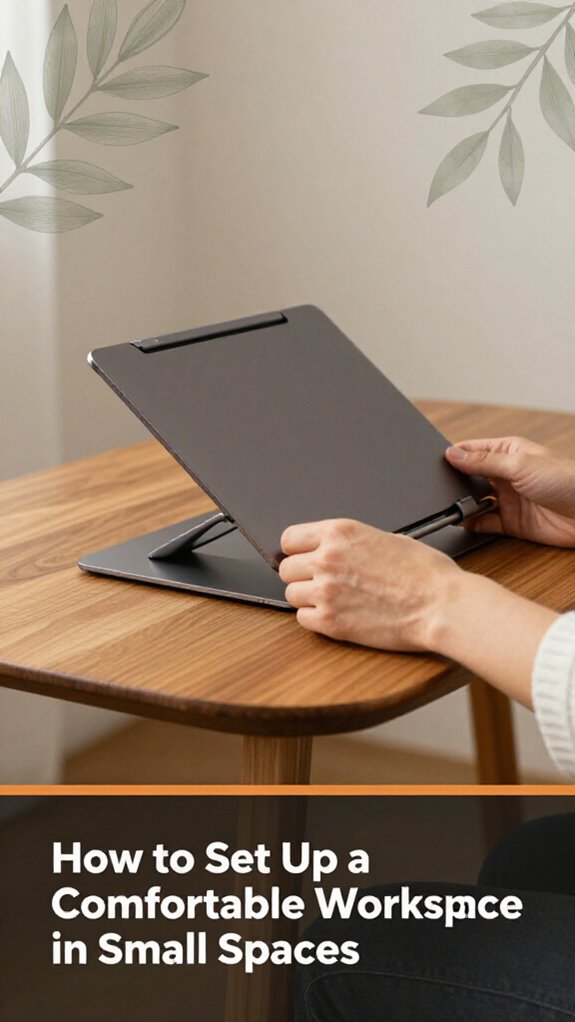
A small space doesn’t mean you have to sacrifice comfort or productivity; it just means you need to be smarter about how you set things up. Think vertical, multi-purpose, and minimal.
If you’ve ever tried to work on the go and ended up with a stiff neck or sore back, you know good posture isn’t just for the office. Here’s the thing: keep your back straight, shoulders relaxed, and feet flat. You’d be surprised how many people slouch because they’re trying to squeeze into tight spaces or get comfortable quickly.
Find a flat surface, ideally at waist height, because working at the correct height reduces strain on your neck and back. Use a cushion if needed because finding the perfect height on the fly is like hunting for a unicorn.
Position your screen at eye level yes, that means stacking your devices if you have to. That’s how you avoid turning into a human question mark.
Important measurement fact:
*Raise the monitor until the top of the screen is at or just below your eye level,* because looking slightly down reduces strain on the cervical spine compared to looking straight ahead or upward. Maintaining correct posture at all times is essential, even when working remotely or in unconventional settings.
Steps to follow:
Long work sessions can turn your back into a pretzel if you’re not careful, so let’s talk about how to keep yourself from turning into a human origami.
First, adjust your chair height so your feet are flat yes, flat on the ground, and your knees are at a 90-degree angle, because this helps maintain proper spinal alignment.
Second, position your monitor at eye level, ideally so the top of the screen is at or just below eye level, because looking slightly down reduces strain on your cervical spine.
Show Standalone Fact:
*Position the monitor 20 to 30 inches from your face.*
Third, keep your wrists straight when typing, because bent wrists can cause repetitive strain injuries like carpal tunnel syndrome.
Fourth, use a supportive, cushioned seat that promotes good posture instead of a plush throne that encourages slouching.
Additional Tip: Make sure to regularly adjust your workspace to prevent static postures that can lead to strain and discomfort.
Common Mistakes and Corrections:
– Mistake: Sitting with your feet dangling or toes pointed upward, which can cause poor circulation and back strain.
Solution: Make sure your feet are flat on the ground, supported by a footrest if necessary.
– Mistake: Looking up or down at the monitor, causing neck tilting and discomfort.
Solution: Raise or adjust your monitor to align with your eye level.
– Mistake: Wrists bending upward or downward while typing, leading to strain.
Solution: Use ergonomic keyboards and wrist supports to keep wrists straight.
Keep these points in mind, and your spine will thank you long after your marathon session is over.
When you’re working on the road, sitting in one place for hours feels about as productive as trying to dry your laundry with a hairdryer so it’s important to incorporate movement and breaks. Every hour, stand up because movement prevents stiffness and improves circulation. Stretch your legs, shrug your shoulders, or do a quick neck roll, because these actions help maintain muscle flexibility and reduce fatigue.
It doesn’t have to be fancy just enough to get the blood flowing.
If you’re stuck at a tiny table, shift your weight by adjusting your seated position or folding and unfolding your legs, because changing posture relieves pressure on your lower back and hip muscles.
Remember: Set a timer on your device to remind you to move because humans tend to forget. Use your phone’s alarm or a dedicated reminder app to prompt regular breaks. Your goal is to make movement a habit, not an afterthought, because consistent activity prevents stiff backs and headaches.
Important ergonomic fact:
Position the monitor so that the top of the screen is at or just below your eye level, approximately 20 to 30 inches from your face, to reduce neck strain.
Creating a consistent ergonomic setup anywhere might sound like trying to build a spaceship in your backyard, but honestly, it’s mostly about knowing what to look for and what not to ignore. You want your screen at eye level because looking slightly down reduces neck strain.
Adjust your chair so your feet rest flat on the ground, because dangling legs can cause discomfort. Keep your keyboard close, at a height where your elbows stay relaxed, to prevent shoulder tension. And don’t forget lighting glare on your screen ruins everything, so position your workspace away from direct sunlight or bright light sources.
Specific Measurements and Tips:
Step-by-step ergonomic setup:
Common Mistakes and Solutions:
Now go stake your claim ergonomics, the battle’s half won.
Here’s the thing: you don’t need fancy gadgets to boost your comfort. First, adjust your chair height so your feet are flat on the floor and your knees form about a 90-degree angle this prevents slouching and strain.
Sit close enough to your desk so your elbows are roughly at a 90-degree angle when typing, because this minimizes shoulder and wrist tension.
Raise your computer monitor until the top of the screen is at or just below your eye level, because looking slightly down is less fatiguing on the cervical spine than looking straight ahead or upward.
Use books, notebooks, or whatever’s handy to elevate your screen if it’s too low.
And don’t forget to take breaks. Even a few seconds to stretch your wrists, neck, and back can prevent long-term pain.
Common mistakes include:
No extra gear is required just some clever positioning and a little discipline. Easy, right?
If you’re tired of lugging around bulky ergonomic gear that’s more trouble than it’s worth, good news: You don’t have to sacrifice comfort when you travel. Plenty of tech keeps your workspace ergonomic without taking up half your bag.
Ergonomic Tip:
– Maintain a monitor distance of 20 to 30 inches from your eyes, with the top of the screen at or just below eye level, to prevent eye strain and neck fatigue.
All right, plug in and go no chiropractor required.
Troubleshooting common travel ergonomics problems often feels like trying to fix a car with a random set of tools and no manual. You’re in a strange hotel or a cramped airplane seat, and suddenly your neck aches.
First, check your monitor height because it should be at or just below eye level looking slightly down is less fatiguing on the cervical spine than looking straight ahead or upward. Raise the monitor until the top of the screen is at or just below your eye level.
Next, if your lower back is hurting, use a cushion or a folded towel because providing lumbar support helps maintain the natural curve of your spine and prevents discomfort.
Look to adjust your seat or posture regularly because static positions are your enemies and lead to stiffness and fatigue.
Remember, your setup will vary depending on your body size and space constraints. Measure your elbow height from the ground and set your seat height so your elbows are at a 90-degree angle when typing, which helps reduce shoulder strain.
Key measurement:
Avoid these common ergonomic mistakes:
You customize ergonomics by adjusting your setup for each environment. First, identify your key tools laptop, mouse, keyboard and position them at elbow height.
Use stackable books or a portable stand for your laptop if wanting an adjustable desk isn’t an option. Lock in a neutral wrist angle.
Every space is different, so tweak your chair height, back support, and screen distance until it feels natural. Trust me, it’s a constant balancing act like assembling furniture, but for your comfort.
Think of upgrading your travel ergonomic accessories like tuning a vintage radio you want clear sound without breaking the bank.
You can start with foam padding or a lumbar cushion, which costs next to nothing but dramatically boosts comfort. Look for sturdy yet affordable portable laptop stands and keyboard mouse combos on sale.
All right, don’t forget about DIY fixes use a binder clip as a makeshift cable holder; it’s shockingly effective!
You manage multiple devices by investing in a good monitor arm, a charging dock, and a portable stand.
Attach your monitor to the arm, so it’s adjustable. Keep your phone and tablet on a multi-device stand or stacked risers.
All right, now plug everything into a power strip with surge protection.
You’re probably spotting signs of ergonomic strain if your neck feels like it’s been twisted in a hamster wheel, or your shoulders ache like you’ve been carrying boulders all day.
If your back’s protesting like it’s been betrayed, or your wrists feel tingly like a thousand tiny pins have claimed residence, watch out.
These signals are your body’s way of saying, “Hey, time to fix your setup before you turn into a human pretzel.”
You adapt ergonomic tips for team travel by prioritizing portability and flexibility.
Bring a lightweight, adjustable laptop stand, and a foldable mouse pad.
Use shared desks wisely adjust your chair and monitor height as best as you can, and bring your own ergonomic gear if possible.
All right, it’s about customizing what you can control, even if the workspace feels like a suitcase explosion.
Trust me, small tweaks save your back on the road.
So, there you go. Setting up ergonomic comfort anywhere isn’t rocket science it’s more like assembling furniture where the instructions are vague and you’re pretty sure one screw is missing. But once you get it, it’s smooth sailing. Think of it like this: a comfy workspace is your best traveling buddy, making those long hours a breeze. Trust me, once you nail it, you’ll wonder how you ever struggled without these hacks.





