Physical Address
304 North Cardinal St.
Dorchester Center, MA 02124
Physical Address
304 North Cardinal St.
Dorchester Center, MA 02124

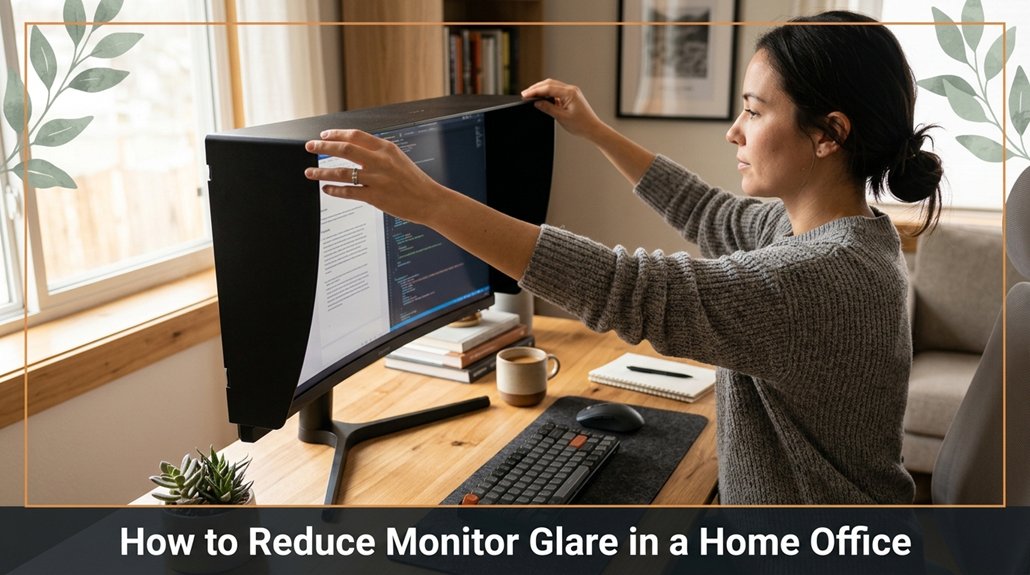
Struggling with glare on your monitor while working at home? You’ve probably noticed how tricky it is to stay comfortable and focused when reflections bounce off the screen. The good news is, a few simple adjustments can make a big difference. Try angling your monitor slightly downward and keep it directly in front of you that way, you avoid neck strain and glare at the same time.
Close those blinds or draw curtains during bright sunny moments, and consider dimmer switches to soften the room’s lighting. Anti-glare filters can also be a game-changer, and adjusting your screen brightness to match ambient light helps reduce eye strain. Keep these tips in mind, and you’ll find your workspace much more comfortable and your eyes will thank you.
This article contains affiliate links. If you purchase through them, I may earn a small commission at no extra cost to you. I only recommend products I genuinely believe in.
Now, here’s the thing about monitor glare: it’s sneaky. You think you’ve set everything up right, but glare sneaks in like a bad DJ at last call. The problem? It reduces monitor visibility, making details fade into the background or worse, give you a headache. You might blame your screen, but most times it’s your environment. Bright windows and shiny surfaces those are the culprits.
Honestly, you’ve probably spent way more time trying to see your screen clearly than necessary.
You’ve likely spent more time squinting at glare than actually working.
All right, the fix? Position your monitor so that light hits it at a slight angle not straight on. This reduces direct reflections, which cause glare.
Step 1: Adjust the position of your monitor so that the light source such as a window or lamps does not reflect directly on the screen because, if light hits the screen at a shallow angle, reflections are minimized.
Step 2: Lower the blinds or close the curtains behind or beside you to block out sunlight, because controlling natural light reduces glare.
Step 3: Reposition the monitor until the reflections diminish and the screen quality improves because proper positioning ensures you see the display clearly without excessive contrast or reflections.
Highlight Fact:
Position your monitor so that the light source hits it at an angle of approximately 15° to 30°, because this minimizes glare without causing strain.
Easy, right? Well, mostly. Just follow these steps to optimize your workspace and reduce monitor glare effectively.
Ever notice how glare seems to appear out of nowhere, like an uninvited houseguest who refuses to leave? It’s usually because you haven’t pinpointed the real troublemakers. Here’s a quick chart to help you identify common glare sources:
| Light Source | What to Look For | How to Fix It |
|---|---|---|
| Windows | Direct sunlight, reflections on surfaces | Close curtains, add blinds, or reposition your workspace to avoid direct sunlight; because glare from windows can cause discomfort and reduce visibility. |
| Overhead Lights | Bright bulbs, shiny fixtures with glossy finishes | Use fixtures with matte finishes, replace bulbs with lower wattage (e.g., 60W equivalent LED bulbs), and install dimmer switches to control brightness. |
| Lamps and Task Lights | Positioned behind or beside the monitor | Adjust or move lamps away from the screen, ensuring the light source is positioned at an angle that avoids direct reflections. |
| Screen Reflections | Glass or glossy surfaces on screens or furniture | Tilt your monitor to reduce reflections, and consider applying an anti-glare screen filter to minimize surface glare. |
Additional Tips:
Standout Fact:
– The ideal monitor distance for reducing glare and eye strain is approximately 20 to 30 inches from your eyes, depending on your screen size and resolution.
Common Mistakes and Solutions:
Mistake: Sitting too close to the monitor, which increases visibility of reflections.
Why it happens: It’s tempting to sit closer for detail, but this amplifies glare.
Solution: Maintain a distance of 20 to 30 inches, which allows for clear viewing while minimizing glare.
Mistake: Using overly bright bulbs without dimming controls.
Why it happens: Bright lighting can cause discomfort and reflections on glossy surfaces.
Solution: Use dimmer switches or replace bulbs with lower wattage options designed for ergonomic comfort.
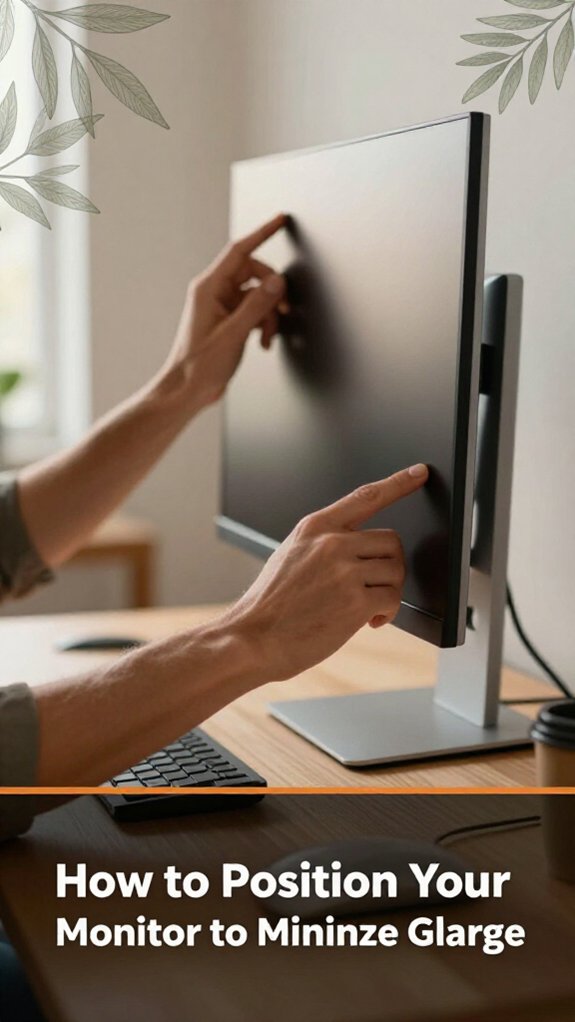
There’s a good chance your monitor isn’t exactly where it should be, so let’s fix that first. You want your monitor directly in front of you, not turned at an awkward angle, because facing the screen head-on reduces neck strain and improves visibility.
Think of it as facing the screen directly, not from the side. Lower the monitor to just below eye level on your adjustable monitor stand or mount, because looking slightly down is less fatiguing on the cervical spine than looking straight ahead or upward. Tilt the monitor slightly downward about 10 to 20 degrees so you look slightly down at the screen, which helps reduce glare and eye strain.
Don’t tilt the monitor so far that you have to crane your neck or compromise visibility. Position the monitor so that the glare from windows or lighting isn’t reflected onto the screen. This usually involves moving it back or swiveling it slightly.
For example, if you notice reflections, angle the monitor away from the light source to avoid direct glare, because reflections can cause eye fatigue and reduce screen clarity. Sitting at the correct monitor height is crucial for neck pain relief and comfort during long work sessions.
Sit at an optimal distance from your monitor, which is approximately 20 to 30 inches away roughly arm’s length because this distance minimizes eye strain and ensures comfortable viewing angles. Key Fact: – The optimal viewing distance for a computer monitor is 20 to 30 inches from your eyes.
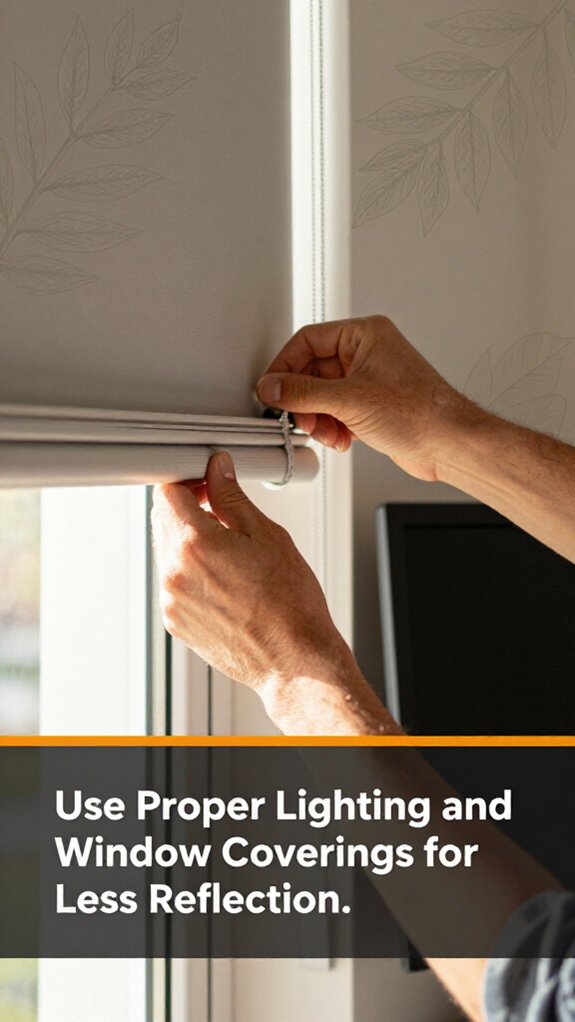
Bright lighting is great, but it can start reflecting off your screen and turning your monitor into a shiny mirror. You’ve probably experienced this trying to set up your workspace perfectly, only to notice sunlight bouncing directly into your eyes and on your monitor.
First, aim your light sources whether lamps or overhead lights away from your screen, because this reduces the chance of glare reflecting back at you. Use dimmer switches if available, so you control the brightness and avoid overly bright lighting that causes reflections.
Next, consider window coverings such as blinds or curtains. They aren’t just for privacy; they help block or diffuse glare, especially during bright afternoon hours when sunlight is most intense. Proper lighting positioning can make a significant difference in reducing monitor glare.
Additionally, adjust the angle of your windows. Tilt window sashes slightly to prevent sunlight from bouncing directly onto your screen. For example, tilting the window at a 10-15 degree angle away from your monitor can significantly reduce reflections.
Important measurement:
– Position your monitor 20 to 30 inches from your face, with the top of the screen at or just below eye level, to reduce neck strain and improve viewing comfort.
Common mistake:
Leaving blinds or curtains fully open during bright sunlight can cause intense glare and reflections. Instead, partially close blinds or draw curtains to diffuse sunlight, which minimizes glare without sacrificing natural light.
When you’re tired of fighting glare by tweaking lights and curtains, adding anti-glare screen protectors or filters is a practical solution. All right, these stick right onto your monitor, and trust me, they work wonders.
First, wipe your screen clean with a microfiber cloth because dust and fingerprints can cause bubbles under the filter, impairing its effectiveness.
Next, carefully align the anti-glare filter or protector with your monitor edges, ensuring it fits smoothly without trapping air.
Most filters are adjustable or come with instructions, but the key is fitting them smoothly without trapping air because air bubbles can increase glare and reduce visibility.
Take your time: don’t rush this part, as a wrinkled or misaligned filter invites more glare and reflection issues.
Here’s a useful tip: the standard monitor height should place the top of the screen at or just below eye level. The ideal viewing distance from your monitor is between 20 and 30 inches because this reduces eye strain and maintains clear visibility.
Recognizing and adjusting for mouse shoulder pain can further enhance your comfort during long hours at your desk.
Adjusting your monitor settings might seem straightforward, but if you don’t set it right, glare and eye strain will keep haunting you.
All right, first, crank down your screen brightness because glare thrives in excess light. It’s probably set way too high from the factory, and your eyes don’t need to look into the sun.
Next, lower contrast slightly for easier reading because high contrast can intensify reflections. Then, look into your display’s color temperature warm tones are easier on your eyes during long hours. Sometimes, those settings are hidden deep in your operating system or monitor menu, so don’t be shy about digging.
And here’s the thing: every setup is unique, so tweak until you notice less flickering and fewer eye cramps. Remember, maintaining proper monitor height and position also plays a critical role in reducing glare and eye fatigue.
Highlight:
– Monitor brightness should be set to match ambient lighting, ideally around 120 to 140 cd/m² for comfortable viewing.
Step 1: Raise the monitor until the top of the screen is at or just below your eye level because looking slightly downward reduces neck strain and eye fatigue.
Step 2: Position the monitor 20 to 30 inches from your face because this distance minimizes eye strain and provides a clear, comfortable view.
Step 3: Adjust the display’s color temperature setting to approximately 5500K to 6500K, which provides a neutral, warm tone easier on your eyes during long work sessions.
Step 4: Access your monitor or OS settings menu and locate the contrast setting. Slightly lower it from the maximum because high contrast can cause reflections and make flickering more noticeable.
Common mistakes to avoid:
Using the right accessories and workspace tweaks can make a significant difference in reducing glare at your desk because these adjustments help minimize reflections and unnecessary light sources.
Start with a good desk lamp that doesn’t shine directly onto your monitor because direct illumination can create glare and make it difficult to see your screen clearly. Choose an LED or adjustable task lamp, such as the BenQ e-Reading LED Desk Lamp, that allows you to direct light away from your monitor. Ensure the lamp is positioned to illuminate your workspace without reflecting on the monitor surface.
Next, get a monitor stand or adjustable monitor arm, such as the Ergotron LX Desk Monitor Arm, so your screen isn’t perfectly aligned with a glaring window or bright light source because misalignment increases the risk of glare. Raise or lower the monitor until the top of the screen is at or just below your eye level, which is approximately 20 to 30 inches away from your face, to promote ergonomic comfort and reduce strain.
Reposition your desk if possible because sometimes angling your workspace slightly can eliminate reflections caused by ambient light. For example, shift your desk so that your monitor faces away from windows or bright light sources, ideally at a 15-30 degree angle relative to the window.
Highlighted Fact:
– To reduce glare, position your monitor 20 to 30 inches from your eyes, with the top of the screen at or just below eye level.
If the glare persists, consider adding accessories like an anti-glare screen filter, for example, the 3M Privacy Filter or a Diamond Mount Anti-Glare Screen Filter, because these reduce reflections on the monitor surface without sacrificing screen clarity.
Common Mistakes to Avoid:
Your eyes are your most important work tool, but we often treat them like afterthoughts when it comes to screen time. Look, I’ve been there 45 minutes into a work session, and I suddenly realize my eyes are straining because I forgot to blink or take breaks.
Here’s the deal: develop a habit of following the 20-20-20 rule.
Step 1: Every 20 minutes, look at something 20 feet away for at least 20 seconds, because this relaxes the focusing muscles in your eyes and reduces eye strain.
Step 2: Adjust your screen brightness to match the ambient light in your workspace, because a screen that’s too bright or too dim relative to your environment causes unnecessary eye fatigue.
Fact: The ideal screen brightness should be set so that the content on your monitor appears as bright as your surroundings.
Step 3: Make it a point to blink more frequently, aiming to blink every 4 to 6 seconds, because blinking moistens your eyes and prevents dryness and irritation.
Step 4: Take regular breaks from screen use ideally, once every hour for about 5–10 minutes to give your eyes a rest and reduce cumulative stress, because prolonged close-up focus can lead to digital eye strain and headaches.
Specific guidance: Raise the monitor until the top of the screen is at or just below your eye level, approximately 20 to 30 inches from your face, because this positioning encourages a natural downward gaze that minimizes neck and eye strain.
Common mistake: Looking at your screen with your head tilted upward or downward, which causes neck tension and shifts your eye focus unnaturally; instead, position your monitor correctly and keep your neck in a neutral position.
Summary: Regularly follow the 20-20-20 rule, carefully match your screen brightness to surrounding light, blink frequently, and position your monitor properly these habits ensure your eyes stay comfortable and healthy long-term, because proper ergonomics and habits prevent digital eye strain and vision problems.
Imagine trying to work at your desk and feeling like the sun’s just decided to sit right behind your monitor that’s basically what glare does, and it’s as annoying as it sounds. To keep this from becoming your daily grind, here are final tips.
Glare feels like the sun sitting right behind your monitor annoying and unavoidable at times.
Specific measurement for monitor placement:
Position the monitor 20 to 30 inches (about 50 to 75 centimeters) from your face, with the top of the screen at or just below your eye level, because this reduces neck strain and minimizes glare.
All right, do these consistently. Remember, minor tweaks make a huge difference. You might still experience days with unavoidable glare, but you’ll be prepared like a pro, not a squinting mess.
Yes, wearing special glasses can reduce monitor glare.
They often have an anti-reflective coating or yellow tint that blocks blue light and minimizes screen reflections, making it easier on your eyes.
All right, don’t expect them to work miracles they’re not magic glasses.
But if you’re dealing with persistent glare or eye strain, these glasses can help.
Just remember, they’re part of the solution, not the whole setup.
A stitch in time saves nine, so you should clean your monitor weekly.
You’re probably thinking, “That’s overkill,” but dust and fingerprints add up faster than you think. Use a microfiber cloth no harsh chemicals. Wipe gently.
You might skip it for a month, then wonder why glare spikes. Regular cleaning keeps your screen clear, prevents glare from smudges, and saves you from last-minute panic when eye strain hits.
Yes, dark mode helps minimize glare. It lowers the overall brightness and reduces harsh reflections, especially in dimly lit rooms.
But don’t think it’s a miracle cure; you still need proper lighting and positioning.
All right, so you switch to dark mode, and suddenly, everything feels softer.
Just remember, it’s a handy tool not the secret to glare-free bliss. It’s about combining it with good setup habits.
Sure, some brands make monitors better at reducing glare the ones with matte screens or anti-reflective coatings are your friends here.
Think Asus, Dell, and BenQ they’ve got models designed specifically to cut glare without sacrificing color.
But honestly, the secret sauce is adjustable settings and a matte screen cover. You’ll still want to tweak your environment, but these brands give you a solid starting point without blinding reflections.
Ambient light levels are like the weather for your screen cloudy, rainy, or sunny can make glare worse or better.
If your room’s too bright, sunlight or harsh bulbs bounce off your monitor, creating glare you’ll struggle to ignore. Dim the lights, use softer bulbs, or add curtains.
The perfect balance stops reflections from turning your screen into a dazzling disco ball because you don’t want to be squinting all day.
Look, reducing glare isn’t rocket science, but it does take a little tweak here and there. Here’s the thing one study found that proper monitor positioning can boost your comfort and productivity by up to 40%. So, don’t just crank out setups and hope for the best. Take a few minutes to fine-tune your space. Trust me, your eyes and your back will thank you when you’re not squinting or neck-craning all day.





