Physical Address
304 North Cardinal St.
Dorchester Center, MA 02124
Physical Address
304 North Cardinal St.
Dorchester Center, MA 02124

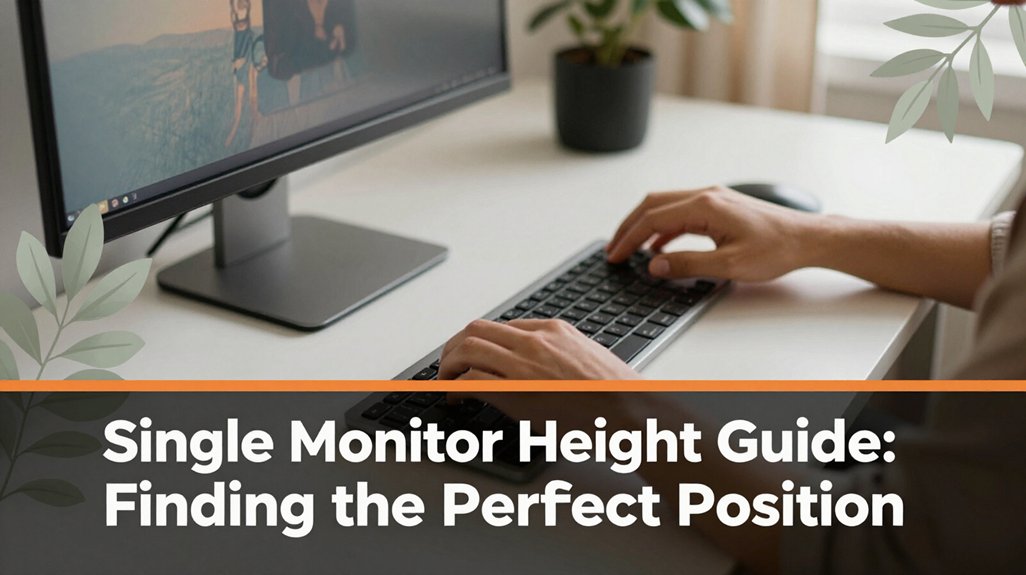
If your neck starts aching after a long day at your desk, you’re not alone and the culprit might be your monitor placement. To keep your neck and eyes happy, your monitor should sit at or just below eye level so you’re looking slightly down.
Keep it about 20-30 inches away that’s roughly arm’s length and don’t forget to make small adjustments as needed. Trust me, tiny tweaks can make a huge difference in staying comfortable over time. Keep reading, and I’ll show you how to fine-tune your setup even more.
This article contains affiliate links. If you purchase through them, I may earn a small commission at no extra cost to you. I only recommend products I genuinely believe in.
Alright, here’s the thing: figuring out the best monitor height isn’t just about eye level or fancy ergonomic charts it’s about finding that sweet spot where your neck and eyes don’t scream at you by mid-afternoon.
That’s where this monitor height setup guide comes in. You want your monitor to be roughly at your eye level, but not so high that you’re tilting your head back or so low that your neck cranes forward.
You are looking for a natural, relaxed position, where your head stays centered and your eyes look slightly downward.
Trust me, a small adjustment here can make a huge difference. It’s like finding the perfect chair height tiny tweaks, big relief. This way, your body stays happy, and you can focus without constant nagging discomfort.
Specific measurements and guidelines:
Why this matters:
Common mistakes and corrections:
Adjusting your monitor to these precise standards ensures that your neck and eyes stay comfortable, enabling long periods of focus without unnecessary strain.
When your screen is at eye level, your head naturally stays in a neutral position, meaning you’re not tilting up or down, just looking straight ahead or only slightly downward. This might seem simple, but it’s a game-changer for your neck and eyes.
If your monitor is too low, you’ll find yourself constantly craning your neck or leaning forward, which compresses the cervical spine and causes muscle tension. Your eyes also get tired because they’re staring at a screen that’s not aligned with your natural line of sight.
All right, I know it sounds small, but over hours, tiny misalignments add up.
So, follow these ergonomic steps to prevent neck and eye strain:
Key measurement:
Maintaining these positions helps your neck stay relaxed and your eyes stay comfortable, preventing burnout and promoting better posture. Proper monitor height adjustment directly contributes to reducing neck strain and enhancing ergonomic comfort.
If your desk setup isn’t quite right, no worries, most of us have been there struggling with awkward monitor heights or limited space feeling like we’re in a constant battle to find the optimal position.
Maybe your desk is tiny or you’ve got a weird wedge of workspace. Here’s the thing: you can still make it work.
You might need to stack some books, buy a monitor riser, or even use a sturdy box. Because elevating the monitor helps align it with your eye level, making viewing more comfortable and reducing neck strain.
Stack books or use a riser to elevate your monitor, reducing neck strain and improving comfort.
If space is tight, think vertically. Mount your monitor on a wall arm or attach it to a clamp because this frees up surface area and keeps your monitor at eye level.
Small adjustments that respect your body’s natural angles will seriously help.
Key measurement: The top of your monitor screen should be at or just below your eye level, approximately 2 to 3 inches, or 5 to 8 centimeters, below the horizontal line of your eyes when sitting upright.
Common mistake: Placing the monitor too low, which causes you to tilt your head downward, leading to neck strain.
Instead, raise your monitor until the top edge aligns with or is just below your eye level.
Another mistake: Sitting too close or too far from the monitor, leading to eye fatigue or poor posture.
Maintain a distance of roughly 20 to 30 inches from your face to the monitor for optimal viewing comfort.
Remember, small, precise adjustments like elevating the monitor, positioning it 20-30 inches away, or mounting it on a wall arm can significantly improve your comfort.
Even in a cramped corner, these changes will help your neck and back feel much better. Proper monitor height and positioning is essential for reducing strain and promoting ergonomic health, especially for those experiencing carpal tunnel symptoms.
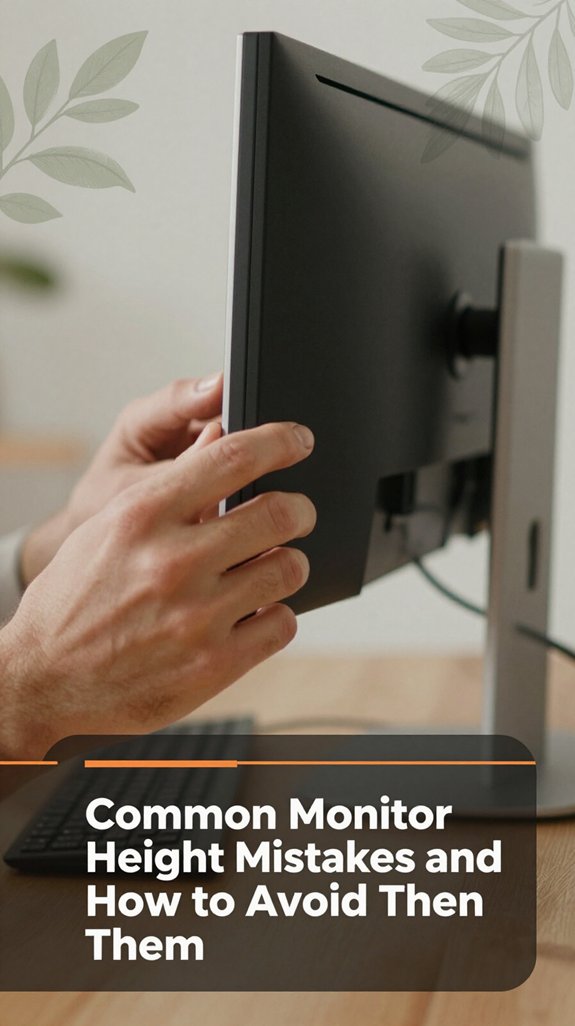
Most of us have fallen into the trap of placing our monitor too low or too high without even realizing it, and honestly, it’s a recipe for neck and eye fatigue. You sit down, think you’ve got it right, but by hour two, your neck’s protesting or your eyes are strained.
This happens because your monitor isn’t aligned with your eye level, forcing you to crane or slump your neck. That isn’t just uncomfortable it’s bad biomechanics.
All right, clear your mind of “perfect” setups on the internet; the key is just keeping your eyes aligned with your screen. Look straight ahead, and the top of the monitor should be roughly at eye level.
Keep things simple it’s the best way to avoid common mistakes such as:
To achieve optimal monitor height:
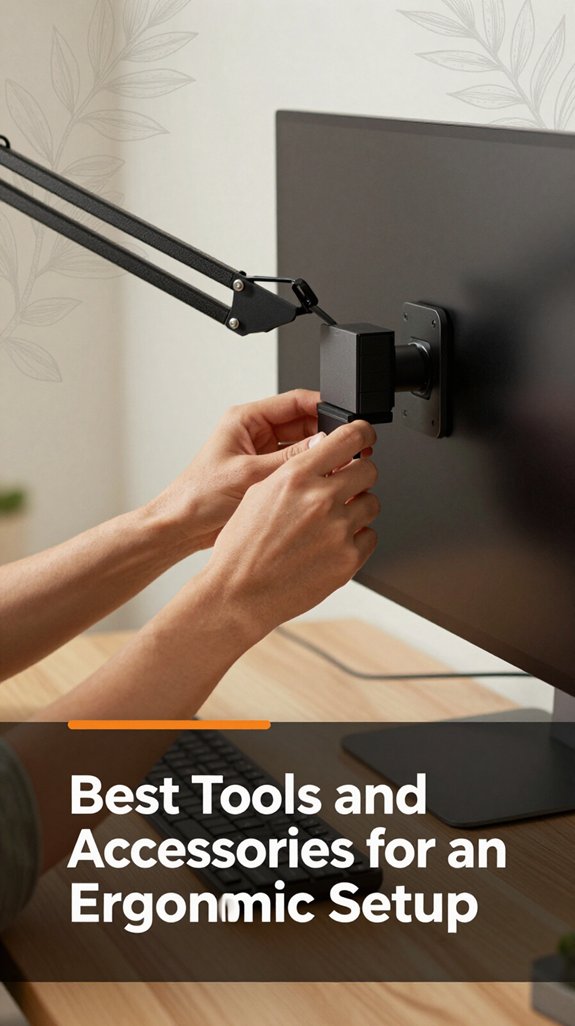
Getting the right tools for your workspace might not seem like a big deal, but trust me, it makes all the difference when you’re sitting there for hours. Think of accessories like a good keyboard, an adjustable arm, or a supportive cushion as your body’s best friends. They help keep your posture in check and prevent that creeping discomfort.
Here’s a quick look at some essentials:
| Tool/Accessory | Why You Need It | Tip |
|---|---|---|
| Adjustable monitor arm | Allows customizable height and angle, which prevents neck strain | Raise the monitor until the top of the screen is at or just below eye level, because looking slightly down is less fatiguing on the cervical spine than looking straight ahead or upward. |
| Ergonomic keyboard | Reduces wrist strain and promotes proper typing posture | Keep wrists straight and in a neutral position, not bent upwards or downwards, because this decreases risk of repetitive strain injuries like carpal tunnel syndrome. |
| Anti-fatigue mat | Eases foot and leg fatigue during prolonged standing periods | Use a mat that is at least 3/4 inch thick and nonslip, because standing on hard surfaces can cause discomfort and circulation issues. |
| Lumbar support pillow | Improves lower back posture and provides additional support | Position the pillow so that the lumbar curve of your lower back aligns with the pillow’s curve, because this maintains the natural lordosis of the lumbar spine. |
| Wrist rest | Prevents repetitive strain injuries and maintains neutral wrist positioning | Keep the wrist rest directly in front of the keyboard, and ensure wrists are elevated slightly above the keyboard surface, because this reduces pressure and strain during typing. |
Key Measurements and Facts:
Common Mistakes and How to Avoid Them:
Applying these precise adjustments and choosing the right ergonomic tools ensures reduced fatigue, enhanced comfort, and long-term health benefits in your workspace.
You’ve probably experienced that moment where your neck feels perfectly fine for a while and then suddenly, around hour three or four, it’s yelling at you.
Here’s the thing: if your monitor’s height is too low or too high, your neck is constantly straining to keep your eyes level. That awkward tilt adds up over time muscles tense, joints stiff.
Incorrect monitor height causes ongoing neck strain, leading to tense muscles and stiff joints over time.
Your eyes, meanwhile, aren’t happy either. When your monitor isn’t at eye level, you’re likely to squint or crane your neck, which leads to eye fatigue and headaches. It’s adaptive, sure, but it’s also brutally inefficient.
All right, so if you want to avoid that nagging pain and tired eyes later, your monitor’s height needs to strike a perfect balance so your neck and eyes stay happy hour after hour.
Determine the ideal monitor height using this formula:
– Level the top of your monitor screen with your eye level when sitting upright, with your head in a neutral position. Because looking slightly downward reduces strain on the cervical spine more effectively than looking straight ahead or upward.
Steps to adjust your monitor for ergonomic comfort:
Common mistakes to avoid:
Finding the perfect monitor height really comes down to understanding your work style and listening to your body.
You’ve probably noticed that hours slip by, and suddenly your neck or shoulders start yelling. That’s because your body craves a match: your monitor shouldn’t force you into awkward angles or make you crane your neck.
If you tend to lean forward when deep in focus, raise your monitor a bit. If you often look down, it’s probably too low.
Think of your monitor as an extension of your natural line of sight aim for that sweet spot where your eyes rest comfortably, and your neck stays neutral.
It’s about working smarter, not harder, and keeping discomfort at bay.
Key Measurement for Monitor Height: Raise the monitor until the top of the screen is at or just below your eye level, because looking slightly down reduces strain on your cervical spine.
Step 1: Position the monitor so that the top of the screen is at or just below your eye level, approximately 20 to 30 inches from your face, because this distance allows comfortable viewing without eye strain.
Step 2: Adjust the monitor’s height so that your eyes naturally rest on the upper third of the screen, because this position minimizes neck movement and fatigue.
Common Mistakes to Avoid:
Imagine your monitor as a trusty sidekick that should always be right where you need it, not fighting you for space or causing whiplash. Now that you’ve set the height correctly, focus on the fine-tuning adjustments.
Move your monitor closer or farther away until the top of the screen is just below your eye level, because viewing at or slightly below eye level reduces neck strain.
Ensure you can sit back comfortably with your shoulders relaxed to promote good posture.
Next, check your monitor’s tilt. Tilt it slightly upward or downward if needed, so you’re not craning your neck or tilting your head excessively, because small tilt adjustments help maintain a comfortable viewing angle.
Specific Measurement Tip:
Position your monitor approximately 20 to 30 inches away from your eyes, which is the typical optimal distance for clarity and comfort.
Common Mistake:
Avoid having the top of the monitor screen significantly above eye level, which causes neck extension, leading to strain. Instead, align the monitor so the top of the screen is at or just below your eye level.
By carefully making these tiny tweaks adjusting distance, height, and tilt you optimize your workstation for maximum comfort.
Because nobody wants to end a long work session feeling like they’ve been hit by a low-flying drone.
If your neck cramps or your eyes strain after hours, your monitor height might be off.
Maybe you’re craning your neck up or down, forcing your muscles to work overtime, or your eyes are squinting at a screen that’s too high or low.
All right, pay attention to how your shoulders and back feel if you’re leaning or hunching, it’s a sign you need to tweak that monitor height.
Imagine your monitor is too low, and you’re constantly looking down, straining your neck.
That’s exactly how bad posture creeps into your workspace. When your monitor is at eye level, you keep your head, neck, and back aligned, reducing fatigue and discomfort.
All right, so if your workspace isn’t ergonomic, you’ll likely feel tired, stiff, or get headaches and nobody wants that mid-morning!
Absolutely, monitor height can totally boost your focus and productivity.
When your screen is at eye level, you’re less likely to strain your neck or get distracted by discomfort, so your mind stays on the task. If your monitor’s too low or high, it’s like trying to read a book at an awkward angle your brain wastes energy adjusting, and soon enough, your focus drifts.
All right, think of your screens like a good dance partner they should move seamlessly with you.
For multi-monitor setups, aim to keep the top of each monitor at or just below eye level, with screens close enough so you don’t have to turn your head all day. You want your neck and eyes to work in harmony, not fight each other.
That way, you’ll stay comfy and focused longer no dance injuries needed.
You should reassess your monitor height every few months or whenever you notice discomfort creeping in.
Things like neck stiffness, eye strain, or back aches are signs you might need to adjust. Life changes new desk, new chair, or even just your posture mean it’s time for a quick check.
Trust me, a tiny tweak now beats a long day of pain later, and honestly, it’s a quick fix that can save your neck!
All right, setting your monitor at just the right height is like giving your neck and eyes a gentle high-five every day. When you find that sweet spot probably where your eyes hit the top third of the screen you’ll notice less tension, less squinting, and probably less looking like a zombie after work. Trust me, a simple tweak can turn your marathoning screen sessions from torture into a surprisingly comfy chat with your desk.





