Physical Address
304 North Cardinal St.
Dorchester Center, MA 02124
Physical Address
304 North Cardinal St.
Dorchester Center, MA 02124

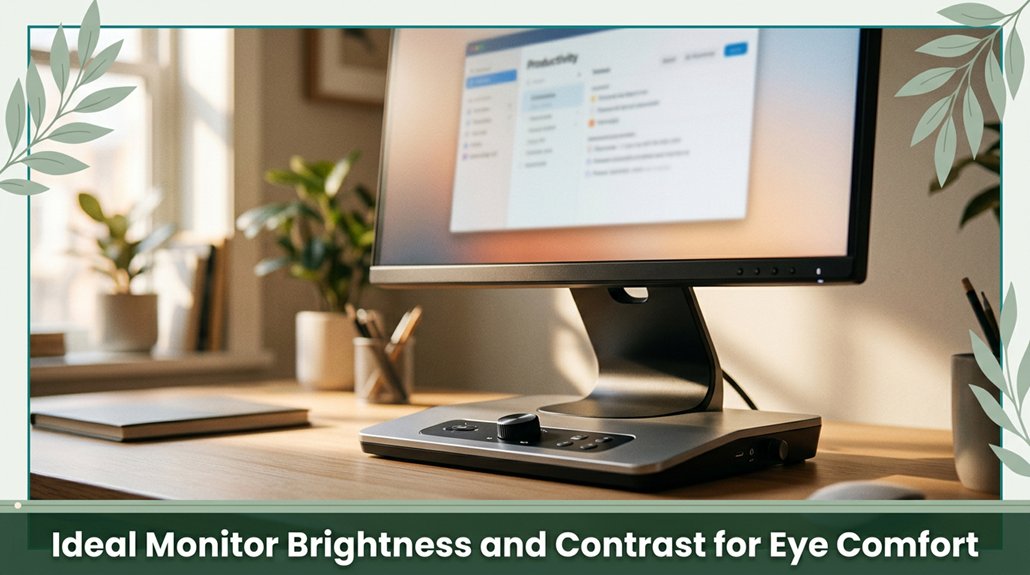
Your eyes really dislike glaring, overly bright screens or dull, hard-to-read contrast. To keep your eyes comfortable, aim to set your monitor’s brightness between 120–150 nits in well-lit rooms and lower it in dim spaces, so your eyes don’t have to work so hard to adjust.
Contrast should be around 1000:1 bright enough to make text crisp without causing glare. Features like flicker-free technology and a good refresh rate also help reduce eye strain. Stick with matte finishes and proper placement, and you’ll be amazed at how much more comfortable your eyes feel if you want all the tips, just keep reading.
This article contains affiliate links. If you purchase through them, I may earn a small commission at no extra cost to you. I only recommend products I genuinely believe in.
You know that uncomfortable glare or squinting from reading tiny text on your screen? That’s why brightness and contrast are so essential for eye comfort. When your monitor’s too bright or too dim compared to the room, your pupils constantly shift; this overworks your eye muscles according to OSHA ergonomic guidelines, which can lead to eye strain.
Additionally, well-calibrated brightness and contrast settings minimize eye fatigue by ensuring the display is neither too harsh nor too dull. Low contrast or mismatched brightness makes text hard to read, forcing you to squint or blink more, which only adds to fatigue. If the contrast’s too high, halos and glare can appear, especially on glossy screens, making you want to tear your hair out.
Basically, if your monitor isn’t balanced well, it’s like trying to see through fog tiring, annoying, and unnecessary. You need just enough brightness and contrast to keep things sharp and easy on your eyes. A proper calibration creates a comfortable viewing experience by reducing visual discomfort and strain. When the brightness and contrast are properly adjusted, it creates a clear image with minimal glare, easing your visual effort.
The most important step to keep your eyes comfortable is matching your monitor’s brightness to the lighting conditions around you, and honestly, it’s easier than it sounds.
If your room is well-lit, aim for about 120–150 nits, which is comparable to the brightness of regular printer paper according to OSHA ergonomic guidelines. For dim rooms or late-night Netflix sessions, reduce the brightness to 80–100 nits so your screen doesn’t feel like a flashlight in the dark. Bright daylight? Increase the brightness to 250–350 nits to combat glare and maintain crisp image quality.
The key is to compare what you see on screen to white paper under the same lighting conditions. Use a luminance meter or your monitor’s on-screen display (OSD) don’t just guess!
Recalibrating your monitor regularly ensures continued eye comfort, especially if lighting conditions change throughout the day.
Ever wonder why sometimes your eyes feel strained even when you’re staring right at the text? It’s probably your contrast settings. You want that sweet spot not so high that the edges look harsh, or so low that text feels murky.
Ideally, aim for a contrast ratio of around 1000:1 to 1500:1 for sharp, readable text without fatigue. According to research on visual ergonomics, increasing contrast can reduce eye strain, but excessively high contrast may cause discomfort. If you’re using a VA or OLED screen, you might go higher, but keep peak brightness below 150 nits to prevent eye strain.
Aim for a contrast ratio of 1000:1 to 1500:1 for comfortable, sharp text without fatigue.
Most users should adjust these settings based on ambient lighting conditions. Proper calibration ensures that the display matches your environment, minimizing eye fatigue and improving overall comfort. Additionally, color temperature adjustments can also help reduce eye discomfort, especially in low-light settings.
Dark rooms benefit from lower contrast settings, which can help minimize glare. Bright environments need a slightly higher contrast to maintain readability without causing glare or reflections. All right, get your monitor to match your lighting conditions, adjust those contrast levels slowly, and test how easy it’s to read without squinting or feeling like you’ve been staring into headlights.
Your eyes will thank you for maintaining optimal contrast this practice can help prevent discomfort and support long-term visual health.
All right, you’ve probably noticed that staring at a flickering or unstable display can make your eyes feel tired, especially after a long day. Flicker, which is often invisible to most users, causes your ciliary muscles the muscles controlling the lens of your eye to overwork, leading to fatigue.
According to OSHA ergonomic guidelines, flicker-free tech, especially DC dimming, keeps the backlight steady, preventing those tiny strobe effects that can strain your eyes. Certifications like TÜV Rheinland verify a monitor’s flicker-free performance across the full brightness range, so you can be assured of eye protection.
Now, combine that with higher refresh rates 75 Hz and above and you get smoother motion and fewer eye-straining artifacts, such as motion blur. Research on display technology suggests that higher refresh rates help reduce visual fatigue caused by rapid image changes and flicker artifacts.
Incorporating higher refresh rates in your monitor setup can significantly diminish eye strain, since they reduce flicker-related fatigue and improve overall visual comfort. The result is less visual fatigue and a more comfortable viewing experience, even after hours of use. It’s like giving your eyes a break they didn’t realize they needed, helping to prevent discomfort during long periods of screen time.
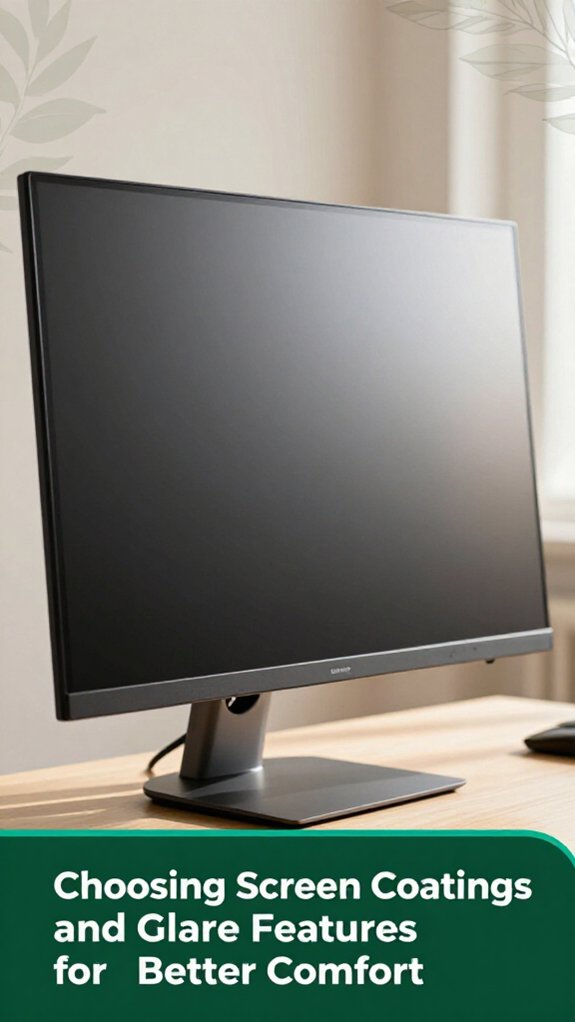
When it comes to comfort, choosing the right screen coating can make a significant difference. Trust me, I’ve been there squinting at a glossy screen in a bright room, wishing I’d gone matte.
Matte finishes diffuse ambient light and cut glare, which is ideal if your workspace is full of windows or overhead lighting. According to OSHA ergonomic guidelines, glare from reflections can cause eye strain and discomfort, especially for people who sit more than 6 hours a day.
Glossy finishes enhance color vibrancy but reflect everything around you, making it harder to focus on the screen. To mitigate this, you can apply an anti-glare film to glossy panels or opt for matte coatings in brightly lit environments and gloss for controlled lighting conditions.
| Coating Type | Best for |
|---|---|
| Matte | Bright, sunny rooms where diffuse light reduces glare |
| Glossy | Dim, controlled-light spaces that benefit from vibrant color display |
| Anti-glare | Versatile, ideal for users who need protection for glossy screens |
Look, if you’ve ever spent a whole afternoon glued to your screen and suddenly realized your neck feels like it’s been protesting all day, you’re not imagining things. Proper ergonomic positioning is key, and it’s often overlooked.
The top of your monitor should be at or just below eye level think of it as your line of sight naturally slanting down 10–20°, which reduces neck strain and promotes cervical spine health, according to OSHA ergonomic guidelines. When your monitor sits too high or low, your neck compensates with awkward tilts or extensions, which tire the cervical extensor muscles and can contribute to issues like thoracic kyphosis or cervical strain over time. Adjustable monitor arms and stands make it easier to find that optimal position.
Additionally, keep your viewing distance at about 20–30 inches (roughly arm’s length) to reduce strain on the cervical and thoracic regions and minimize the tendency to lean forward. This distance helps maintain a neutral spine position, reducing risk factors for conditions such as sciatic nerve irritation or lumbar disc compression.
Proper ergonomic setup supports spinal alignment and prevents fatigue in the lumbar, thoracic, and cervical regions. Aligning monitor height properly can also decrease electromyographic activity in neck muscles, reducing fatigue and discomfort.
All right, if you’ve ever stayed up late scrolling and felt that uncomfortable glare in your eyes, you probably worry about blue light messing with your sleep and eye health.
Here’s the thing: blue light from screens interferes with your melatonin production, making it harder to fall asleep especially if you’re using screens hours before bedtime, according to Mayo Clinic recommendations.
Night modes like Night Shift or f.lux reduce blue light emissions, helping your brain recognize that it’s time to wind down.
Lowering blue light exposure during evening hours can minimize circadian rhythm delays, which are linked to sleep disturbances.
Using these software tools, particularly when combined with a consistent sleep routine, makes it easier for you to switch off at night and supports overall eye health.
Sometimes, it feels like your eyes just know how to let you down whether it’s burning, dryness, or that hazy glare that makes everything look a little less sharp. You’re aging, my friend, and your eyes are changing your pupils shrink, your lens yellows, and contrast sensitivity takes a nosedive.
These changes mean what looks good for you today might need tweaking tomorrow, according to Mayo Clinic recommendations. Your eye health requires regular eye examinations to ensure your display settings remain aligned with your visual needs.
According to OSHA ergonomic guidelines, changes in age over 40 can necessitate adjustments to screen brightness and contrast. Research on spinal biomechanics suggests that refractive errors, which affect how light is focused on your retina, might make you prefer screens that are 15% brighter to reduce visual strain.
If you wear prescription lenses, lowering your monitor contrast by 5-10% can help prevent peripheral distortion and eye fatigue. Additionally, as your pupils shrink and your lens yellows, the overall contrast sensitivity declines, making it beneficial to adjust display contrast and color temperature in response to these anatomical changes.
Furthermore, changes in visual processing abilities can impact how you perceive screen clarity, reinforcing the importance of personalized display adjustments. People who sit more than 6 hours a day should especially pay attention to these adjustments, as prolonged near work can exacerbate eye fatigue.
Implementing these personalized display modifications can significantly improve visual comfort, and your eyes will thank you for it.
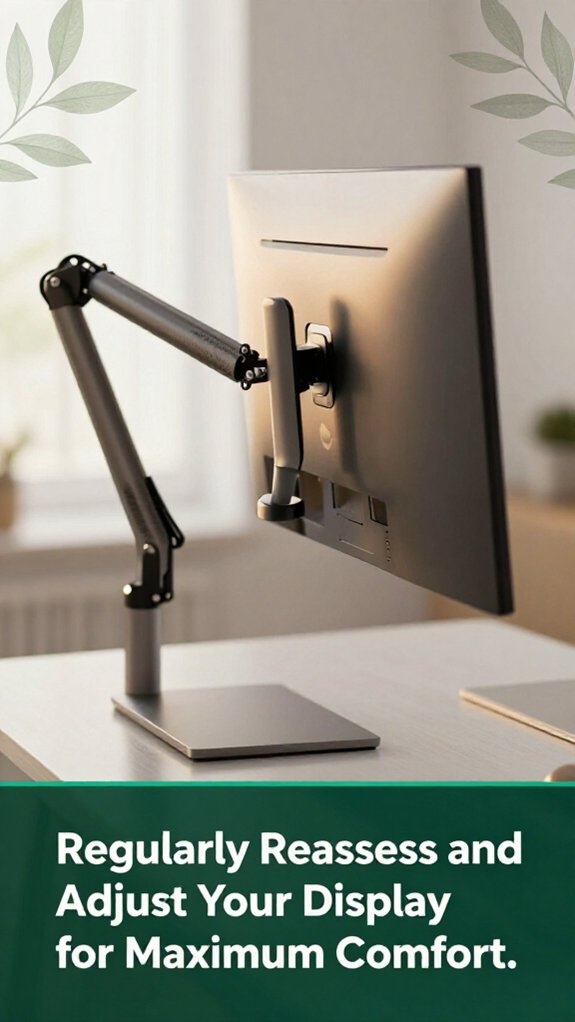
Getting into the habit of regularly reassessing your display settings mightn’t sound like a big deal, but trust me, it’s the secret sauce to keeping your eyes happy over time. You’re not just setting and forgetting lighting changes, firmware updates, even moving furniture can disrupt your visual comfort.
Here’s what you wanna do:
First, check your brightness every couple of weeks, matching it to the room’s lighting conditions. Bright room? Crank it up to 250–350 nits, as recommended by ophthalmologists, since higher luminance can reduce eye strain in well-lit environments. Dim room? Keep it around 100–150 nits to prevent excessive contrast that may cause eye fatigue.
Second, revisit your contrast settings drop it to 70–80% for comfort while reading or working, and tweak after software updates or display calibrations. Maintaining optimal contrast reduces eye strain and improves visual clarity.
Third, utilize ambient light sensors or a lux meter to objectively measure your environment’s luminance. According to OSHA ergonomic guidelines, these tools help ensure your display luminance aligns with room lighting, removing guesswork. Additionally, regularly inspecting review your monitor’s brightness and contrast settings can help maintain visual comfort over time.
Stay proactive in adjusting your display settings, and your eyes will thank you. Regular reassessment ensures sustained comfort and reduces the risk of digital eye strain over time.
You should recalibrate your monitor every 2-3 months if you’re into photography or video editing, and about every six months for regular office work.
If you’re gaming long hours or working in changing light, lean toward redoing it every 3-4 months.
All right, just remember: regular recalibration keeps your eyes comfortable by maintaining proper brightness and contrast, so they don’t feel like they’ve run a marathon after a few hours.
Yes, your monitor height can seriously impact your long-term eye health.
If it’s too high or low, you’ll tilt or lean, causing neck strain and reducing ocular blood flow, which isn’t great.
Over time, this can lead to eye fatigue, dryness, and even more serious issues like chronic neck pain affecting your vision.
Keep your monitor at eye level, maintain neutral neck posture, and you’ll prevent a lot of future discomfort.
You want a monitor that plays nice with presbyopia, right?
All right, look for flicker-free backlighting no one needs micro-flicker adding insult to eye injury. A matte screen helps dodge glare, because reflections are like gifts for squinting.
Adjust contrast around 70%, reducing halos and eye strain.
And, honestly, a monitor with adjustable brightness and good ergonomic stands means you won’t be stuck craning or squinting at a fixed, unforgiving screen your eyes will thank you.
As the day shifts from bright mornings to dim evenings, you need to tweak your monitor. Bright sunlight around midday might call for about 250–300 nits, but come evening, dial it back to 80–120 nits.
Automated profiles and ambient light sensors are great friends here they keep your screen comfortable without you thinking about it.
Regularly reassess your environment, and you’ll avoid that eye strain and headache that sneak up when you least expect it.
Imagine trying to read tiny print on a blurry page you strain your eyes, right? That’s what low or overly high resolutions can do. When your screen resolution isn’t clear enough, your eyes work harder to focus, causing fatigue.
Too high, and you might get pixel flickering or visual noise. So, you want a resolution that’s sharp without demanding more effort like a good story, it should entertain without tiring you out.
All right, so here’s the thing tweaking your monitor’s brightness and contrast might not sound like a big deal, but it can make all the difference, kinda like discovering that the chair in the corner was actually a secret escape hatch (okay, maybe not that dramatic). You’ll feel less like a character in a 90s sitcom squinting at a weirdly glowing screen. So, give your settings a little love; your eyes and your neck will thank you later.