Physical Address
304 North Cardinal St.
Dorchester Center, MA 02124
Physical Address
304 North Cardinal St.
Dorchester Center, MA 02124

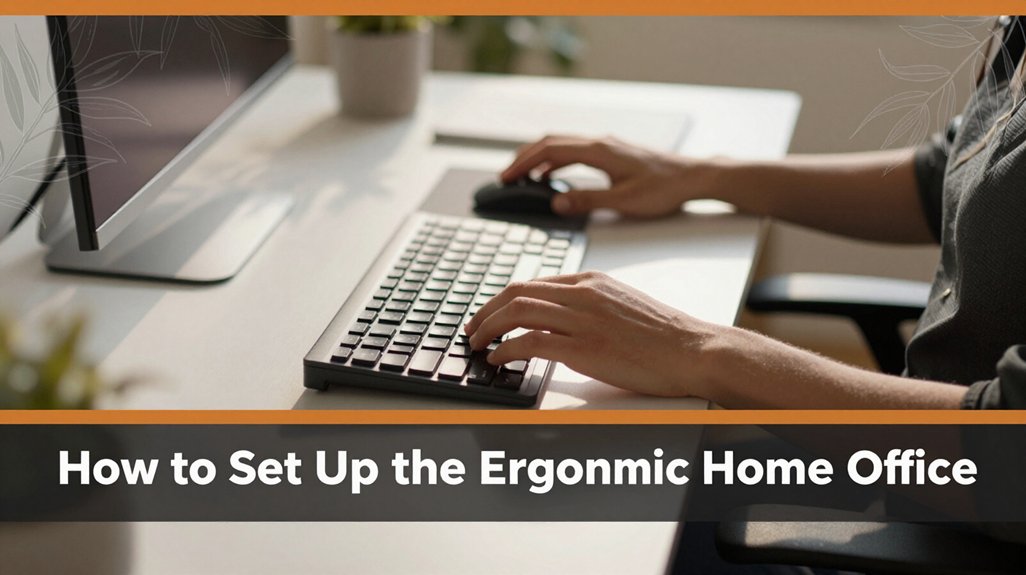
If you spend long hours at your home desk, you’ve probably felt that ache or fatigue creeping in by the end of the day. Setting up your home office with good ergonomics isn’t about complex tools it’s about small tweaks that keep you comfortable and prevent that “hit by a bus” feeling afterward.
You want your monitor at eye level, about 20-30 inches away, and your keyboard at elbow height so your shoulders stay relaxed. Make sure your chair supports your lower back, your feet are flat on the floor, and wear your favorite comfortable shoes.
Keep lighting natural but avoid glare, and add small accessories like wrist rests. Trust me, if you get these right, your body will thank you and there are more simple tricks to learn if you keep going.
This article contains affiliate links. If you purchase through them, I may earn a small commission at no extra cost to you. I only recommend products I genuinely believe in.
Ever notice how your neck and shoulders start to complain after a few hours at your desk? That’s why an ergonomic home office setup is so important. When your workspace isn’t supportive, your muscles strain, and your posture suffers, causing discomfort and eventually longer-term issues.
You might be sitting in a way that puts extra pressure on your neck muscles or loading your shoulders awkwardly. All right, your body’s kind of like a well-oiled machine if one part isn’t aligned, everything else gets thrown off.
That’s why simple adjustments matter. An ergonomic setup helps distribute the work more evenly across your muscles, reducing fatigue and preventing pain.
Here are a few specific tips:
Common Mistakes to Avoid:
With these adjustments, you can improve your comfort and reduce the risk of long-term musculoskeletal problems because your ergonomic setup balances support, posture, and movement throughout your workday.
Now that you know how your setup should support your body, it’s time to get real about what’s actually happening in your workspace right now. You might notice that your monitor’s a little too high or low, or your keyboard is creeping into an awkward angle.
Maybe your chair doesn’t quite adjust enough, so your hips are awkwardly squished or your back’s doing all the work.
All right, you’ve probably felt that tired, stiff feeling in your neck or lower back after a few hours. Here’s the thing: these little mismatches add up, forcing your muscles and joints to compensate in uncomfortable ways.
Take a moment to honestly observe how you’re sitting, where you’re straining, and what might be simple fixes. Small awareness leads to big comfort gains.
Step 1: Measure your eye level when seated. Position your monitor so that the top of the screen is at or just below your eye level because looking slightly down reduces strain on your cervical spine.
Step 2: Adjust the monitor’s height accordingly, using a monitor stand or adjustable arm if necessary. The standard recommended distance is 20 to 30 inches from your face because this distance helps prevent eye strain.
Step 3: Check your keyboard and mouse position. Place the keyboard at elbow height when your arms are relaxed, with your elbows bent at approximately 90 degrees because this position minimizes strain on your forearms and shoulders.
Step 4: Ensure your chair supports proper hip and lumbar alignment. Your hips should be at a 90 to 100-degree angle, with feet flat on the floor or a footrest, to distribute weight evenly and reduce lower back pressure.
Step 5: Be aware that monitor height and positioning directly influence neck strain and can either cause or prevent pain, so make adjustments accordingly for optimal relief.
Common Mistakes to Avoid:
Choosing the right desk and chair mightn’t seem like rocket science, but trust me, it makes all the difference between feeling energized at the end of the day or limping to the couch complaining about your back. Honestly, it’s about finding supportive options that fit your body not some trendy, “one-size-fits-all” nonsense.
Now, here’s the thing:
Prioritize ergonomic support and proper alignment to stay comfortable and avoid strain all day long.
Key measurements and standards:
Common mistakes to avoid:
Once you’ve got your chair and desk supporting your body, it’s time to position your monitor, keyboard, and mouse correctly.
First, raise the monitor until the top of the screen is at or just below your eye level, because looking slightly down is less fatiguing on the cervical spine than looking straight ahead or upward. The monitor should be about an arm’s length away from you, which typically measures between 20 to 30 inches, because this distance reduces eye strain and helps maintain focus.
Next, lower the monitor to just below eye level, because looking down slightly is less fatiguing than looking up. Remember, the goal is to keep your neck in a neutral position during computer use.
Place your keyboard so that your elbows are close to your sides and bent at approximately 90 degrees, because this position minimizes strain on your shoulders and forearms. Keep your keyboard at or slightly below elbow height for optimal comfort.
Position your mouse close to your keyboard, at the same height, so you don’t have to reach. This helps maintain a relaxed shoulder and arm posture, reducing fatigue over extended periods.
Ensure your wrists aren’t bent or strained while using the mouse or keyboard. A neutral wrist position helps prevent repetitive strain injuries like carpal tunnel syndrome.
Additionally, regularly adjusting your monitor height using an adjustable monitor arm can help maintain optimal ergonomics and prevent discomfort.
Aim for a natural, relaxed posture: align your monitor, keyboard, and mouse properly to avoid awkward angles. Proper ergonomic positioning minimizes discomfort and prevents common issues such as neck, shoulder, and wrist pain.
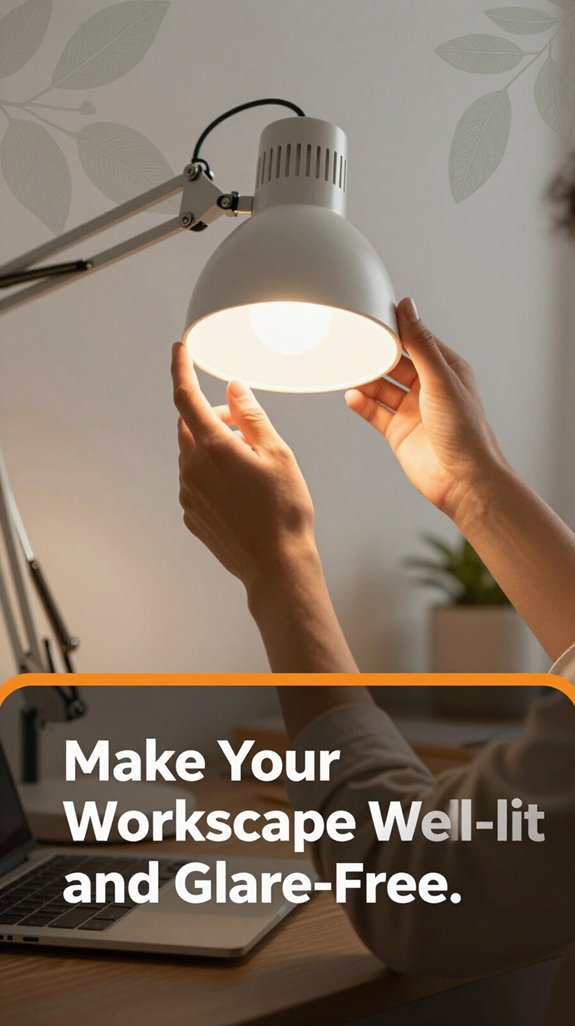
Did you ever sit at your desk, squinting at your screen, thinking, “Why does this feel like I’m trying to read the tiny print on a receipt from three years ago”? That’s a classic sign your workspace isn’t well-lit. Good lighting isn’t just about brightness; it’s about reducing eye strain and preventing glare.
Poor lighting makes screen time eye-straining and uncomfortable aim for bright, well-placed light to keep your eyes happy.
All right, here’s what you can do:
Adding ergonomic accessories to your home office might just feel like an extra step, but trust me, it’s the secret sauce to staying comfortable all day long. You know that weird neck ache that shows up around hour three? Or how your back feels like it’s auditioning for a drama, loudly protesting after a long meeting? That’s where accessories come in.
Use a good lumbar support pillow. Because it provides essential lower back support, reducing strain and preventing discomfort. Look for pillows that conform to your lumbar curve and are made of memory foam or breathable materials.
Position an adjustable footrest. Adjust the height so that your knees are at a 90-degree angle when seated, because this position promotes proper blood circulation and reduces pressure on your thighs. *The ideal height for an ergonomic footrest is when your feet rest flat, and knees are level or slightly lower than hips.*
Place wrist rests for your keyboard and mouse. Because they prevent that tingling or numbness sensation in your hands by keeping your wrists in a neutral, straight position during use. Use wrist rests made of gel or foam for comfort and support.
Raise your monitor until the top of the screen is at or just below your eye level, because looking slightly down at your monitor reduces neck strain. Position the monitor 20 to 30 inches from your face to minimize eye strain and ensure comfortable viewing.
Small adjustments can profoundly impact your comfort. They can turn a potentially painful workday into a smooth, productive experience. Plus, maintaining comfort means you’ll stay focused and less prone to fatigue.
Furthermore, utilizing an adjustable ergonomic chair helps to support proper spinal alignment and ensures all adjustable features work together to promote comfort.
Be aware of common ergonomic mistakes:
Prioritize these ergonomic accessories and adjustments small investments that make a big difference for your comfort and productivity.
You should take a break every 30 to 60 minutes, like hitting the refresh button on your brain.
Think of your body as a car if you never stop for oil changes, it’ll seize up. Stretch, walk around, or just stand up for a minute.
Your neck, back, and eyes will thank you, and you’ll actually stay sharp longer, instead of drifting off mid-meeting.
Trust me, your muscles will pat you on the back.
You should do simple, targeted stretches like neck rolls, shoulder shrugs, and wrist circles every hour trust me, I’ve been there.
All right, these exercises loosen tight muscles and prevent strain from sitting too long. When you roll your shoulders back or gentle neck stretches, you’re encouraging blood flow and easing tension.
All right, you want ideal lumbar support, so adjust your chair’s backrest to fit your natural lower back curve.
Slide the lumbar support up or down to press gently into your lumbar curve not your belly button! It should feel like a firm hug, not a squeeze.
Keep your hips and knees at roughly 90 degrees, and sit back so your backrest supports those muscles that want to arch like a lazy cat.
You’re asking if standing desks are more ergonomic than sitting ones. Honestly, it depends on you.
Standing can reduce stuff like slouching and tension, but it also makes you tired fast and can strain your legs and lower back if you’re not careful.
The trick? Mix it up. Alternate between sitting and standing. Your body needs variety; otherwise, you’ll just swap one discomfort for another.
You want plants that clean the air and boost comfort? Consider snake plants, they thrive on neglect and filter out toxins like formaldehyde.
Spider plants are hardy, too, and help humidify your space perfect if you forget to water often.
Peace lilies add a splash of greenery and remove airborne pollutants, plus they look nice by your desk.
All right, these little green friends really do make your workspace feel fresher and healthier.
All right, here’s the thing: setting up your home office the right way isn’t just about avoiding aches; it’s about making your day easier and maybe even a little more enjoyable. Think of it like tuning a guitar you want everything in harmony so you sound good (or, in this case, feel good). So take that extra moment to tweak your setup. You’ll thank yourself later no more waiting to see what your lower back has to say!





