Physical Address
304 North Cardinal St.
Dorchester Center, MA 02124
Physical Address
304 North Cardinal St.
Dorchester Center, MA 02124

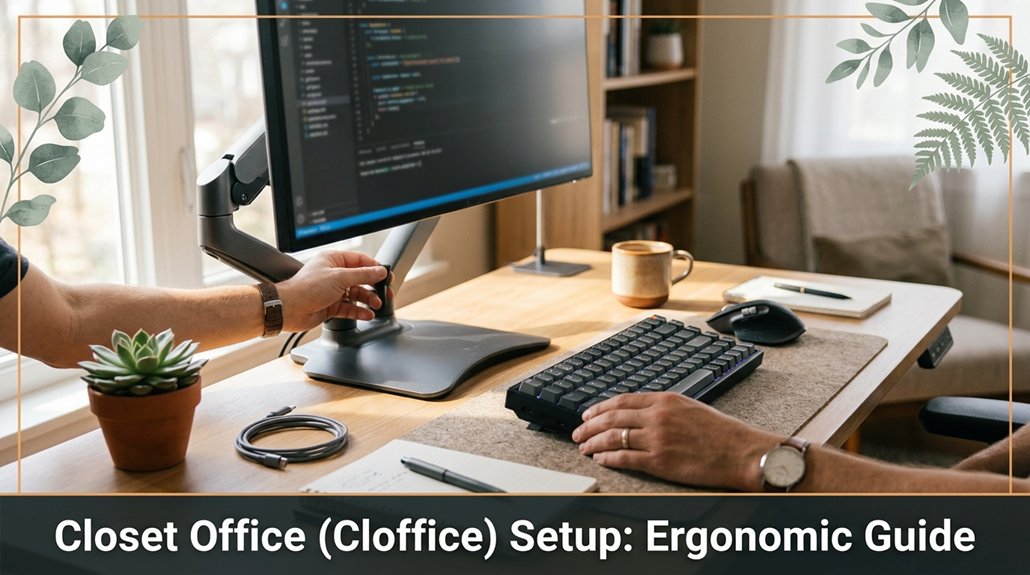
Setting up a closet office isn’t just about squeezing in a small desk and hoping for the best you need to plan carefully to avoid frustration later. First, measure everything width, depth, height so you know what will actually fit before you buy a desk or chair.
Look for an ergonomic chair with adjustable height and lumbar support your back will thank you if you prioritize comfort. Position your monitor at eye level, about 20-30 inches from your face, and pay attention to lighting avoid glare and use layered lighting to reduce eye strain.
Keep cords organized and storage tidy; clutter and tangled cables will only make your space harder to use and more stressful. Follow these tips, and you’ll set up a closet office that works for you, not against you.
This article contains affiliate links. If you purchase through them, I may earn a small commission at no extra cost to you. I only recommend products I genuinely believe in.
So, you’re probably thinking your closet isn’t exactly a blank canvas ready for a sleek home office, and honestly, you’re right most closets aren’t. But that’s okay because the first step in a great closet office setup is evaluating your space.
Look at the available width, height, and depth. Measure the space to determine if your desk will fit with room to move because having enough space prevents cramped conditions. Ensure there’s sufficient clearance for a comfortable chair; generally, allow at least 24 inches of space behind the chair for easy movement.
Assess width, height, and depth to ensure your desk fits comfortably without cramped workspace.
Don’t forget power outlets you’ll want easy access so you’re not crawling behind furniture. Check the location of outlets relative to where your desk will be placed; ideally, outlets should be within 3 feet of your setup to avoid extension cords or power strips.
Think about natural light, if any, and whether it’s enough for eye strain avoidance. Natural light should ideally come from a window positioned to the side of your workspace or behind your monitor to reduce glare.
Take measurements, but don’t stress about precision; a rough idea helps you avoid buying furniture that’s just a little too big. Additionally, consider ergonomic furniture to optimize comfort in a small space.
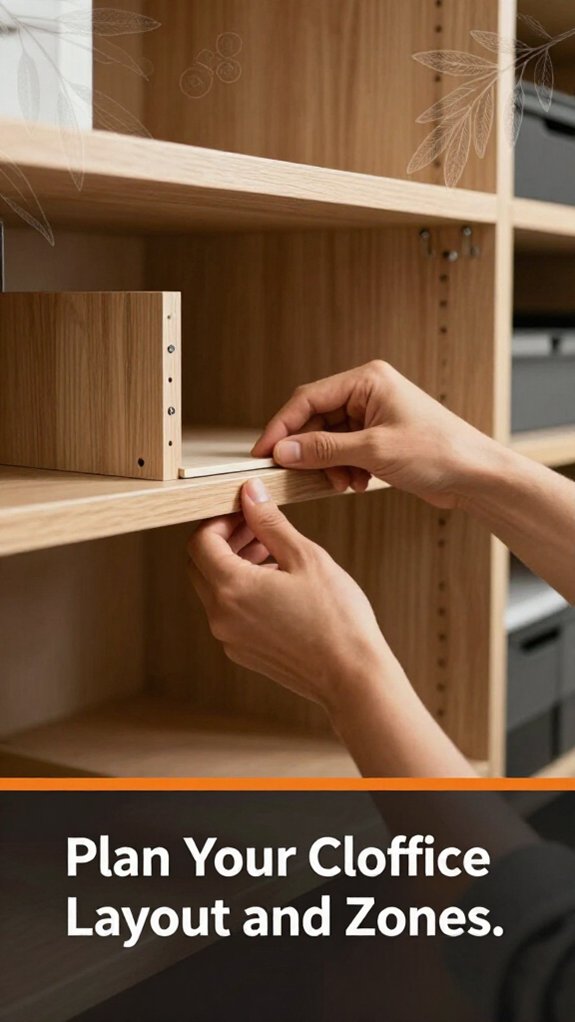
When you’re planning your cloffice layout, the key is to think in zones. This is important because most people get overwhelmed by their clutter dreams, leading to inefficient setups. You want a dedicated work zone, a storage zone, and perhaps a quick-grab area for supplies.
Think about the flow consider where your monitor will sit, where your files are stored, and how easily accessible everything is. This is crucial because a cluttered or poorly designed layout forces you into unnecessary movements, which can cause fatigue and reduce productivity.
All right, you might think, “This is tiny, how complicated can it be?” But trust me, a wasted inch here or there leads to chaos later.
First, sketch a rough layout or tape outlines on the floor because visualizing how everything fits helps prevent unnecessary shuffling later.
Next, assess the placement of your monitor; raise it until the top of the screen is at or just below your eye level, approximately 20 to 30 inches from your face, because this position reduces neck strain and improves posture.
Then, determine where your files and storage boxes will go, ensuring they’re within arm’s reach to minimize awkward stretching or bending. The goal is easy reach, not a game of hide-and-seek with your supplies.
Additionally, arrange your workspace to promote ergonomic desk setup principles, such as proper keyboard height and angle, to further alleviate strain and maintain comfort during long work sessions.
Remember, when designing your zones, avoid creating pathways that obstruct access to key areas, because this can cause repeated movements and reduce efficiency.
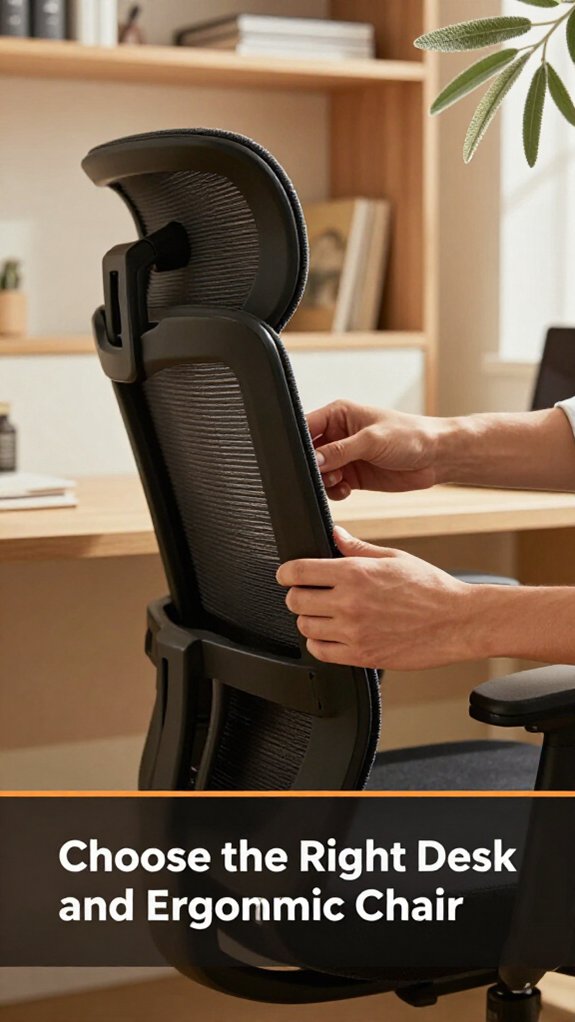
Choosing the right desk and ergonomic chair isn’t just about matching your room’s color scheme or grabbing whatever came on sale. I’m sure you’ve been 45 minutes into assembling something when you realize step 4 assumed something step 2 never told you.
Your desk should fit your workspace and your limbs. Measure your available space, but more importantly, make sure it can hold your monitor, keyboard, and provide enough elbow room.
Important measurement fact:
– The depth of your desk should be at least 24 inches (61 cm) to comfortably accommodate a monitor and workspace.
Lower the monitor to just below eye level, because looking slightly down is less fatiguing on the cervical spine than looking straight ahead or upward.
To do this:
Your desk should also support your keyboard and mouse, with enough space for comfortable movement.
Now, the chair obviously, it should support your back and allow your feet to rest flat on the ground.
Key ergonomic features to look for include:
Common mistake: Using a chair with fixed height that forces your feet to dangle or your knees to be higher than your hips.
Remember: the perfect setup isn’t about perfection; it’s about comfort. You’ll be in this seat more than you think, so invest wisely and adjust your setup until it feels right.
In addition, proper ergonomic alignment can significantly reduce the risk of discomfort and long-term health issues.
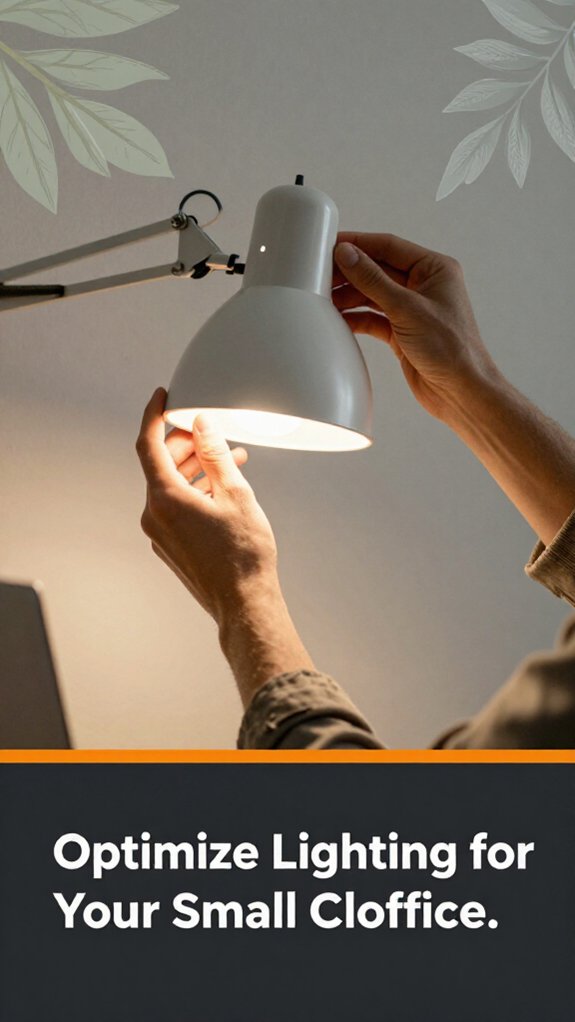
Most people underestimate how much lighting can make or break your small cloffice, and honestly, it’s one of those details that gets overlooked until you wake up with a headache or a stiff neck.
All right, first, ditch that harsh overhead glare because it creates uneven illumination and causes eye strain. Use soft, warm LED bulbs like Philips Hue White Ambiance or Lumihen Daylight bulbs, because they provide gentle, consistent light that reduces glare and enhances focus.
Ditch harsh overhead lighting for soft, warm LEDs to reduce glare and boost your focus.
Look for adjustable desk lamps with flexible arms, such as the BenQ e-Reading Desk Lamp or TaoTronics LED Desk Lamp, because you want to direct light exactly where you need it. Raise the lamp until the light is focused on your work surface and ensure it doesn’t produce shadows or glare on your screens.
Now, don’t forget natural light if you can, position your desk near a window, but avoid direct sunlight hitting your screens because it can cause glare and make your monitor difficult to see.
Layered Lighting Is Key
Combine three types of lighting:
Keep in mind, too much light causes glare, which makes your eyes tired faster.
Important Fact:
– The ideal monitor position is with the top of the screen at or just below eye level, approximately 20 to 30 inches from your eyes, because this reduces neck and eye strain.
Additionally, choosing the right lighting setup can significantly impact your comfort and productivity during long teleconferences.
Trust me, good lighting isn’t just a nicety; it’s a productivity essential that helps you stay comfortable and focused during work sessions.

Let’s face it, cluttered desks are productivity killers, and if your storage isn’t up to snuff, you’re just asking for a chaos avalanche. You’ve been there desk buried under stacks of papers, random chargers, and who knows what else.
First, invest in vertical storage, like shelves or tall drawers, because vertical space maximizes storage capacity and keeps your surface area clear.
Why? Because surface space is sacred; don’t waste it on things you only need once a month.
Next, label everything because clearly marked containers will save you time when searching. Use a Sharpie or writable labels on clear containers; this helps you identify contents instantly.
Look, don’t overstuff. That textbook-sized drawer might seem tempting, but overloading it causes difficulty in retrieving items and increases clutter. Keep only what you use weekly, and the rest can go into out-of-the-way storage.
In addition, incorporating ergonomic principles into your setup can improve comfort and productivity during long work sessions.
Measurements and Guidelines:
Common Mistakes and Solutions:
– Mistake: Storing items randomly without labels causes time-consuming searches.
Solution: Label all containers clearly to identify contents at a glance.
– Mistake: Overfilling drawers or shelves, making it hard to retrieve items.
Solution: Keep only essential items weekly; elsewhere, store less frequently used items out of sight.
– Mistake: Keeping surface clutter that could be stored vertically.
Solution: Invest in vertical storage options to free up workspace and maintain organization.
Usually, the biggest noise culprits are your keyboard clicks, phone notifications, or that random drawer of loose papers that somehow squeak every time you move.
First, invest in a good set of desk mounts or pads because they dampen keyboard and mouse noise. Adding thick rugs or carpets helps absorb sound, especially if your cloffice is on a hard floor.
All right, consider hanging a soft curtain or acoustic panel on the wall. Because sound waves love bouncing around, this cuts down echoes.
Now, if you’re feeling extra, install foam panels or weather stripping around the door. These materials help block noise leaks because they provide additional sound insulation.
Here’s the thing: no setup is perfect. But with these tips, you’ll notice a difference, so you won’t be explaining your constant typing noises anymore.
Trust me, I’ve been there.
Highlighted Fact:
– To achieve optimal soundproofing, install foam panels or weather stripping around the door, as they significantly reduce noise leakage.
Creating proper ventilation and climate control is often the step that turns a cozy cloofice into a hot, stuffy sauna faster than you’d like. I’m sure you’ve been 45 minutes into setting things up when you realize the tiny window‘s not enough, and your laptop starts overheating.
First, get a small fan or ventilation port something that can move air without sounding like a jet engine because good airflow prevents heat buildup and improves air quality.
Next, decide whether you need a humidifier or a dehumidifier because that depends on your climate; humidifiers add moisture to dry air, while dehumidifiers reduce excess moisture in humid environments. Both can help stabilize indoor humidity levels and improve comfort.
Look, you want fresh air, not a draft that ruins your concentration. To achieve this, open windows or vents to create cross-ventilation, especially during cooler parts of the day when outdoor air is less polluted and more temperate.
Highlight:
– In most indoor cloofice environments, aim for a humidity level between 40-60% because this range enhances comfort and reduces mold growth.
The first thing you should do is map out where your power outlets are and figure out what you’ll actually need plugged in, because nothing kills productivity faster than crawling under your desk for a forgotten charger. Trust me, I’ve been there.
Plan your cords so you’re not creating a spaghetti mess; this usually means using one or two power strips such as the Belkin Power Strip Surge Protector or the AP-009EU. Because managing multiple devices efficiently prevents clutter and potential fire hazards.
Consider cable length before plugging in. For example, measure from the outlet to your devices they should be approximately 1 to 2 feet longer than the distance needed, to prevent strain on cords and reduce tripping hazards.
Look for cable clips like the Joto Cable Clips or velcro strips designed to keep cables neat and prevent tangling. Secure cords along desks, walls, or under the desk to maintain a tidy workspace.
Fact: Use cable management accessories to keep cords organized and prevent damage from tugging or tangling.
Once everything’s plugged in, test all devices before tidying up because there’s nothing worse than discovering your monitor’s dead after hiding the cords away. Turn on your PC, monitor, printer, and other peripherals to ensure they’re functioning properly.
Common Mistake: Plugging in devices without testing may lead to unnoticed connection issues. Always verify device operation before concealing cords, so you can troubleshoot immediately if necessary.
Next, incorporate some color consider a vibrant piece of art from local artists or a cozy throw blanket in soft, inspiring hues like teal or mustard. These additions uplift your mood on busy days. Aim to have at least one colorful item within easy view, approximately 3 to 5 feet away, to create a lively environment that motivates you.
Lighting is crucial use a good desk lamp such as a LED adjustable task lamp from BenQ or TaoTronics. Combine this with natural light from nearby windows if possible.
Position your desk near a window that provides indirect sunlight, with the monitor facing perpendicular to the window to reduce glare. According to ergonomic standards, ensure the top of your monitor is at or just below eye level, about 20 to 30 inches from your face, to prevent neck strain and promote alertness. Maintaining the proper monitor viewing distance can also reduce eye strain and improve overall comfort during long work sessions.
Your clooffice should reflect your personality so don’t be shy about adding elements that make you smile or spark ideas. For example, include plants like succulents or air plants, or hang inspirational quotes in stylish frames.
These personalized touches make the space inviting and energizing.
Since you’re probably keen to avoid a persistent neck ache or back pain, paying attention to your posture and ergonomic setup is key.
All right, first, adjust your chair so your feet are flat on the floor, because dangling feet can lead to lower back discomfort. Your knees should be roughly level with your hips; you can measure this by sitting naturally and noting the height of your kneecaps relative to your hips.
Next, get your monitor at eye level; because crouching or craning your neck for hours causes strain. Raise the monitor until the top of the screen is at or just below your eye level, which is approximately 20 to 30 inches from your face, depending on your vision and monitor size.
The top of the screen should be just below eye height, aligning with your line of sight when looking straight ahead.
Keep your elbows close to your sides, bent at about 90 degrees, because this position minimizes shoulder strain. Naturally, your forearms should be parallel to the ground or slightly sloped downward.
Position your wrists in a neutral position, avoiding flexion or extension that deviates from their natural alignment, to prevent repetitive strain injuries.
Remember, it’s a game of small tweaks, not code-breaking genius.
And don’t forget you’ll instinctively want to slouch, but fight it. Regularly check that your shoulders are relaxed and your back is supported properly by your chair.
—
Key Fact:
– Monitor should be positioned 20 to 30 inches from your face, with the top of the screen at or just below eye level, to reduce neck and eye strain.
When you set up your cloffice, it’s all too easy for little issues to snowball into bigger frustrations such as your monitor wobbling when you type or the desk creaking every time you reach for your coffee. I’m sure you’ve held a monitor arm in one hand and tried to tighten a clamp with the other, only to realize nothing’s quite level.
First, check if your desk is stable because uneven surfaces throw everything off. To do this, place a spirit level or a smartphone level app on your desk surface to verify it’s perfectly horizontal. A level desk ensures that all mounted components stay steady.
Next, tighten your monitor mounting screws carefully, because loosened screws cause wobble. Use a Phillips-head screwdriver, and tighten each screw until it’s snug but not overtightened, as overtightening could damage the mount.
If your chair squeaks, maybe it’s just a matter of adjusting the height or lubricating joints. Raise or lower the chair until your feet rest flat on the floor, with your knees at a 90-degree angle, to promote ergonomic seating.
Apply a silicone-based lubricant to squeaking joints for smoother operation.
Important Measurement Fact:
Position your monitor 20 to 30 inches from your face, with the top of the screen at or just below your eye level, to reduce neck strain and promote good posture.
Here’s the thing: troubleshoot one issue at a time. Most problems are just small tweaks hiding behind bigger frustrations.
Focus on each adjustment individually, and your cloffice setup will be more stable, comfortable, and less frustrating.
Keeping your closet office clean and clutter-free might seem like a chore, but it’s the secret to working comfortably without feeling buried under a mountain of stuff. You don’t want to spend five minutes hunting for your favorite pen or stumbling over tangled cords.
A clean closet office boosts comfort and efficiency, saving you time and reducing stress during busy work days.
Here’s what you gotta do:
Additional tips:
Specific measurements:
– To prevent neck strain, position your monitor so that the top of the screen is at or just below eye level, approximately 20 to 30 inches from your face.
All right, you’ll still have bad days, but following these steps makes a big difference. Trust me, it’s worth the effort.
You should open a window or crack a door to get fresh air flowing.
Add a small, quiet air purifier trust me, it helps filter dust and stuffy air without turning your tiny closet into a fan zone.
Keep some houseplants, like pothos or snake plants, because they naturally clean the air.
And finally, avoid clutter, which traps dust; less dust means better air quality in your cozy space.
You want security in your closet office? All right, start with a sturdy lock obviously, no point leaving your work secrets in an unlatched drum of shoes.
Install a lockable door knob or a deadbolt if possible, and consider a security camera or a simple door sensor.
Look, it’s about deterring the curious, not turning your closet into Fort Knox. Honestly, it’s common sense unless someone’s after your snacks, then all bets are off.
You handle temperature fluctuations in your cloffice by investing in a small space heater or fan preferably both.
The key is, you want consistent comfort, not a roller coaster ride. All right, set the heater to a gentle warmth if it’s chilly, and use a quiet fan for hot days.
You should always follow local electrical codes, which states that outlets should be at least 12 inches above the floor.
Use properly rated, grounded outlets; don’t skimp here.
Install outlets away from water sources and in accessible spots no one wants to crawl behind furniture.
Remember, proper grounding and avoiding overloading circuits aren’t just tips they’re your safety net.
Trust me, I’ve done enough “shorts” in my setup to know safety first.
You create privacy by adding a curtain or a folding screen something easy to slide or fold away when you need.
All right, it sounds simple, but the key is placement place it where it blocks visual distractions but doesn’t cramp your movement.
Hang it high enough to block sightlines and choose a fabric that absorbs sound.
Honestly, it’s all about your space, but do something that feels like a real boundary you’ll thank yourself.
So there you have it your cozy, functional cloffice is ready to go, minus the usual headaches. Trust me, the key is patience and not rushing through the setup because if I’ve learned anything, it’s that things never go as smoothly as the manual promises. Remember, your space should make work easier, not more frustrating. Now sit back, breathe, and enjoy finally having a dedicated spot to crush those tasks without the usual closet chaos.





