Physical Address
304 North Cardinal St.
Dorchester Center, MA 02124
Physical Address
304 North Cardinal St.
Dorchester Center, MA 02124

Your neck, shoulders, and lower back probably aren’t fans of long hours at your desk, right? After a couple of hours, they start protesting your neck feels stiff, your shoulders ache, and your lower back might even be holding a grudge.
You want to keep those aches at bay, and the good news is, a simple setup can make all the difference. Keep your keyboard at elbow height, your monitor directly in front of you, and your chair supporting your back. Remember to keep your feet flat on the floor and take breaks every half-hour. Trust me, these tweaks can prevent things from getting worse stick around if you’d like more tips.
This article contains affiliate links. If you purchase through them, I may earn a small commission at no extra cost to you. I only recommend products I genuinely believe in.
All right, let’s be honest most of us don’t really think about ergonomics until something starts hurting, and by then, it’s often too late. If you’re setting up a home office for seniors, you need to understand why it matters so much.
Poor ergonomics can cause neck, shoulder, or lower back pain, making every video call feel like a marathon. According to OSHA ergonomic guidelines, incorrect sitting posture and repetitive motions can lead to musculoskeletal disorders such as cervical strain, thoracic kyphosis, or lumbar strain.
Improper keyboard or mouse positioning could lead to conditions like carpal tunnel syndrome or tendonitis. For example, placing the keyboard too high or low relative to the elbows increases strain on the wrists and forearms, which can irritate nerves and tendons.
Sitting in the same position for more than 2 hours without breaks risks developing blood circulation issues and heightening the chance of heart problems and diabetes, especially for seniors with preexisting health conditions. Maintaining proper posture is essential to prevent such issues. Incorporating adjustable features, like an ergonomic standing desk, can further support healthy movement and reduce sometimes overlooked circulation problems.
Many ergonomists recommend alternating postures and taking short breaks to reduce these risks. Here’s the thing: a good home office setup for seniors promotes proper spinal alignment, reduces discomfort, and boosts focus.
An ergonomic chair with lumbar and thoracic support, a desk at the correct height, and monitor placement that keeps the screen at eye level (about 15-20 inches away, with a 135-degree viewing angle) are practical steps to maintain comfort.
Ultimately, optimizing your workspace not only helps keep your body healthy but also enhances productivity and well-being. Remember, an ergonomic setup is an investment in your health and efficiency it’s worth the effort.
Now that you’ve mastered setting up a comfortable workspace, it’s important to ensure your environment is both safe and accessible. According to OSHA ergonomic guidelines, proper positioning can help prevent musculoskeletal disorders and repetitive strain injuries.
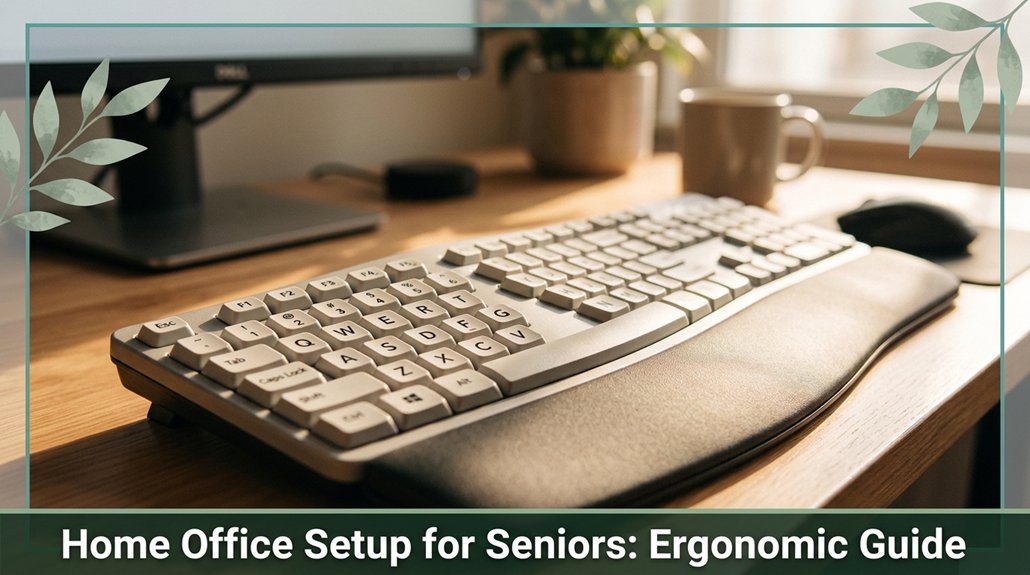
Ergonomic adjustments can contribute significantly to reducing discomfort and injury over time. Keep your keyboard at elbow height with wrists flat, ensuring your forearms are parallel to the ground. This position reduces strain on the carpal tunnel and prevents conditions like repetitive strain injury.
The mouse should be within easy reach no arm extension needed and use a wrist support if you’re prone to wrist or arm discomfort. Your monitor should be directly in front of you, with the top at or just below eye level (about 20–40 inches away from your eyes, to reduce eye strain and support proper cervical alignment).
Maintaining this distance helps prevent digital eye strain and neck discomfort. Make sure your chair supports your lumbar, thoracic, and sacral regions, with adjustable height and backrest. Your feet should be flat on the floor or on a footrest to promote proper pelvic alignment and reduce lower back pressure.
Small adjustments to your workspace can significantly improve safety, comfort, and long-term musculoskeletal health, especially when paying attention to posture and alignment.
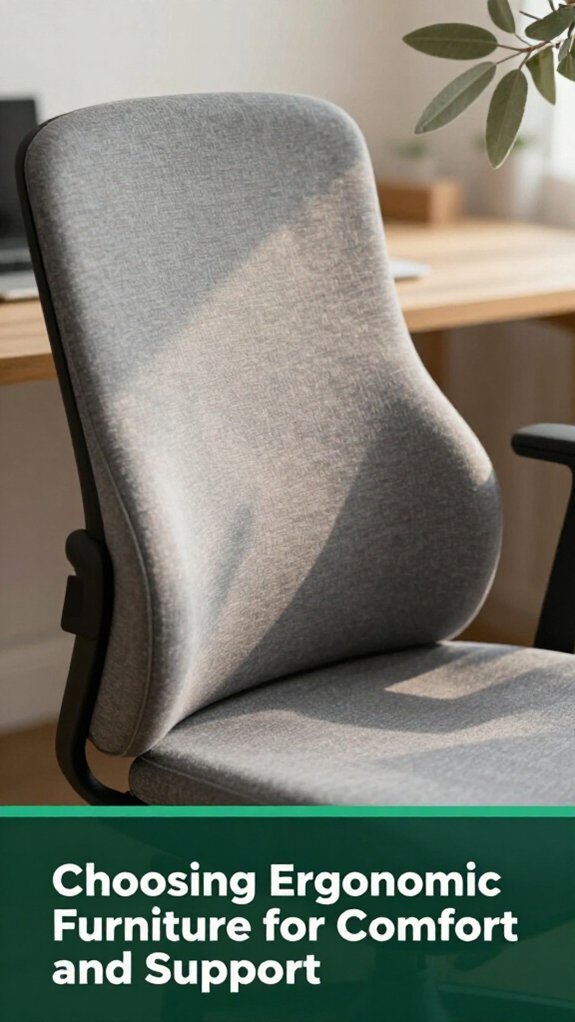
When it comes to choosing ergonomic furniture, the goal is simple: support your body so it doesn’t turn into a collection of knots and aches by the end of the day. According to OSHA ergonomic guidelines, proper support helps prevent musculoskeletal disorders and chronic pain. Trust me, I’ve been there feeling that stiffness creeping up your neck or your lower back giving you an unexpected reminder of age.
All right, so here’s what to look for:
1. Stability and support: A chair with a five-star base and wide footprint keeps you steady, even if your grip isn’t what it used to be. Lumbar support is essential to keep your lumbar spinal region healthy and avoid conditions like sciatica or lower back strain.
Research on spinal biomechanics suggests that proper lumbar support maintains the natural lordotic curve, reducing the risk of disc herniation.
2. Adjustability: Desk and chair heights need to match your body to promote optimal posture. Your elbows should be at a 90-degree angle (which means your forearms are parallel to the desktop), and your feet should be flat on the floor or on a footrest.
These adjustments are simple, but vital to avoiding cervical or thoracic strain and musculoskeletal discomfort over time.
3. Foot and floor safety: A footrest or anti-fatigue mat keeps circulation flowing and stops you from sliding around like a tossed-up rug.
Many ergonomists recommend these tools for people who sit more than 6 hours a day to reduce pressure on the lower limbs and promote blood flow.
Additionally, selecting an ergonomic chair with adjustable lumbar support can greatly enhance long-term comfort by dynamically supporting your lower back and promoting proper spinal alignment. Your body will thank you.
All right, let’s talk about something you probably didn’t think much about when setting up your home office: your eyes. If you’re like me, you’ve repositioned your screen fifty times but missed the little details that make a big difference.
Make sure your monitor’s top edge is at or just below eye level, with a slight downward tilt. This position allows your gaze to be at a 15-20° angle (similar to looking through a window), reducing strain on the cervical and ocular muscles. Proper monitor height and positioning helps maintain ergonomic alignment and prevents discomfort during prolonged use.
Keep the monitor approximately 20 to 28 inches away from your eyes that is about arm’s length since this distance helps prevent eye fatigue and maintains clear focus, according to Mayo Clinic recommendations.
Use an adjustable monitor arm so you can easily switch between sitting and standing positions without compromising your screen setup. Proper height and distance prevent neck and shoulder strain, which can lead to tension headaches or musculoskeletal discomfort.
Additionally, position your screen perpendicular to windows and lighting sources to avoid reflections and glare, as glare is known to hinder visual clarity and may cause eye strain over time.
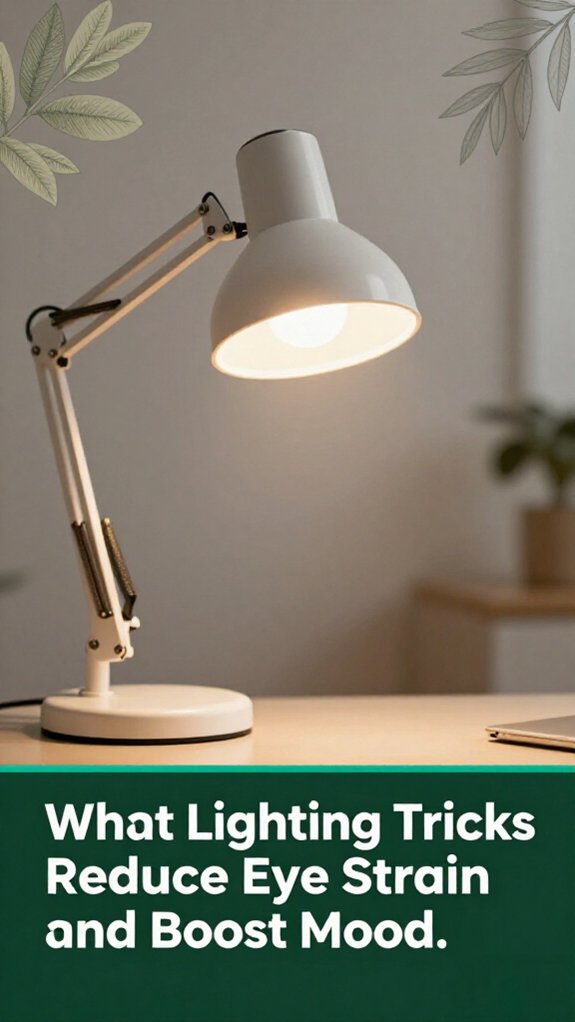
You’ve probably noticed that harsh, bright lights can turn your workspace from cozy to glare hell in about two seconds flat.
Here’s what I’ve learned after digging through the research:
1. Layer your lighting. Use a mix of ambient, task, and accent lights to keep things evenly illuminated.
Diffuse ambient lighting reduces eye flickering, which can cause eye strain. Adjustable fixtures allow you to tailor brightness throughout the day, supporting focus and comfort.
2. Pay attention to color temperature**. Neutral white** (3500–4500 K) is ideal for focus, according to research on visual performance.
Warm light (2700–3500 K) in the evening promotes relaxation and enhances mood, helping to prepare your body for rest.
3. Tame the glare. Tilt your monitor slightly (around 10–20 degrees, which prevents reflections and reduces eye fatigue).
Use matte filters on screens to minimize reflections. Curtains or blinds can soften sunlight, reducing glare on your workspace and keeping your eyes comfortable.
Implementing these small lighting adjustments can significantly improve your comfort and mood during long hours at your desk.
Now that you’ve got your lighting just right, it’s a good moment to talk about something just as important staying safe around your home to prevent painful falls and injuries. You’ve probably noticed that sometimes, just a small bump or twist can disrupt your day.
Installing handrails on both sides of stairs, with sturdy anchors, provides you with something to grab when your balance feels wobbly. Use non-slip grip tape on stairs and step stools, because slipping on smooth surfaces isn’t fun and can lead to serious injuries.
Keep bathroom grab bars at the proper height and securely fastened, so you don’t need to turn into a gymnast just to sit or stand. According to OSHA ergonomic guidelines, properly positioned bathroom safety features significantly reduce the risk of falls.
Be sure to clean up cords and clutter, keep floors dry, and brighten dark hallways. Keeping pathways clear and well-lit minimizes trip hazards and enhances overall safety.
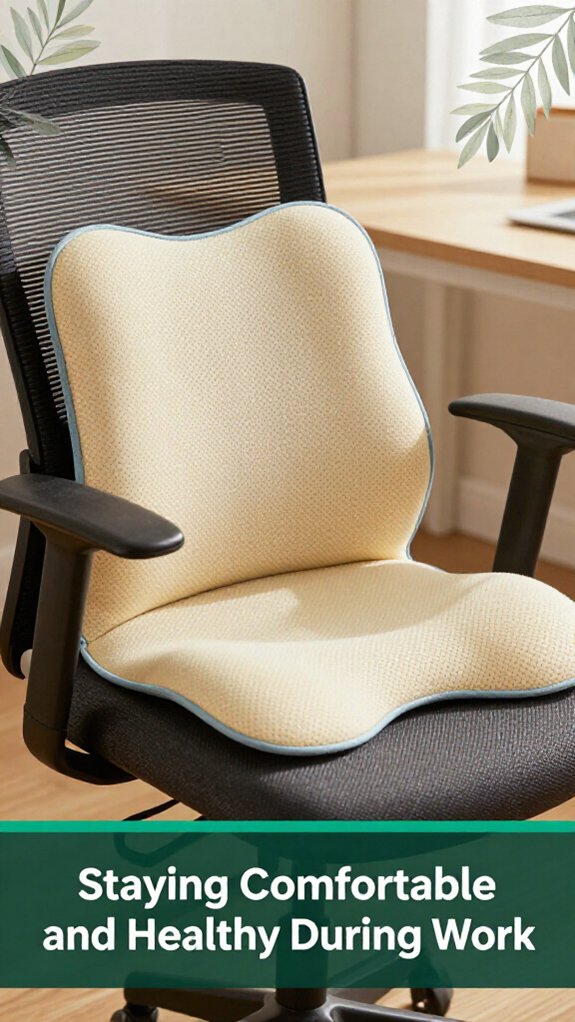
Staying comfortable and healthy at your desk isn’t just about avoiding aches and pains it’s about keeping your body happy so you can actually enjoy your day. According to OSHA ergonomic guidelines, maintaining proper posture helps prevent musculoskeletal issues and reduces fatigue.
You’ve likely noticed that your neck feels completely fine until about hour three, and then discomfort begins. Here’s the scoop:
You can adjust your workspace by making it fully accessible, so you stay comfortable.
All right, tighten up your chair with lumbar support, and set the height so your feet stay flat.
Look for a desk that adjusts, so you can sit or stand without fuss.
Keep screens at eye level and close enough, and use assistive tech like magnifiers or voice commands.
Trust me, your body will thank you when everything’s just right.
For limited dexterity, you’ll want accessories that basically do the work for you like large-button, low-actuation keyboards that shout, “Press me, I got you!”
Instead of tiny, finicky mice, try trackballs that you spin without gripping tight. Add USB-powered mouse pads with built-in wrist rests for support, and consider adjustable keyboard trays for easy positioning.
These tools make typing smoother, easing wrist and finger strain, so you can focus on the task, not the agony.
You should take a break every 30 to 60 minutes, honestly.
Trust me, I’ve felt that slump where your neck’s screaming or your back just won’t cooperate.
A quick 2-3 minute stretch or a walk re-engages those muscles, eases stiffness, and keeps your circulation flowing.
Set a timer or use your phone.
Your body will thank you less pain, more clarity, and you won’t feel like a stiff robot by mid-afternoon.
You want everything to be easy, right? Voice assistants make it feel like you’ve got a tech-savvy friend in the room; simple commands control your lights and calendar.
Big-print keyboards with high contrast? They’re like reading neon signs in the dark. Adaptive mice fit comfortably and reduce strain, while magnifiers and anti-glare screens turn tech into a gentle helper not a hurdle.
All these tools help you stick with your routine without frustration or fuss.
All right, to keep your workspace a neat haven, think of it as a tidy garden it’s easier to tend when everything’s in its place.
You’ll want clear walkways, so move cords out of sight and store clutter in easy-to-reach drawers. Use labeled bins for quick finds, keep frequently used items at waist level, and add good lighting.
Trust me, a clutter-free zone feels less like a fall hazard and more like a refreshing change.
All right, so you’ve made some tweaks for comfort and safety good for you! Remember, setting up a home office isn’t a one-and-done deal; it’s about listening to your body and adjusting as you go. After all, aren’t we all just trying to avoid that moment when we stand up and wonder if our back has suddenly turned into a rusty hinge? Keep checking in with yourself, stay flexible, and your workspace will thank you and so will you.