Physical Address
304 North Cardinal St.
Dorchester Center, MA 02124
Physical Address
304 North Cardinal St.
Dorchester Center, MA 02124

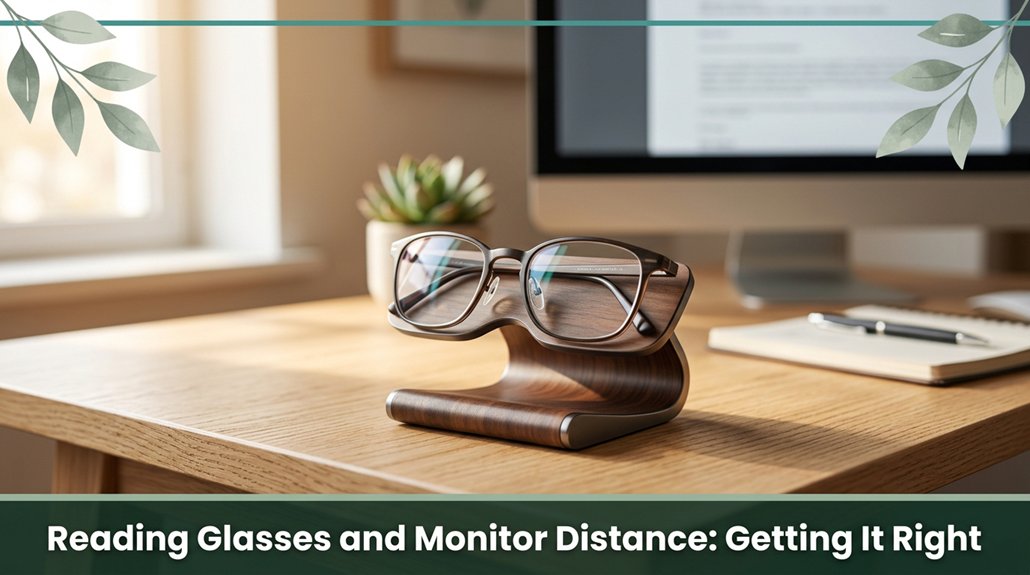
Look, I know how tempting it is to sit too close to your screen or strain your eyes with the wrong glasses trust me, I’ve been there. The key is finding that sweet spot, about 20 to 40 inches away, so your eyes don’t squint or water, and your neck doesn’t turn into a stubborn knot. If your glasses aren’t designed for screen work or your setup feels off, you’re just asking for headaches and backaches. Keep scrolling if you want to figure out how to get everything aligned and comfy!
This article contains affiliate links. If you purchase through them, I may earn a small commission at no extra cost to you. I only recommend products I genuinely believe in.
Now, I’m pretty sure you’ve experienced that exhaustion creeping in after staring at your screen for a while your eyes feel tired, maybe even blurry, and your focus just isn’t what it used to be. That’s why reading glasses monitor distance matters more than you think.
When you’re too close or too far from your screen, your eye muscles work overtime trying to focus, and that’s a recipe for fatigue. A proper monitor setup can prevent most of these issues and enhance comfort and productivity.
Research on spinal biomechanics suggests that the optimal monitor distance roughly 20 to 28 inches allows your eyes to relax, keeping convergence demand low and reducing strain. This distance also helps you see text clearly without squinting or leaning in. Maintaining the correct monitor placement encourages proper head and neck alignment , which can prevent issues like thoracic kyphosis and reduce eye fatigue.
All right, so you’ve probably realized that not all reading glasses are created equal especially when it comes to staring at a computer screen all day.
Reading glasses concentrate almost all the magnification in the lower part of the lens, which is ideal for close-up tasks such as reading print materials. However, they aren’t well suited for screens at about 20 to 28 inches (which is the typical distance for desktop computer monitors).
Computer lenses, on the other hand, allocate the top 60% of the lens surface to intermediate distances, which reduces the strain on your eye muscles and accommodation. They incorporate a gradual shift from intermediate to near vision, aligning with the natural focus range as your gaze moves slightly downward. Proper lens design helps match the natural eye focus, improving comfort during extended screen use.
Computer lenses favor the top 60% of the lens for intermediate vision, easing eye strain as your gaze shifts downward.
This design helps prevent neck strain and reduces the need to tilt or crane your head. Research on spinal biomechanics suggests that maintaining a neutral head position during screen work can minimize cervical and thoracic musculoskeletal issues. Additionally, computer lenses often feature anti-reflective coatings and blue-light filters.
These enhancements help reduce glare and digital eye strain, which many ergonomists recommend, especially for individuals who sit for more than 6 hours daily.
Alright, figuring out the perfect monitor distance is a bit like finding that sweet spot in a hammock: you want just enough tension so you’re not straining to see, but not so close that your eyes feel like they’re about to pop out. The ideal range?
About 20 to 40 inches from your eyes, which helps prevent eye fatigue and strain, according to OSHA ergonomic guidelines. Most of us hover around arm’s length; fingertips just touch the screen. Sitting too close may cause you to squint, strain your eyes, and develop neck discomfort, as excessive proximity can lead to poor posture and increased ocular muscle effort.
On the other hand, sitting too far away may make you lean forward, putting unnecessary load on your thoracic and lumbar spine, which research on spinal biomechanics suggests can contribute to discomfort or musculoskeletal issues. The key is to adjust font size and display settings so you don’t have to crawl closer to read text comfortably.
When you find that ideal ‘Goldilocks’ zone where your eyes are relaxed, and your neck and back remain comfortable you’ll reduce the risk of developing eye strain, thoracic kyphosis, or neck pain. Maintaining a proper monitor distance can also help prevent musculoskeletal problems, such as back or neck discomfort, over time.
Ensuring ergonomic positioning enhances overall comfort and supports long-term health during extended monitor use. Remember: your goal is to maintain a neutral head and spine position, which minimizes strain during prolonged computer use.
Ever wonder if there’s a type of lens that could make your screen time a little easier on your eyes? Well, there is. Basically, if your job involves a lot of looking at screens, single-vision lenses calibrated for that 50–70 cm distance (which corresponds to typical monitor viewing distance) can give you consistent magnification and reduce focus fatigue. This is important because prolonged focusing at near distances can cause eye strain, blurry vision, and headaches (per Mayo Clinic recommendations).
If you’re juggling multiple tasks at different distances, bifocals or progressive lenses help by covering near and intermediate ranges without visible lines, making transitions seamless.
And for those with heavy screen use, computer-specific lenses are tailored specifically for your viewing range. Pairing these with an anti-reflective coating can significantly cut glare from screens and ambient lighting.
Many ergonomists recommend anti-reflective coatings because they improve visual clarity and reduce eye strain caused by digital glare. Additionally, a blue-light filter can be applied to glasses to help protect your eyes from digital fatigue, which some research suggests may contribute to disruption of sleep patterns or digital eye strain.
Together, these lens options including properly calibrated designs, anti-reflective coatings, and blue-light filters can help you stay comfortable, maintain visual sharpness, and reduce eye fatigue at the end of long screen-focused workdays.
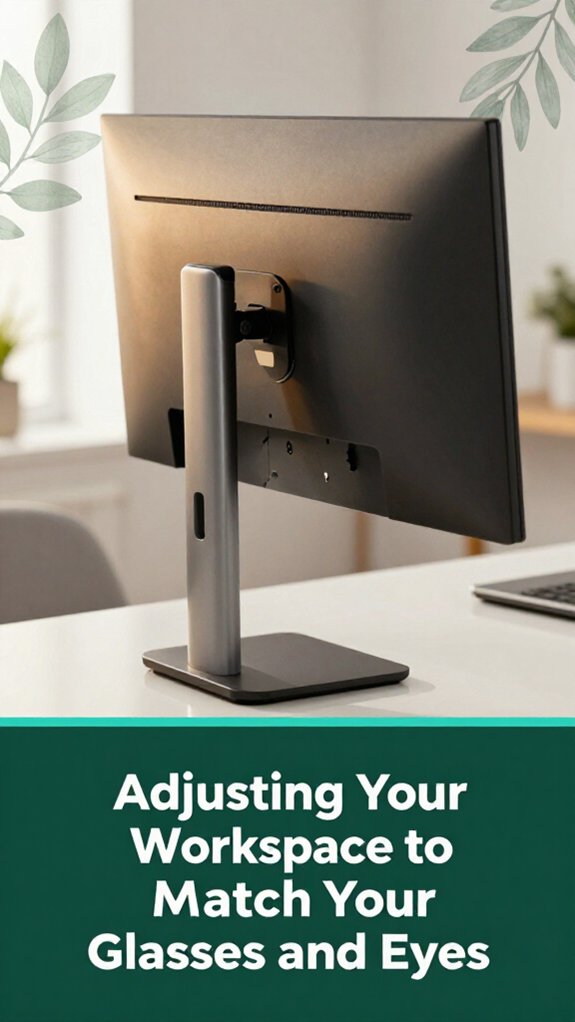
Let’s be real if your workspace doesn’t match your glasses and your eyes, you’re basically asking for trouble. According to OSHA ergonomic guidelines, you want your monitor at about 24 inches (which allows for comfortable viewing without eye strain), perhaps a little more if you have dual screens or larger setups. This means adjusting your chair height and using risers or stands so your eyes are level with the top of the screen no craning your neck or tilting your head, which can lead to cervical strain and thoracic kyphosis over time.
Keep your keyboard and mouse close, within 20-26 inches, so you don’t lean forward or reach excessively. Maintaining this distance supports proper wrist and shoulder ergonomics and reduces the risk of repetitive strain injuries like carpal tunnel syndrome. Many people are unaware that incorrect monitor positioning can worsen eye strain even with proper glasses, so ensuring your screen is at eye level is key. Proper monitor height and position are essential for maintaining a relaxed posture and preventing discomfort during long periods of work.
Position your phone or tablet for close work at around 12-16 inches, which aligns with reading glasses for near tasks, reducing eye strain per Mayo Clinic recommendations.
Don’t forget to measure your workspace setup with a simple tape measure it can prevent ‘I think I moved it, but I’m not sure’ guessing games. Accurate positioning helps maintain optimal visual and musculoskeletal health, and your eyes will thank you for it.
When your eyes start to feel tired, blurry, or you find yourself squinting more than usual, it’s a pretty clear sign your glasses mightn’t be quite right.
Tired, blurry eyes or increased squinting signal your glasses may need rechecking.
Maybe you’re noticing headaches or a feeling of strain after long hours at your screen that’s your eyes fighting the wrong prescription, according to Mayo Clinic recommendations.
Over‑strong lenses force your eye muscles, particularly the ciliary muscles responsible for adjusting lens shape for focus, to push back, causing tension and migraines.
Under‑power lenses make you squint and lean forward, which can stress the cervical and thoracic spine, potentially leading to neck and back discomfort.
Also, if your glasses aren’t aligned with your pupillary distance (PD) the distance between your pupils, which may influence binocular vision and reduce double vision you might feel dizziness or double vision.
This is true even if you’re just trying to work or focus on a screen.
The fix? Get your glasses measured for your exact screen‑to‑eye distance and PD.
Consider professional refraction to address issues like astigmatism, which affects how light is bent in your eye, leading to blurred vision.
Additionally, ensuring your glasses are properly fitted can help optimize visual comfort and reduce strain.Proper fitting can make a significant difference in preventing long-term discomfort and visual fatigue.
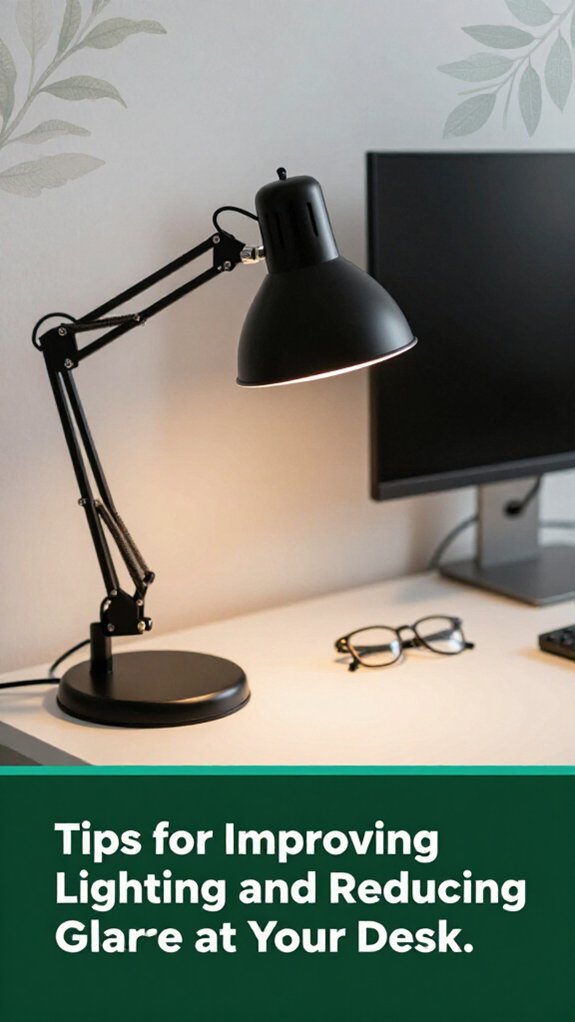
You’ve probably noticed that if your desk lighting isn’t just right, your eyes start feeling tired faster, and those pesky headaches come knocking. According to OSHA ergonomic guidelines, working with uneven lighting makes your pupils work overtime, which tires them out faster and can contribute to eye strain.
Here’s the thing improving your workspace lighting can help reduce fatigue and prevent visual discomfort. Try positioning your monitor perpendicular to windows to avoid glare straight on, which can cause reflections that strain your eyes.
Keep ambient light close in brightness to your screen to ease pupil strain; a significant brightness difference can cause visual fatigue. Using matte screen filters can diffuse reflected light and cut down glare, making your viewing experience more comfortable. Tilt your monitor backward slightly about 10 to 15 degrees to deflect overhead light and minimize direct reflections.
Additionally, installing blinds or shades allows you to control natural sunlight coming into your workspace, preventing sudden changes in light intensity that can cause discomfort.
Every shade you adjust and tilt you make helps your eyes breathe easier. As a result, you’ll likely notice less fatigue by the end of the day.
Creating balanced lighting conditions with these adjustments supports the health of your ocular and cervical muscles, reducing the risk of conditions like computer vision syndrome or neck strain associated with improper illumination.
Ever notice how your eyesight seems fine until suddenly it’s not, and then you’re squinting at your screen, holding things closer, or blinking like a frantic owl? That’s your cue. Most adults should get an eye exam every 1-2 years; high-risk folks like diabetics or those with high myopia should do it yearly, according to Mayo Clinic recommendations.
If you’re over 40, keep an eye out 70% report vision changes every two years. Symptoms such as persistent blurriness, headaches after screen time, eye fatigue, or needing to hold items closer are signals you might need an update.
The truth is, wearing an outdated prescription can slow you down up to 20% in reading speed, according to research on visual performance and even increase night-time driving risks.
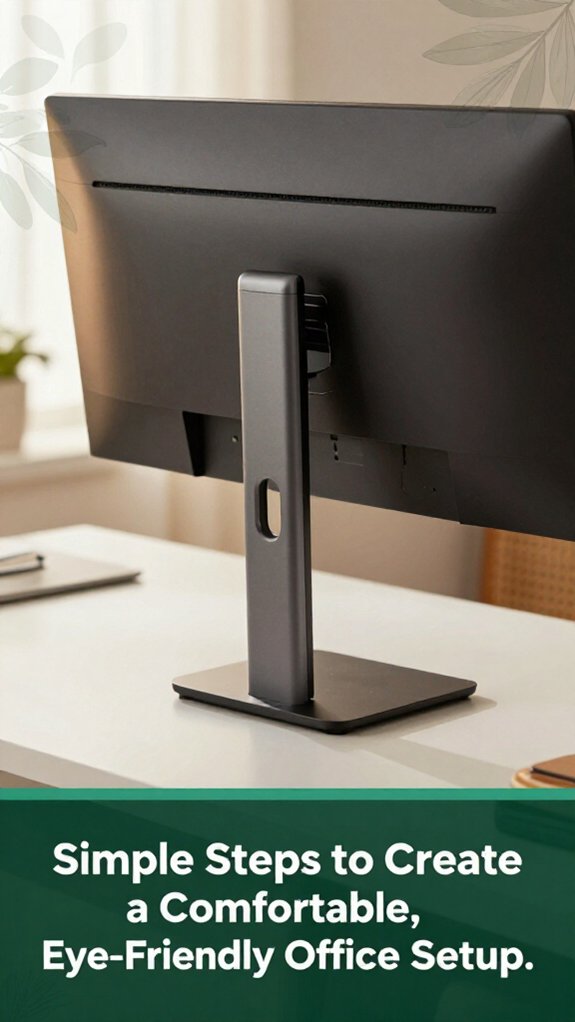
All right, let’s talk about setting up your workspace so your eyes don’t hate you by lunchtime.
First, keep your monitor about 20 to 40 inches away from your eyes that’s roughly arm’s length to reduce eye strain (according to OSHA ergonomic guidelines). Position it directly in front of you, within 35° left or right, to prevent unnecessary head turning and ensure comfortable viewing angles. The top of your screen should be at or just below eye level, which helps maintain a neutral neck position and reduces strain on the cervical spine; use an adjustable stand if needed to achieve this.
Proper lighting is essential to minimize glare and reduce eye fatigue. Light sources should be perpendicular to your monitor, with glare minimized by filters or lamps that eliminate reflections.
Consider ambient lighting that provides even illumination without causing contrast issues on your screen.
Finally, take short breaks to look at something 20 feet away for 20 seconds every 20 minutes this simple practice, known as the 20-20-20 rule, helps alleviate eye strain and can reduce headaches related to prolonged screen time.
You should get your vision checked every 1-2 years if you’re regularly on screens.
Now, I know what you’re thinking does that mean I need a full eye exam every time? Not necessarily. It’s more about catching those little changes early.
If you notice headaches, blurry vision, or dry eyes, see your eye doctor sooner. Keeping your eyes in check helps avoid straining and keeps your screen time more comfortable.
Yep, screen distances change as you get older or if your eyes aren’t in tip-top shape. You might naturally hold your device closer if your eyes strain, or your distance could drift because of presbyopia or other eye health issues. It’s totally normal.
All right, so keep an eye on how far your device feels comfortable. Regular eye checks help catch these shifts early, so you can tweak your distance and font size before your neck begins protesting.
You can cut down eye strain by adopting simple habits. Think of blinking as your eye’s refresh button make a conscious effort to blink more often, especially during screen time.
Follow the 20-20-20 rule, and look at something 20 feet away for 20 seconds every 20 minutes. Keep your screen at arm’s length, slightly below eye level, and match brightness to ambient light.
Trust me, your eyes will thank you.
All right, here’s the thing your eyes need a break, not just from screens but from your regular habits.
Try simple eye exercises like rolling your eyes in circles or focusing on a distant object, then near, every couple of minutes. Blink deliberately like you’re trying to moisturize your eyeballs and consider palming (covering your eyes with palms, gently).
These little moves reset your focus muscles and keep discomfort at bay.
If your glasses don’t help you see clearly on your monitor, they’re probably not right for computer work.
All right, here’s the thing you wanna check if your current glasses make your screen blurry or cause eye strain after an hour. If they do, you might need a different prescription, especially designed for intermediate distances.
Best to visit an optometrist who understands ergonomics and get fitted with glasses tailored for your desk setup.
All right, now that you know the secret sauce to comfy eyes correct monitor distance, the right glasses, good lighting you’re basically wielding the power to banish eye strain for good. Trust me, once you tweak your setup, it’s like flipping a switch from eye-searing chaos to blissful clarity. You might not turn into an eye ninja overnight, but taking these small steps will make your workday feel a whole lot easier and your eyes thank you for it.