Physical Address
304 North Cardinal St.
Dorchester Center, MA 02124
Physical Address
304 North Cardinal St.
Dorchester Center, MA 02124

Your home office network might seem secure enough, but relying on default passwords and generic settings leaves you vulnerable to hackers. First, choose a router that supports WPA3 encryption to protect your data, and change the default network name and admin credentials don’t stick with “admin” and “password.” Then, set up a separate Wi-Fi network for your work devices with a strong, unique password. Keep your firmware updated, run a VPN, and monitor your traffic to prevent unwanted intrusions. Stay vigilant, and you’ll find smarter ways to keep your home office safe from digital threats.
So, wondering what kinds of dangers might threaten your home office network? That’s a smart question. To build a truly secure home office network, you first need to identify the specific risks that are out there. Think about hackers attempting to access your sensitive files, malware concealing itself within downloaded software or email attachments, or someone guessing your weak Wi-Fi password to gain unauthorized entry.
Here’s the thing: you can’t fix vulnerabilities if you aren’t aware of them. Start by evaluating your current setup. Are your devices such as laptops, printers, and smart home gadgets running the latest operating system updates?
Are your Wi-Fi passwords strong, unique, and at least 12 characters long, combining uppercase and lowercase letters, numbers, and symbols? Do you have shared folders or cloud storage with overly broad access permissions?
Most people overlook these fundamental security practices, which leaves their network vulnerable to common threats.
Once you understand the specific risks, you can prioritize addressing the most significant vulnerabilities. For example, updating outdated devices curtails malware exploits, while strengthening Wi-Fi passwords prevents unauthorized access.
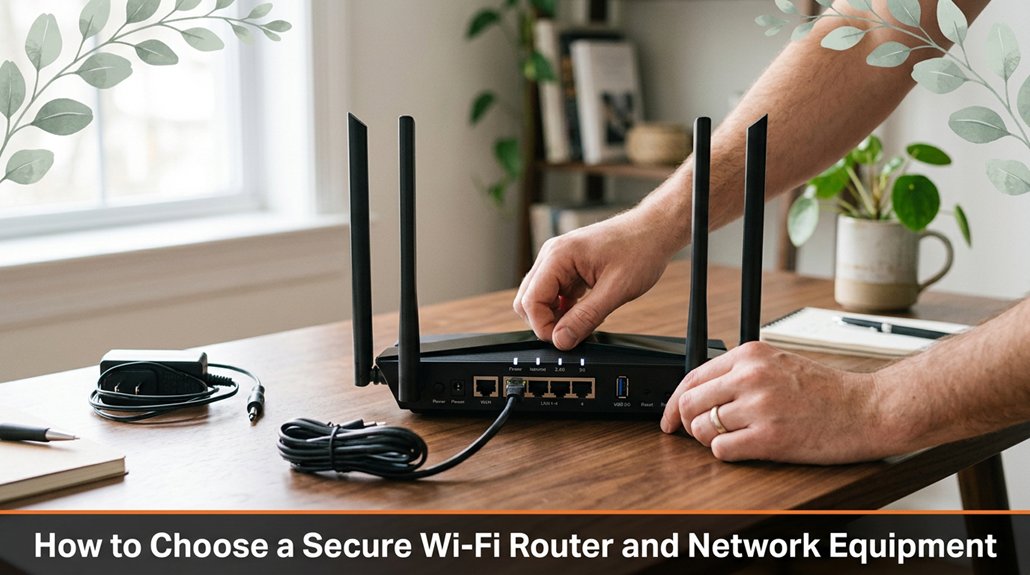
Choosing a secure Wi-Fi router might feel like selecting the least unattractive option among a sea of blinking lights and confusing specifications. However, don’t get distracted by shiny new features that don’t actually enhance your security. You want a router that supports WPA3 encryption if it’s available and that receives regular firmware updates. These updates patch security vulnerabilities and keep your network protected against emerging threats.
Skip routers that brag about ultra-fast speeds, as speed doesn’t equate to security. Instead, focus on a device with a strong built-in firewall look for routers with enterprise-grade security features or dedicated security modules. Additionally, ensure your router provides guest network options; this allows your visitors to access the internet without gaining access to your primary devices and files, thereby safeguarding your sensitive information.
Resist the urge to buy the cheapest model on the shelf. Inexpensive routers often lack necessary security features and may be more vulnerable to hacking attempts. Invest in a reputable brand with positive security track records and good customer support.
Once you have selected a router, enable the latest security protocols like WPA3, and configure all available security settings.
Most importantly, change the default administrator password immediately after setup. Default passwords are widely known among hackers and can leave your network exposed. Use a strong, unique password preferably a long passphrase consisting of random words or a password manager-generated string to prevent unauthorized access.
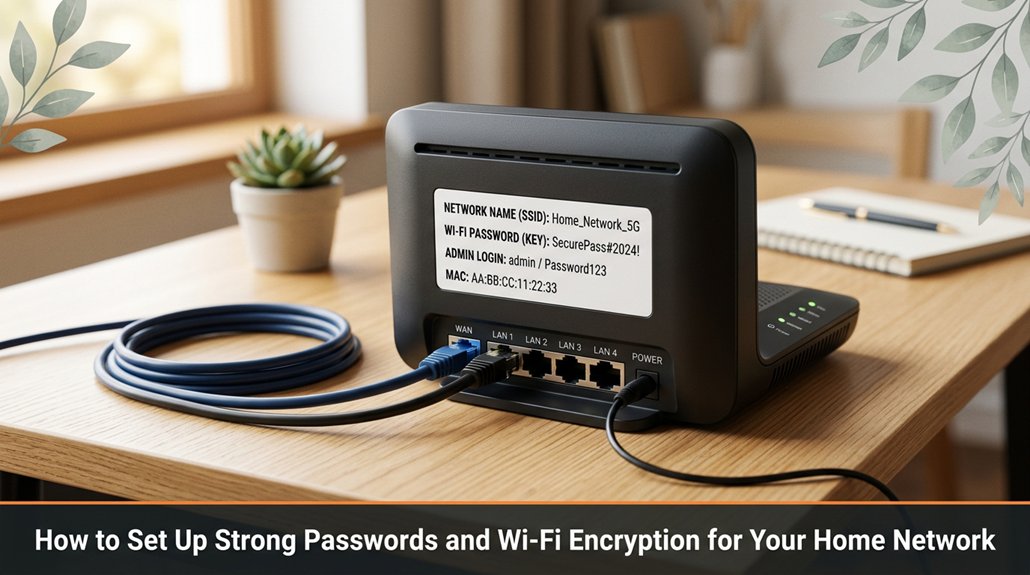
There are two crucial aspects you must get right when setting up your home Wi-Fi: establishing a strong password and implementing solid encryption. First, create a password that’s at least 12 characters long, combining uppercase and lowercase letters, numbers, and symbols. For example, a password like “G7!r2#LqX9p$” is far more secure than generic options.
Create a 12+ character password with letters, numbers, and symbols for better Wi-Fi security.
Although it requires more effort to remember, such a password significantly reduces the risk of unauthorized access since a neighbor’s cousin would need an entire weekend of guessing or brute-force attempts to crack it.
Next, ensure you select WPA3 encryption if your router supports it. WPA3 is the latest Wi-Fi security protocol and provides stronger safeguards against cyber threats and eavesdropping compared to older standards like WPA2. Switching to WPA3 encrypts your wireless traffic with advanced cryptographic algorithms, making it much more difficult for outsiders to intercept or decipher your data.
This upgrade is essential for protecting sensitive information such as online banking, personal emails, and smart home device communications.
Moreover, change the default network name (SSID) and default administrative credentials common defaults like “Linksys” or “admin” are well-known and easy targets for hackers. Use a unique network name that doesn’t reveal your identity or location, and set a strong, unique admin password for your router’s settings page.
This prevents unauthorized access to your network configuration and helps maintain your network security integrity.
Finally, save your configuration changes and thoroughly test your network’s security. To verify you’ve successfully secured your Wi-Fi, attempt connecting to it from a different device or location with a network scanner tool. Confirm that your password is required for access and that your encryption protocol is WPA3.
Ensuring these steps are correctly implemented will safeguard your home network from unauthorized intrusion and keep your personal data protected.
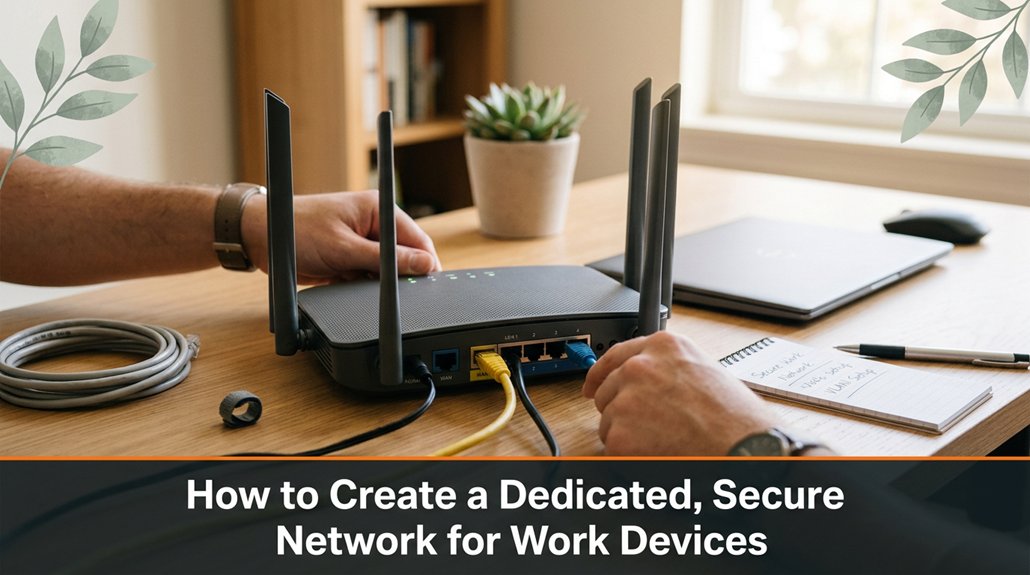
Setting up a dedicated, secure network for your work devices requires strategic planning rather than simply clicking “Create a new network” and hoping for the best.
First, create a separate SSID specifically for your work devices. Don’t reuse your guest network name or your main Wi-Fi SSID, as doing so can lead to device mixing and increase the risk of security breaches. Assign a distinct network name, like “WorkNetwork,” to clearly differentiate it from other network segments.
Next, if your router supports Virtual LANs (VLANs), set them up to segment your work traffic from personal devices and guest networks. VLAN configuration isolates work data, reducing the risk of unwanted access or data leaks. For example, assign VLAN ID 10 to your work devices and VLAN ID 20 to personal devices, ensuring each traffic type is logically separated.
Disabling device discovery is also critical you want to prevent other network devices from automatically detecting and connecting to your work network. Turn off network discovery options in your router’s settings and disable network sharing features on your devices.
Assign static IP addresses to your work gear, such as laptops, desktops, and printers, instead of relying solely on DHCP. Static IPs, like 192.168.10.50 for your main work PC, provide consistent addressing, minimizing conflicts and connection issues. This approach enhances network stability and makes it easier to apply security rules or monitor traffic related to your work devices.
The overarching goal is to keep your work environment isolated, predictable, and protected from unnecessary exposure.
Implementing these steps creates a controlled, secure network environment tailored specifically for your professional needs.
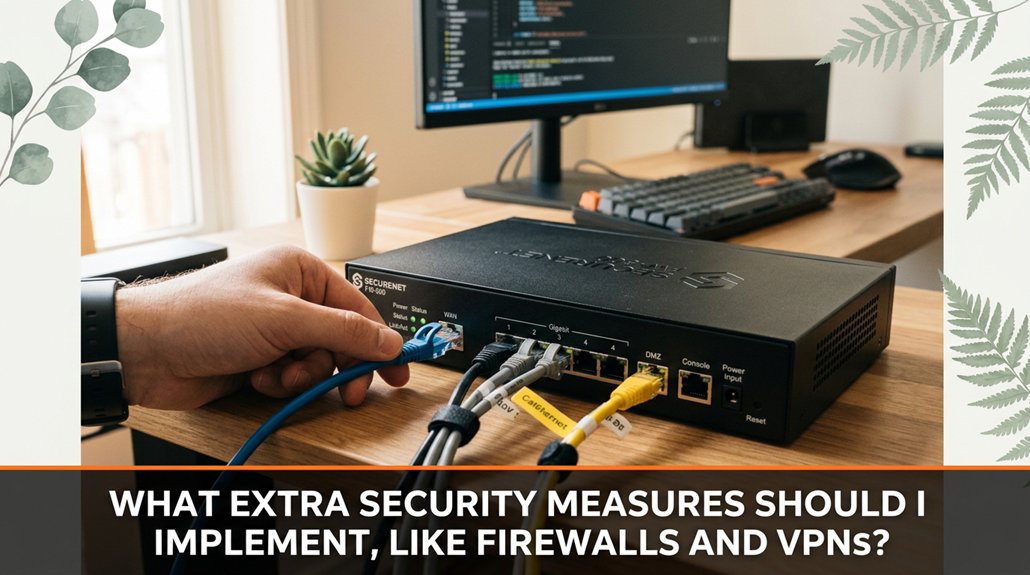
If you’re serious about keeping your home office safe from hackers, the first step is to enhance your security with a reliable hardware firewall and a Virtual Private Network (VPN). Firewalls serve as a barrier by filtering incoming and outgoing network traffic, blocking malicious or unauthorized access attempts. A hardware firewall such as those integrated into modern routers or dedicated security appliances adds an extra layer of protection, especially when managing multiple connected devices like desktops, laptops, and IoT gadgets.
Implementing a VPN encrypts all internet traffic leaving your device, disguising your online activity and making it extremely difficult for hackers or third parties to intercept sensitive information. For home office security, choose a reputable VPN provider that offers strong encryption standards, such as AES-256, and user-friendly client applications compatible with your operating systems like Windows, macOS, or Linux.
| Measure | Why it helps |
|---|---|
| Hardware Firewall | Prevents unauthorized access by filtering network traffic before it reaches your devices |
| VPN Service | Encrypts your internet traffic, maintaining privacy on open, shared, or public Wi-Fi networks |
Set up these security measures early to mitigate potential vulnerabilities and protect your data from cyber threats. A well-configured hardware firewall combined with a trusted VPN forms the core of a robust security strategy for any home office environment.
Keeping your network firmware and security software up-to-date might seem like a mundane task you plan to do “later,” but in reality, it’s crucial for maintaining your home or office network’s security. Outdated firmware and security software act like open doors to hackers, leaving your data vulnerable to cyberattacks. Think of updates as the immune system of your network devices; ignoring them increases the risk of security breaches and system failures.
Enable automatic updates on your wireless routers, network switches, and security software yes, even if it feels like giving up some control. Automatic updates ensure your devices regularly receive the latest patches without requiring manual intervention, reducing the chance of leaving critical vulnerabilities unpatched.
Regularly visit your device manufacturer’s official website or support portal such as Cisco, TP-Link, or Synology to check for firmware patches, security advisories, and software updates relevant to your hardware.
Set calendar reminders or device alerts to prompt you to review firmware and security software updates at least once every three months. Staying proactive helps prevent potential exploits before they occur. When downloading updates, always use official sources directly from the manufacturer’s website or through their download portals and avoid third-party links, which may host compromised or tampered files.
Updates often include patches for newly discovered vulnerabilities, which cybercriminals exploit to gain unauthorized access. Therefore, maintaining up-to-date firmware and security tools is your most effective defense against evolving cyber threats.
Without these updates, you leave open the possibility for malware infections, data breaches, or network disruptions. Don’t blow off the importance of regular updates; they’re your first line of defense in a rapidly changing digital landscape.
There are three key actions you must take to ensure your remote access is secure and your data is backed up safely consider these your essential protocols.
First, always use a Virtual Private Network (VPN) whenever you are working remotely. A VPN creates a secure, encrypted tunnel through the internet, preventing cybercriminals and unauthorized parties from intercepting sensitive information like login credentials, financial data, or proprietary business details. For example, tools such as NordVPN, ExpressVPN, or Cisco AnyConnect provide robust encryption protocols and reliable connections that safeguard your data when accessing company servers from a coffee shop or hotel Wi-Fi.
Second, automate your data backups to avoid relying on manual processes, which can be forgotten or overlooked during busy periods. Implement automatic backup solutions like Acronis True Image, Backblaze, or Windows Backup to ensure your files, emails, and system images are regularly saved without extra effort. Schedule daily or weekly backups to external drives, network-attached storage (NAS), or cloud services, so your critical data remains current and protected even if hardware failures, accidental deletions, or malicious attacks occur.
Third, store your backups off-site or in the cloud. Physical storage devices like external hard drives, NAS units, or USB flash drives are vulnerable to theft, fire, flooding, or hardware damage. Cloud storage providers such as Amazon Web Services (AWS), Microsoft OneDrive, or Google Drive offer remote locations for your data, ensuring it remains accessible and intact regardless of physical disasters. For example, using incremental backups in the cloud reduces storage costs while maintaining comprehensive, recoverable versions of your data.
Below is a quick-reference table to reinforce these actions:
| Action | Why | Potential Pitfall |
|---|---|---|
| Use VPN | Secures remote access by encrypting your internet traffic | Forgetting to activate the VPN before work |
| Automate backups | Saves time, reduces human error, ensures regular data protection | Overlooking or disabling scheduled backups |
| Cloud storage | Protects against physical damage or theft, maintains data accessibility | Incurring costs if not managed properly |
Troubleshooting your home network’s security issues can feel like chasing ghosts at times you change a setting, and suddenly everything slows down or stops working altogether.
First, check your router logs. They indicate whether there’s suspicious activity, such as repeated failed login attempts or connections from unfamiliar IP addresses, which can help you identify potential threats.
Next, verify that your Wi-Fi password hasn’t been compromised. If there are signs of unauthorized access, change your Wi-Fi password immediately, using a strong and unique passphrase that includes a mix of uppercase and lowercase letters, numbers, and special characters.
Review the list of connected devices on your network. Are there any devices you don’t recognize? Rogue devices, such as unknown smartphones, smart home gadgets, or laptops, could be attempts to infiltrate your network.
Afterward, update your router’s firmware to the latest version provided by the manufacturer. Firmware updates often include critical security patches that protect against known vulnerabilities. For example, some models from brands like Cisco, Netgear, or Asus routinely release updates that address emerging cyber threats.
Finally, run a malware scan on all connected devices computers, smartphones, tablets, and IoT gadgets using trusted antivirus or anti-malware software. Regular scans help identify and remove malicious software that could be compromising your network security.
Most common issues stem from outdated firmware, weak passwords, or unauthorized devices attempting to access your network.
Now you’re almost there. You’ve got your setup, your security layers, a network that’s tighter than your favorite jeans. But here’s the thing security’s not a “set and forget” deal. You’ll need to stay vigilant, update those firmware patches, and keep an eye on what’s lurking. Because, honestly, if you leave a door slightly ajar, even the best lock won’t stop the ones determined to get in. Ready to keep your work and data safe?