Physical Address
304 North Cardinal St.
Dorchester Center, MA 02124
Physical Address
304 North Cardinal St.
Dorchester Center, MA 02124

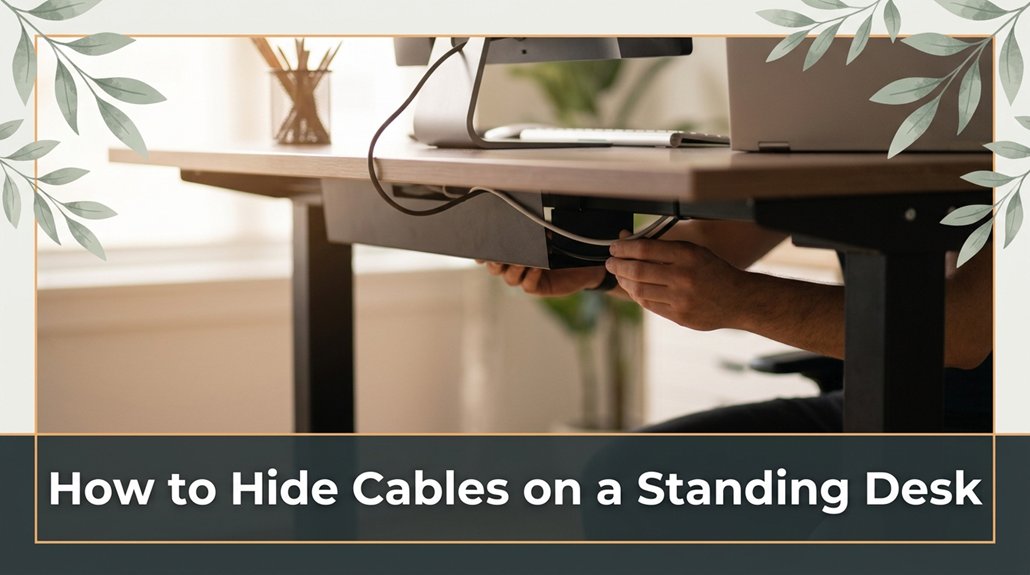
All right, here’s the thing hiding cables on a standing desk isn’t rocket science, but it’s easy to trip up if you skip the details. If your workspace feels cluttered or messy because of tangled cords, you’re in the right place.
First, identify your main clutter culprits and bundle those cords with Velcro straps or zip ties; it stops them from tangling or hanging loose. Then, use cable clips along the desk edge or install a cable tray underneath to keep everything out of sight no one needs to see your spaghetti wiring.
From there, grommets and raceways are your friends for a clean pass-through, and yeah, regular checks to tighten things up are key. Keep it simple, and trust me, your workspace will look professional, not thrown together in a hurry. If you want the full scoop, stick around there’s more tricks to make this easier.
This article contains affiliate links. If you purchase through them, I may earn a small commission at no extra cost to you. I only recommend products I genuinely believe in.
Let’s face it: cable clutter on your standing desk is like having an unruly toddler run loose in your living room, because it’s annoying, distracting, and just plain ugly. That’s why a cable management system for your standing desk is your best friend.
Cable clutter on your standing desk is like a toddler unleashed annoying, distracting, and downright ugly.
Having cords sprawled across your workspace not only kills focus but also makes everything look unprofessional, even if your setup’s budget-friendly.
Think about it every time you move, those cables tangle, trip you up, or yank loose, which can cause damage to your devices or disrupt your workflow. It’s maddening. Plus, messes like that attract dust and grime faster, leading to a less clean workspace.
You want your desk to look sleek, not a spaghetti monster. So, if you’re serious about boosting your productivity and keeping your workspace neat, you’ll want to tame those cords early.
Here are actionable steps to do that:
1. Identify all the cables connected to your devices, including power cords, monitor cables, and accessory wires.
2. Use cable clips or adhesive cable ties to route cords along the edges of your desk or down the legs, keeping them off the surface because this reduces clutter and prevents accidental disconnections.
3. Bundle excess cable length with Velcro straps or twist ties, ensuring that no loose loops hang or dangle where they could cause trip hazards or get caught.
4. Install a cable management tray underneath your desk, positioned about 2 to 3 inches below the surface, because this creates a dedicated space for cords and power strips, keeping them out of sight.
5. Use a power strip with individual switches for each device, placed on or near the desk, to easily control power without unplugging cords, because this reduces wear on connectors and minimizes clutter.
Highlight:
– Mount the power strip 6 to 12 inches from the edge of your desk for easy access and to prevent overextension of cords.
6. For your monitor, position the cable outlet at or just below eye level, because this prevents strain and makes cable routing easier.
7. Use a cable sleeve or conduit to encase grouped cables, providing a sleek appearance and additional protection against dust and grime.
Additionally, proper routing strategies can prevent damage and improve overall organization, making your workspace much more efficient.

Figuring out which cables actually need managing is pretty straightforward, because you just need to pay attention. Look at your setup and ask, “Where’s the mess?” Most likely, you’ll find a few culprits: monitor power cords, USB hubs, and your laptop charger. Here’s a quick table to help:
| Cable Type | Does it Need Managing? | Why |
|---|---|---|
| Monitor cables | Yes | They’re long and clutter up space because longer cables tend to tangle and create visual clutter. |
| Power cords | Yes | You move around frequently, so there’s a risk of yanking or accidental disconnection. Because of this, managing power cords reduces tripping hazards and equipment damage. |
| Peripheral wires | Maybe | Depends on how neat you want it; if they clutter your workspace, managing them improves efficiency and aesthetics. |
All right, pinpoint which cables cause the clutter because those are the ones to focus on. Once identified, move to the next step:
1. Gather cable management accessories, such as cable clips, zip ties, or velcro strips, because they help keep cables organized and prevent tangling.
2. For each problematic cable, use appropriate management tools:
3. Secure each cable to its respective management tool, such as clipping monitor cables along the monitor stand or cabling tray, because secure routing prevents accidental disconnections and looks tidy.
4. Adjust cable positions so that connectors are within easy reach, enabling quick disconnection or reconnection when needed, because this enhances both functionality and safety.
Additionally, measuring your cable management space allows you to plan effectively and determine the appropriate accessory sizes.
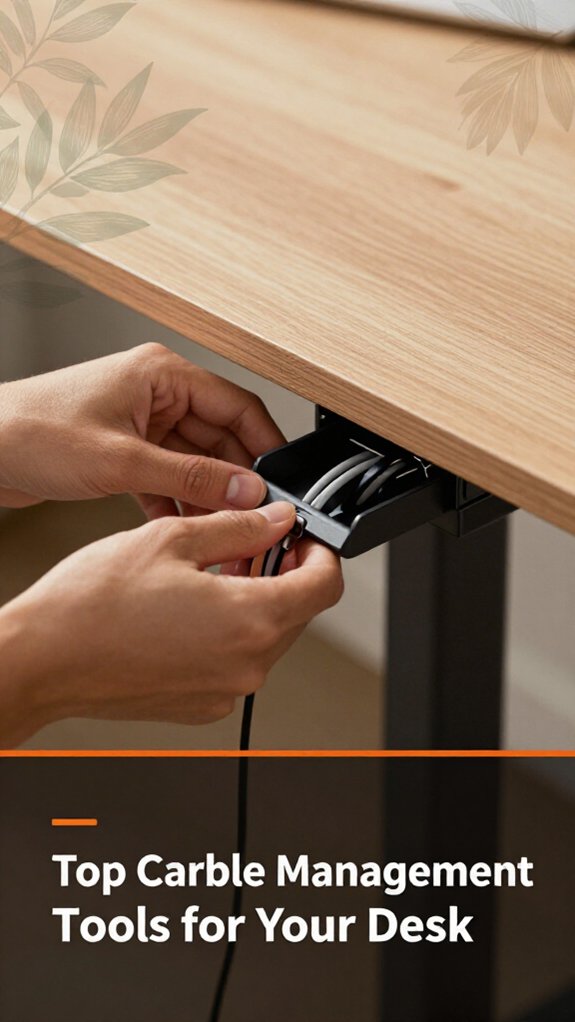
Sometimes, the simple truth is that a handful of trusty tools can turn your spaghetti of cables into a sleek, manageable setup, because you don’t need a degree in engineering. You’ll want cable clips, zip ties, and a cable sleeve or wrap. These might seem basic, but trust me, they’re game changers.
Clip those pesky wires along your desk frame so they don’t wander when you’re reaching for your mouse, because loose cables can cause accidental disconnections and clutter. Use cable clips, such as the Command Cable Clips or pretzel-like cable clips, to secure cords in place. Attach them at intervals of 4 to 6 inches along your desk edge or underneath the surface to prevent wires from moving around.
Secure your cables every 4-6 inches to keep your desk tidy and prevent accidental disconnections.
Zip ties, like Velcro or reusable cable ties, keep cords bundled neatly, because tangled cables can become trip hazards and cause frustration. Wrap the cables tightly but not excessively to avoid damaging the wires. Use zip ties to bundle all cables together near the power strip or behind your desk framework.
A cable sleeve or wrap, such as the Joto Cable Sleeve or the SimpleCord Cable Wrap, covers multiple cables, creating a streamlined appearance. Cut the sleeve to your desired length, usually the length of your cable bundle, and slide the cords inside before sealing it to hide the mess and protect the wires.
Important Measurement/Fact:
– Keep all cables at least 6 inches away from your computer’s vents to prevent overheating and ensure proper airflow.
All right, don’t overthink it just get these tools, and you’ll be surprised at how much calmer your desk looks and functions.
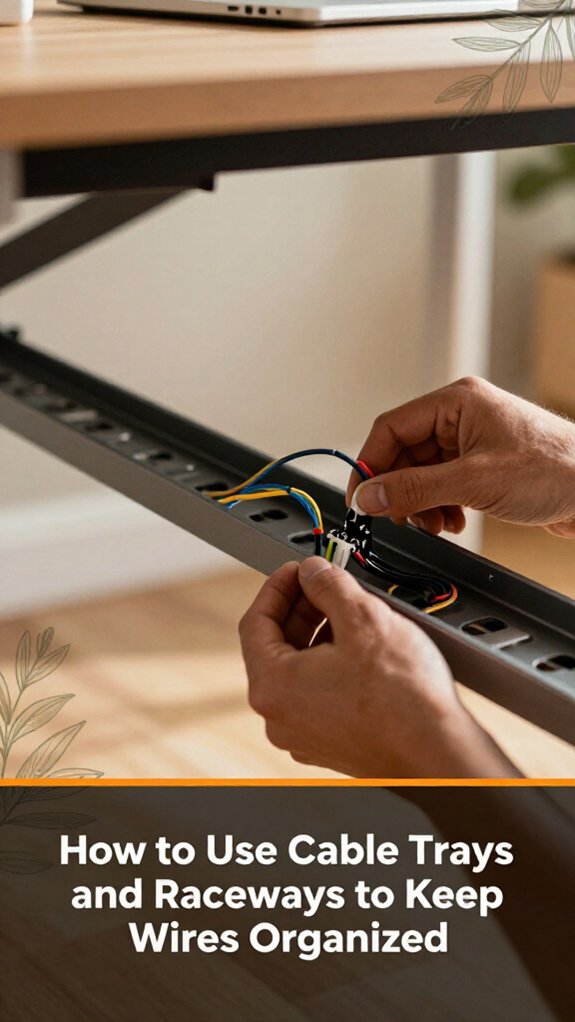
Cable trays and raceways are your secret weapons for keeping wires out of sight and your desk looking professional, because they prevent clutter and enhance safety without drilling holes everywhere or risking a spaghetti explosion.
First, measure the length of your cables because accurate measurement ensures a clean installation. Then, cut the raceway or tray to the appropriate length.
*Highlight:* Use a ruler or measuring tape to determine the total cable length from your device to the outlet, adding an extra 10-15% for slack and future adjustments.
Next, attach the raceway to the back or underside of your desk using mounting brackets or adhesive strips, because proper attachment prevents wires from slipping out later.
Choose the mounting method based on your desk material: use screw-in brackets for wooden surfaces or strong adhesive strips for laminated or metal desks.
Ensure the raceway is snug against the surface to prevent shifting or wires slipping out.
Gather your cables because organized cables make maintenance easier and reduce tripping hazards, and then slide them into the raceway.
Use your hand to guide cables neatly into the raceway, keeping them flat against the inner surface to prevent pinching or damage.
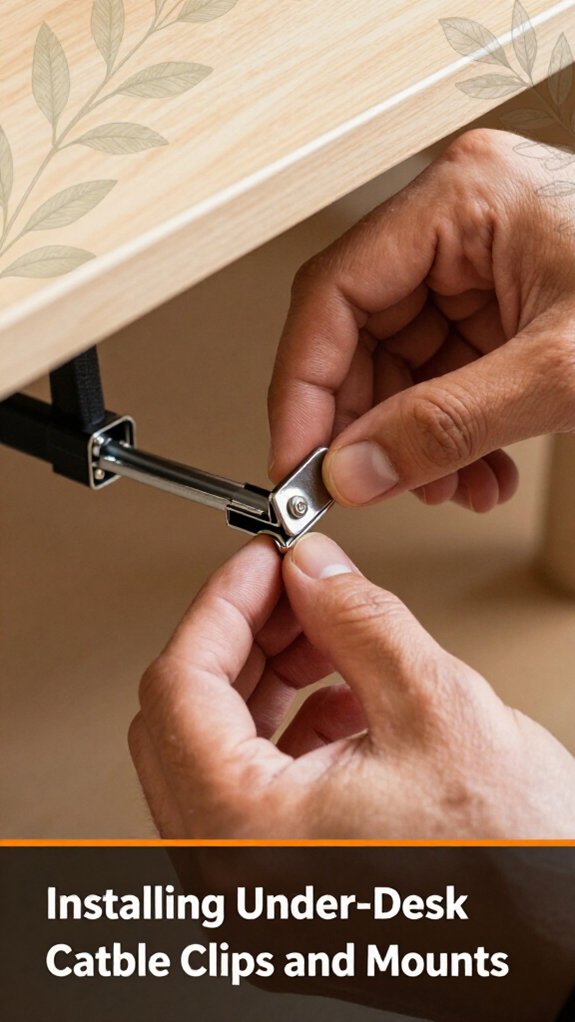
Start by grabbing a handful of under-desk cable clips or mounts your new best friends in this setup. Now, you’ll want to plan your cable route. Think about where your devices sit and how long each cable needs to be.
All right, peel off the adhesive backing, then stick the clips along the underside of your desk, keeping them close to your devices to avoid slack. Here’s a quick guide:
| Step | Tip |
|---|---|
| 1 | Place clips near power outlets and device locations because this makes connecting cables easier. |
| 2 | Avoid placing clips where you’ll bump your knees or chairs because discomfort or obstruction may occur. |
| 3 | Space clips evenly to prevent bunching or sagging cables because evenly spaced clips hold cables securely. |
| 4 | Use multiple clips for longer cables because relying on a single clip may cause sagging or stress on the cable. |
| 5 | Check your setup from different angles because a cable that’s too tight causes stress and potential damage. |
Important measurement for cable slack:
– Leave at least 2 inches (5 centimeters) of slack behind each device to prevent stress on the cable and accommodate movement without disconnecting. Additionally, when planning your cable management, consider the weight limits and appropriate mounting options for your setup, especially if you’re using a monitor arm on a glass desk.
All right, now that you’ve nailed down some clips and figured out your perfect cable path, it’s time to get a little creative with hiding those cables without breaking the bank. Sleeves and wraps are your new best friends here. You can snag a simple Velcro cable wrap or a flexible spiral sleeve that slides right over your cords.
Why bother? It keeps everything tidy because cables won’t tangle, and it looks decent enough your desk won’t scream “disaster!” at every glance.
Keeps cables tidy and your desk looking neat no more tangled chaos!
Step 1: Measure your longest cable run, because this will determine the length of the sleeve or wrap needed.
Step 2: Cut or adjust your sleeve to match the measured length.
Step 3: Wrap the sleeve around all those wires, ensuring a snug fit because it helps keep everything organized.
The trick is to keep it snug but not so tight that you’re fighting the sleeve when adjusting later this could cause damage or make future adjustments difficult.
Highlight: For optimal appearance and safety, the sleeve should be tight enough to hold cables together securely but loose enough to avoid pinching or damaging insulation.
Step 4: Ensure the sleeve is fitted snugly, but not overly tight this prevents damage and allows easy future modifications.
Additionally, selecting compact desk options can help maximize space, making the cable management process more manageable and neat. If done correctly, you’ll barely see the cables and your desk will look a lot less like tech spaghetti.
Number one, grommets and desk ports aren’t just pretty finishing touches; they’re your secret weapon for managing those unruly wires. You punch a hole where you need a clean pass-through for cables because this keeps your wires organized and prevents tangling.
Choose a spot near your monitor or power strip because this placement minimizes cable length and clutter. Drill or punch with a bit of patience because precise hole size is essential for a tidy look.
Measure the size of your cables before drilling; typical cables like HDMI, DisplayPort, or power cords fit through standard grommets, which are usually 1 to 2 inches in diameter, but confirm based on your cables’ thickness.
Insert the grommet or port, which covers the edges and keeps wires tidy because it prevents cable wear and creates a sleek appearance. It’s like a fancy traffic cone for your cables.
Here’s the thing: measure once, drill once, because a hole that’s too big or too small can compromise both aesthetics and function. For example, if the hole is too large, cables may shift or be exposed; if too small, cables may get damaged during passage or not pass through at all.
Make sure the hole size matches your cable diameter, considering a small margin for future cable upgrades.
Run your cables through the grommet or port, and suddenly, your desk looks sleek instead of a tangled mess. Easy? Yes, because these simple steps keep wires organized and accessible.
When it comes to tucking wires behind your standing desk, the key is patience, and maybe a little bit of duct tape. You’ll want to gently route cables along the edge, pressing them flat against the frame. Don’t just toss them behind and forget those loose wires will never stay put. Instead, bundle them with Velcro straps, twist ties, or similar cable organizers; they’re inexpensive and keep things tidy.
You’ll also want to use cable clips or adhesive-backed organizers to hold everything in place, preventing clutter and potential damage. Avoid letting cables hang loosely, which can cause tripping hazards or damage over time.
Always measure your cables first to ensure they’re long enough or cut to the appropriate length before securing them; this saves time and prevents the need for rework. Because measuring prevents overly short cables that restrict movement or unnecessarily long ones that create clutter.
Highlighted Fact:
– Measure your cables to be between 3 and 6 feet long (approximately 0.9 to 1.8 meters), depending on your desk setup, to maintain a clean appearance and functional flexibility.
Common Mistakes and Fixes:
Remember: tidy cables save your sanity patience is your best friend.
Getting your workspace looking sharp doesn’t mean spending hours fiddling with cables, though, honestly, I’ve been there. Here’s a quick hack: keep your workspace tidy with simple, repeatable routines. Here’s a table to help:
| Hack | Why it works | Quick tip |
|---|---|---|
| Daily cleanup | Stops buildup because dust and clutter can accumulate quickly. | Wipe surfaces and cords once a day to maintain cleanliness. |
| Cable basket | Conceals wires because exposed cables can look messy. | Drop excess cables in a basket under your desk to hide clutter. |
| Clip cords | Prevents tangles because tangled cords can cause damage and frustration. | Use clips on the underside of your desk to keep cords organized. |
| Zone work areas | Reduces clutter because having designated zones limits unnecessary items in reach. | Keep only essential tools and supplies within arm’s reach in each zone. |
| Regular review | Maintains order because clutter tends to resurface over time. | Reassess and adjust your workspace every week to keep it tidy. |
Additional details:
Common mistakes to avoid:
If you’ve ever stared at a jumble of cables and thought, “There has to be a faster way,” then you’re in luck. DIY tricks save you time and frustration.
First, grab some velcro straps or zip ties because they keep cables organized and prevent tangling. Wrap them around your cables and secure them along the underside of your desk or its frame. This keeps the cables neat and prevents accidental yanks and pulls.
Next, use adhesive cable clips because they’re easy to stick anywhere, especially on the back or sides of your workspace. Stick these clips to your desk surface or wall to guide your cables along a designated route, reducing clutter and preventing tripping hazards.
Third, tuck excess cable lengths into a paper towel tube or an empty gift box because this keeps everything tidy and out of sight. Measure the total length of your cables, then coil and insert the excess into these containers to avoid a cable spaghetti mess.
Fourth, stick Velcro or magnetic strips underneath your desk because they allow you to temporarily anchor cables, making adjustments easier and keeping cables securely out of the way. Position the strips typically 1 to 2 inches from the edge for easy access.
Furthermore, measuring cable length and coil excess cables helps prevent clutter and ensures your workspace remains tidy.
Highlighted Fact:
Cable length: Measure total cable length and coil excess to prevent clutter.
Common Mistake:
Leaving long cables hanging loosely can cause accidental yanks and damage cables. Instead, coil excess cables neatly into containers or secure them along the desk to prevent damage and maintain a clean workspace.
Summary of Benefits:
You’ve probably seen someone spend an hour fussing with cables only to realize they didn’t clip or coil them properly, and suddenly your neat setup is a tangle in disguise. Here’s what to avoid.
First, don’t ignore cable slack because too much slack creates a spaghetti maze.
Avoid ignoring cable slack; excess creates a tangled spaghetti maze. Keep cables neat and manageable.
Second, skipping cable ties or clips leads to chaos because loose cables slip and tangle. Use reusable cable ties like Velcro or magnetic clips to keep cables firmly in place and prevent shifting.
Third, avoid crossing cables unnecessarily because crossing wires can cause mess and make troubleshooting difficult. For example, run your mouse cable parallel to your monitor cables, and keep power cords separated from data cables by at least a few inches to reduce electromagnetic interference.
Specific Measurement:
Position your monitor so that the top of the screen is at or just below your eye level typically about 20 to 30 inches from your face, depending on your vision comfort and desk setup.
List of Mistakes to Avoid:
All right, now you’re ready to keep things tidy no more spaghetti nightmares.
Once you’ve finally got your cables looking sleek and under control, the real trick is keeping that tidy setup intact over time, because let’s face it, cables love to rebel the moment you turn your back.
Here’s the thing: ask yourself what’s most likely to cause chaos and fix it early.
First, use cable ties or Velcro strips to bundle your cables because they prevent tangling and accidental unplugging, and check them every few months no one wants a spaghetti explosion.
Second, tuck excess cable length away securely because slack can create clutter or get caught on objects, and an accidental yank can undo hours of work.
Ensure that excess cable length is limited to 2-4 inches beyond the connection point, because too much slack can cause tangling and accidental disconnections.
Third, label your cables so you don’t spend hours untangling which wire belongs where because clear labels save time and frustration during troubleshooting or reconfiguration.
Fourth, regularly wipe down your setup with a microfiber cloth because dust and grime make cable sleeves and ties lose their grip faster than you’d think, which can lead to cables slipping or becoming loose.
Keeping things neat is all about discipline and ongoing maintenance because cables naturally shift and accumulate dust over time.
You want the best cable management for your adjustable desk? Get a mix of under-desk trays and cable sleeves.
The trays clip right underneath easy to install, keeps cords off the floor. Cable sleeves bundle wires and keep them tidy, especially when you switch heights constantly.
All right, don’t forget to measure your setup first what fits one desk doesn’t always work for another. Trust me, it’s worth it.
You pull all the cables together with zip ties or Velcro straps, then run them through a cable sleeve or raceway.
Secure the sleeve to the desk or underneath it, keeping everything flat and out of sight. For multiple devices, bundle similar cables power, HDMI, USB in separate sleeves if possible.
All right, don’t forget to leave enough slack for adjustments; the goal’s clean, not a breakdance move.
Think of modern office furniture like a sleek, hidden treasure chest for your cables.
Yes, there are aesthetic options built-in cable channels, under-desk trays, and furniture with integrated cord management.
You slip your cords inside, and suddenly, your setup looks tidy, almost magical.
All right, pick a desk with these features or add aftermarket accessories.
Just, don’t forget your cables still need watering and occasional TLC!
You gotta keep those cables in tip-top shape during moves. First, unplug everything carefully trust me, yanking cables out is a recipe for damage.
Next, bundle cords with Velcro straps sounds obvious, but it stops them from snagging.
Then, store the cables in a lightweight, padded bag.
Finally, lift your desk instead of dragging it wires get pinched or pulled otherwise.
Do that, and your cables stay happy and functional.
Yes, cable management solutions can affect your desk stability or weight capacity if you’re not careful.
You might think those clips or sleeves are lightweight, but stack enough of them, and suddenly your desk wobbles or doesn’t lift. Always check the weight limits of your chosen solutions, especially if you’re using a sit-stand desk that shifts.
Balance is key don’t overload or shift cables in an uneven way, or you’ll regret it.
Look, managing cables might feel like trying to tame a wild beast, but with a bit of planning and the right tools, you can make it look effortless like your desk was designed that way. Trust me, avoiding the common pitfalls takes some trial and error, but once you get the hang of it, you’ll wonder why you didn’t do this sooner. Now go on, get those cables out of sight and enjoy your neat, clutter-free workspace your future self will thank you.





