Physical Address
304 North Cardinal St.
Dorchester Center, MA 02124
Physical Address
304 North Cardinal St.
Dorchester Center, MA 02124

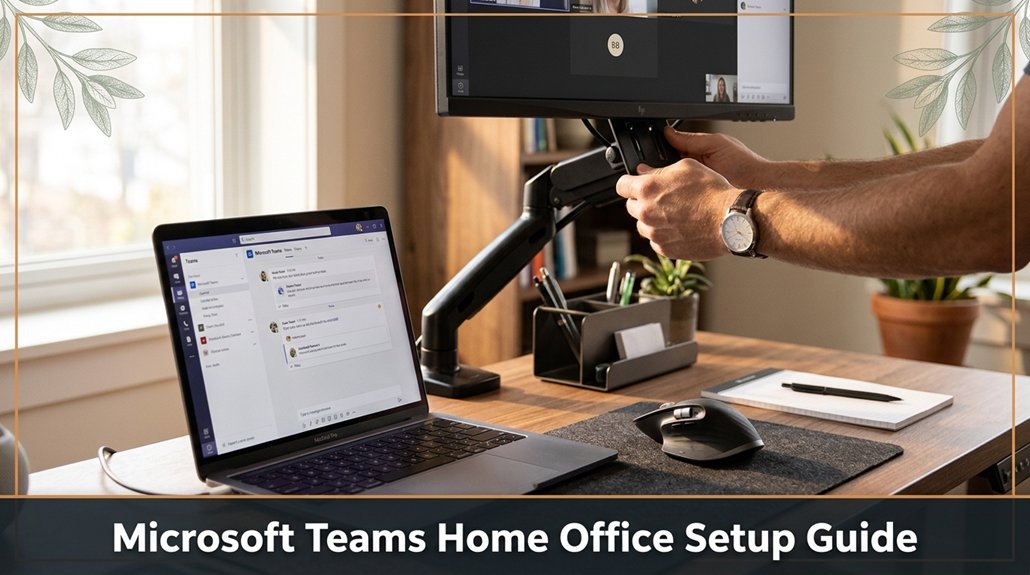
Setting up your home office for Microsoft Teams isn’t just about placing your laptop on a desk and hoping everything works. You need the right tools a decent device, not your old gaming laptop, along with a good webcam, a noise-canceling mic, and reliable Wi-Fi.
Adjust your monitor to eye level, sit in an ergonomic chair, and keep essentials within arm’s reach so you’re ready for smooth meetings. Managing your Teams environment with labels and notifications helps stay organized, and cybersecurity like strong passwords and VPNs is key.
If clutter or tech troubles are throwing you off, don’t worry I’ll show you how to streamline your setup for better, more productive meetings.
This article contains affiliate links. If you purchase through them, I may earn a small commission at no extra cost to you. I only recommend products I genuinely believe in.
Ever wondered how to pick the perfect devices for your home office, without feeling like you need a degree in tech just to get everything working? When it comes to your Microsoft Teams home setup, start with a decent laptop or desktop because it serves as the backbone of your work environment.
Next, get a good webcam because not all cameras are equal; you want clear video quality and smooth streaming for professional meetings.
Choose a high-quality webcam for crisp video and smooth streaming during professional meetings.
Microphones are essential because your laptop microphone probably won’t suffice; choose one that cancels background noise because distractions like a barking dog could ruin a meeting.
Speakers should be loud enough so you’re not shouting at your monitor, which helps maintain proper voice levels during calls.
Ensure a stable internet connection because weak Wi-Fi signals frequently cause dropped calls or poor video quality, disrupting your productivity.
Key fact: For optimal video conferencing, position your router so you have a dedicated connection with a minimum speed of 25 Mbps download and 3 Mbps upload, depending on your usage.
Just remember, investing a little now saves hours fixing technical issues later. Additionally, optimizing your webcam position by aligning it at eye level enhances your on-camera presence and creates a more professional appearance.
Setting up an ergonomic workspace isn’t as simple as plopping down your laptop and calling it a day, because doing so often results in a sore back and frequent, unproductive stretching.
First, find a desk that’s the correct height your elbows should form approximately a 90-degree angle when typing, with your forearms parallel to the ground.
Second, adjust your monitor so that it’s at eye level; carefully raise or lower it until the top of the screen is just below your line of sight.
Helpful fact: The monitor should be positioned approximately 20 to 30 inches from your face, with the top of the screen aligned with your eye level.
Lower the monitor to just below your eye level, because looking slightly down reduces strain on your cervical spine compared to looking straight ahead or upward.
Next, invest in a good chair with lumbar support, because without proper lower back support, your lumbar region will experience unnecessary stress.
Select an ergonomic chair like the Steelcase Leap or Herman Miller Aeron, which feature adjustable lumbar support and seat height.
Ensure your chair height allows your feet to rest flat on the floor, with knees bent at roughly 90 degrees, because this position maintains optimal circulation and reduces lower limb fatigue.
Keep essentials within arm’s reach such as your phone, pen, or notepad so you avoid stretching excessively.
Set your workspace with frequently used items within a 16-24 inch radius from your seated position, because reaching out too far causes unnecessary shoulder and spinal strain.
Important tip: Proper ergonomic setup can help prevent musculoskeletal issues caused by poor workspace design.
Avoid common ergonomic mistakes:
Now that your workspace is comfortable and ergonomically sound, it’s time to turn your focus to your Microsoft Teams environment. Because all that physical comfort goes to waste if your digital setup is disorganized. Your goal is to maximize productivity by making your Teams workspace easy to navigate, minimizing time wasted searching for chats or managing notifications.
Start by customizing your sidebar in Microsoft Teams. Keep your most-used channels and chats front and center because this allows you to access important conversations quickly without scrolling or searching.
Organize your teams and chats with clear, descriptive labels so you don’t waste time hunting for specific discussions. For example, use naming conventions like “ProjectX-Design” or “HR-Announcements” to differentiate categories easily.
Use the pinned chat feature to keep important conversations at your fingertips, because pinned chats remain accessible and readily available, reducing the need to search through your chat list. To pin a chat, right-click the chat and select “Pin” this action ensures crucial conversations are always at the top.
Set your status in Teams to reflect your availability, so colleagues know when you’re accessible or focusing: for example, set it to “Do Not Disturb” during focused work sessions. Constantly monitor and update your status to avoid miscommunication and to respect your colleagues’ expectations.
Key Action Steps:
| Priority | Action | Why |
|---|---|---|
| 1 | Pin frequently used chats | Save time and avoid digging through long lists because pinned chats remain at the top for quick access. |
| 2 | Use clear, descriptive naming conventions for channels and teams | Get clarity fast and reduce confusion, which enhances collaboration efficiency. |
| 3 | Customize your notification settings | Avoid distractions by receiving only relevant alerts, tailored to your work priorities. |
| 4 | Regularly review and tidy your Teams environment | Keep your workspace organized and prevent clutter from hindering productivity. |
Important Reminder:
Maximum efficiency in Teams is achieved when your digital workspace mirrors your physical workspace’s organization, reducing cognitive load and streamlining communication.

A good pair of noise-canceling headphones, such as the Sony WH-1000XM5 or Bose Noise Cancelling Headphones 700, might just be your best friend when working from home because they block out the chaos, even your neighbor’s lawnmower, and help you focus.
Alongside those, you’ll want:
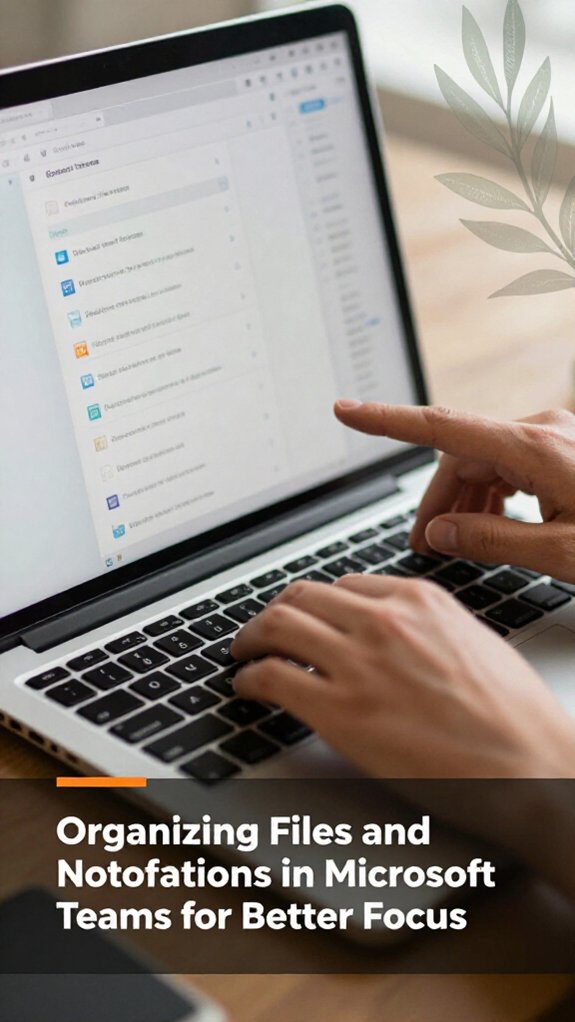
There’s probably a mountain of files cluttering your Microsoft Teams channels, and honestly, finding what you need can feel like searching for a needle in that haystack. To tame that chaos, start by pinning important files or folders because it provides quick access and saves time during busy days. Use the “Channels” tab to organize files into logical folders, but don’t go overboard; simplicity rules to avoid creating additional clutter.
Notifications? Turn off “Banner” alerts for less urgent chats because this reduces distractions, leaving only mentions or direct messages to ensure you don’t miss critical updates. Here’s a quick table to clarify:
| Action | Benefit |
|---|---|
| Pin important files | Provides instant access during busy days because it eliminates searching time |
| Customize notification | Reduces distraction and enhances focus because it filters out non-essential alerts |
| Use keywords in search | Finds files fast and with less fuss because it allows quick filtering of results |
| Clear old notifications | Keeps your alert panel tidy and relevant because unused alerts can cause clutter |
| Create Shared Folders | Facilitates collaboration without clutter because it groups related files logically |
Specifics for efficient file management:
Now, focus on what matters by applying these strategies to optimize your Microsoft Teams experience.
If you’re tired of feeling like you’re in a constant game of dodgeball with your family or the neighborhood construction crew, soundproofing your home office is the way to go.
Believe me, no matter how many “quiet zones” you negotiate, noise creeps in. Here’s what works for me:
1. Seal gaps around windows with weatherstripping, because this stops sneaky sound leaks. Choose a high-quality weatherstripping tape such as Frost King V-Seal or 3M Draft Stopper for best results.
2. Add mass to walls with acoustic panels, because thicker surfaces absorb more sound. For example, installing 2-inch thick acoustic foam panels like Auralex Studiofoam helps reduce noise transmission.
3. Fill bookshelves with hardcover books to increase wall mass, which improves sound absorption. This DIY method is cost-effective and effective.
4. Use heavy curtains or soundproof drapes over windows, because they help dampen external noise. For instance, choose curtains made of dense fabrics like velvet or specialty acoustic curtains such as Moondream for enhanced soundproofing.
Important Measurement Fact: The recommended distance from your monitor to your eyes is 20 to 30 inches, with the top of the screen at or just below eye level, because this reduces neck strain and promotes ergonomic comfort.
5. Hang thick rugs or carpets on the floor to dampen echo and reduce noise reflection, because soft materials absorb sound waves. Opt for rugs at least 1/2 inch thick with dense pile.
6. Incorporate soft furniture such as upholstered chairs and cushions, because they absorb sound and diminish echo.
Placing a fabric-upholstered armchair in the room can help lower ambient noise levels.
When it comes to video calls on Microsoft Teams, no one wants to spend half the meeting fiddling with settings or trying to cover up that messy background you’d rather keep out of frame.
First, check your lighting because good lighting improves video quality. Natural light works best sit facing a window if possible. If natural light isn’t available, use a soft desk lamp placed behind your camera to illuminate your face evenly.
Next, toggle your camera preview before jumping into the meeting to get a feel for how you look.
Look, background blurring is your friend use it if your space’s a mess, because it minimizes distractions.
For optimal visibility, consider how ring light setup can enhance your face’s illumination, especially when natural light is limited, by positioning it at the correct distance and angle.
Screen sharing? Keep only the necessary windows open because cluttered desktops divert attention. Avoid sharing your entire desktop to prevent accidental exposure of personal apps or sensitive information.
And, finally, hit “Share” only when prepared. Fumbling through tabs mid-presentation kills flow and wastes valuable time. Prepare your content beforehand so you can smoothly present without interruptions.
Keeping your data safe might seem straightforward, but in reality, it’s more like trying to steer a boat through a storm, because there’s always a risk of hitting something if you’re not paying attention.
Here’s the thing: use strong, unique passwords for your accounts, because passwords protect your accounts from unauthorized access. Enable two-factor authentication, because a password alone isn’t enough to secure your accounts.
Use strong, unique passwords and enable two-factor authentication to keep your accounts secure.
Keep your device’s software up to date, because these updates fix security vulnerabilities that cybercriminals love to exploit. And don’t forget about Wi-Fi set a strong, encrypted password, and avoid connecting to unsecured networks, because unsecured networks are easier targets for hackers.
Trust me, handling cybersecurity with care keeps your boat afloat otherwise, you’re just inviting a storm.
Ever wondered why Teams suddenly stops syncing or you’re getting error messages just when you need to jump into a meeting? It’s frustrating, right? First, check your internet connection because if your Wi-Fi drops, Teams may stop functioning properly.
Next, try restarting the app or your device because sometimes, it’s just a temporary glitch like when your monitor falls asleep and refuses to wake up.
Separate steps for troubleshooting connectivity and device issues:
1. Verify your internet connection. A stable connection is crucial because Teams requires continuous network access to sync and communicate effectively.
2. Restart the Teams app. Closing and reopening Teams often resolves minor software glitches.
3. Restart your device because a fresh start can clear temporary system issues affecting app performance.
Clear the cache to improve app responsiveness:
4. Go to your device’s Settings menu.
5. Find the Teams app in your list of installed applications.
6. Delete the local app data associated with Teams because cached data can become corrupted and cause syncing issues.
Keep Teams up to date because most problems stem from outdated software:
7. Open the Microsoft Store or your app store.
8. Check for updates to the Microsoft Teams application.
9. Install any available updates immediately.
Check app permissions because Teams needs the right access to function properly:
10. Navigate to your device’s Privacy settings.
11. Ensure Teams has permissions for your microphone, camera, and network access because without these, you might experience audio, video, or connectivity issues.
If none of these steps resolve your problem, note any specific error codes that appear.
Google these codes to find targeted solutions tailored to your specific issue.
You can customize Teams notifications so they don’t drown your focus. Go to your Profile pic > Settings > Notifications.
All right, here’s the trick: turn off the chatter you don’t need like email mentions or chat sounds and keep alerts only for essentials, like mentions or calls.
But beware if you mute too much, you might miss something important. It’s about striking the right balance, like tuning an old radio.
Ever wonder how to handle multiple Teams channels without losing your mind? You need to organize, for starters.
Pin the most important channels it’s like saving your best snacks for last. Turn off notifications for less critical ones, so you’re not bombarded.
Use the activity feed to catch up quickly. All right, don’t forget, customizing these settings keeps your focus sharp trust me, I’ve been there, claiming “I got this” during chaos.
You wanna keep your internet steady? First, plug directly into your router with an Ethernet cable no Wi-Fi hiccups.
If Wi-Fi’s your only route, make sure your signal’s strong close to the router, avoid walls, and reduce interference from other gadgets.
Restart your router weekly believe me, it’s like a coffee break for your internet.
And, obviously, update your network drivers; old software’s the silent saboteur.
Yes, you can absolutely integrate Microsoft Teams with other productivity tools. You might connect it with Outlook for seamless scheduling or with third-party apps like Trello and Asana through built-in connectors.
All right, here’s the thing setting these up usually takes a couple of clicks. Just go to Teams’ “Apps” tab, search your tool, and hit “Add.”
Obviously, some integrations need extra permissions, so don’t forget to grant access nothing worse than staring at a “waiting” spinner forever.
You gotta be proactive when onboarding remotely think of it as training a puppy while blindfolded.
Send an intro email with essential links, then schedule a quick one-on-one to set expectations.
Share a simple welcome playlist, guide them through Teams, and encourage questions.
All right, don’t forget to check in periodically because even the best setups fall apart if you forget the “people” part.
Trust me, I’ve been there.
Look, setting up your home office with Microsoft Teams isn’t rocket science, but it’s not exactly “plug in and forget” either. You’ll stumble over cable lengths, squeaky chairs, and endless notification settings trust me, I’ve been there. But once you iron out the kinks, you’ll carve out a comfy, efficient space that actually makes remote work feel… less like a battle. So get those cables tidy, your mic arranged, and your notifications in check. You’ve got this.





