Physical Address
304 North Cardinal St.
Dorchester Center, MA 02124
Physical Address
304 North Cardinal St.
Dorchester Center, MA 02124

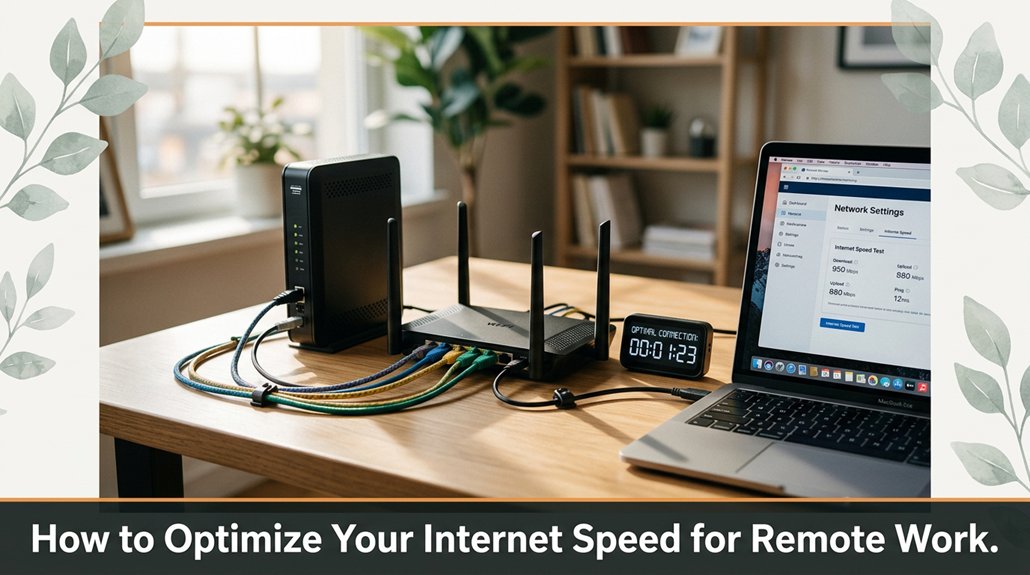
Struggling with slow internet during your remote workday? You’re not alone everyone hits snags when their connection isn’t up to par. To boost your internet speed and keep things running smoothly, start with speed tests you’ll want to see if you’re actually getting what you pay for. Then, log into your router’s admin panel and update the firmware, because outdated software is like a slow driver in your connection lane. Enable dual-band Wi-Fi and prioritize essential apps through QoS trust me, this saves a ton of frustration. Finally, use Ethernet cables for your main devices; wireless is great until it isn’t. Stick around if you want to avoid the simple mistakes everyone makes.
Alright, before you start blaming your Wi-Fi router for slow downloads or choppy video calls, you need to actually know what your internet speed is. For remote work, your internet speed isn’t just about quick streaming it’s about reliable, consistent bandwidth that supports video conferencing, file uploads, and real-time collaboration.
First, run a speed test using a trusted online service such as Ookla Speedtest or Fast.com. Don’t rely solely on your browser’s built-in speedometer, as it may not provide an accurate measurement.
Run a trusted speed test like Ookla or Fast.com for accurate internet performance insights.
These tools measure your current ping latency, download speed in megabits per second (Mbps), and upload speed in Mbps. Record these figures for comparison.
Next, compare your test results to the speed promised by your internet plan. For example, if your plan offers 100 Mbps download and 20 Mbps upload, but your test shows only 30 Mbps download and 5 Mbps upload, there’s a significant bottleneck. This discrepancy indicates that your connection isn’t meeting the expected performance levels.
Understanding this mismatch is crucial because it helps you pinpoint where the issue begins. If your speeds are well below your plan, possible causes include network congestion, outdated modem or router, or interference from other electronic devices.
Knowing the root problem allows you to take targeted steps to improve your internet reliability, such as upgrading hardware, optimizing your Wi-Fi setup, or contacting your service provider for support.
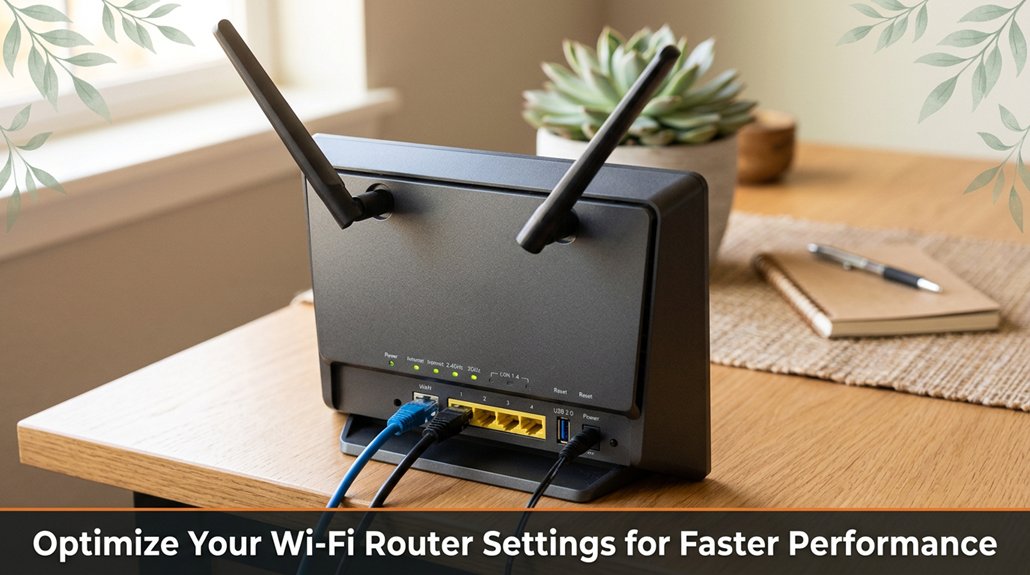
The first step is to log into your router’s admin panel, which acts as the control room for managing your Wi-Fi network.
Once logged in, locate the firmware update section. Updating your router’s firmware is crucial because outdated firmware can significantly slow down your internet speeds and cause instability. To update, click on “check for updates,” and if your router supports automatic updates, allow it to apply the latest firmware version this process usually takes a few minutes.
Next, switch your router to dual-band mode if it isn’t already enabled. You’ll typically see two frequency options: 2.4 GHz and 5 GHz. The 2.4 GHz band offers broader coverage and is better for devices far from your router, but it’s often congested, resulting in slower speeds.
The 5 GHz band provides faster speeds and is ideal for devices close to the router, especially for activities like HD streaming or online gaming. Separating your devices between these bands can improve overall performance and reduce interference.
Additionally, tighten your network security by setting a strong, unique password using a mix of uppercase and lowercase letters, numbers, and special characters. This step prevents neighbors or unauthorized users from freeloading on your bandwidth, which can slow down your connection and pose security risks.
Finally, disable any unused features such as WPS (Wi-Fi Protected Setup) or guest networks unless you explicitly need them. These features can introduce additional interference or security vulnerabilities.
Removing unnecessary features helps to reduce wireless clutter, ensuring a cleaner, more stable connection for your active devices. By implementing these optimizations, you can significantly enhance your Wi-Fi performance for everyday tasks and high-demand applications.
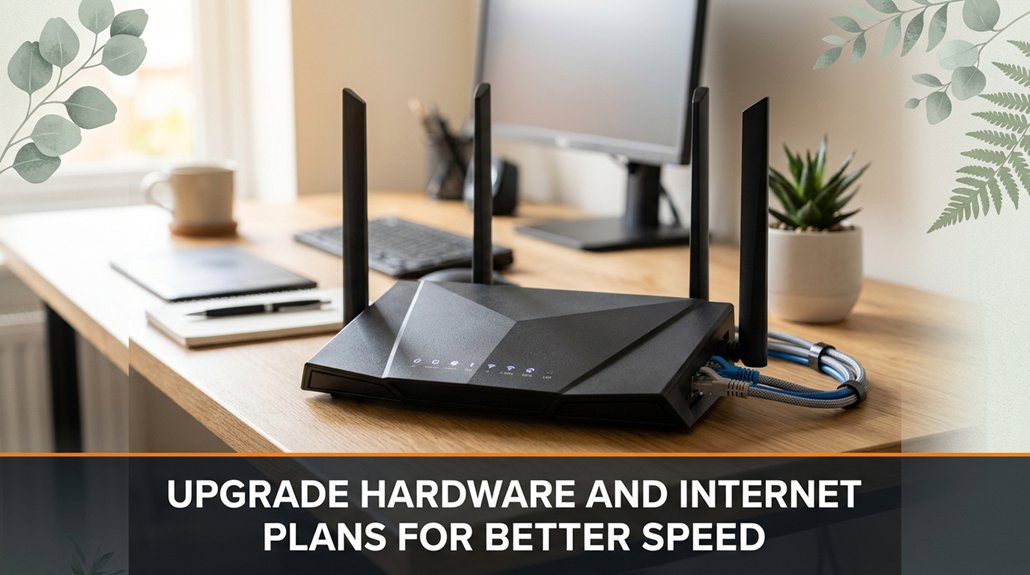
If your Wi-Fi remains sluggish despite adjusting the settings, it’s time to recognize that your hardware and internet plan may be limiting your connection speed. Here’s what you should do:
1. Upgrade Your Modem and Router** If your device is older than three years, it’s likely struggling to handle modern internet speeds and technologies. Investing in a new modem featuring DOCSIS 3.1** standards or a Wi-Fi 6-compatible router can significantly improve network performance and coverage, especially in larger homes or environments with many connected devices.
2. Check Your Internet Plan Contact your internet service provider (ISP) or visit their online portal to verify that your current plan’s download and upload speeds align with what you’re paying for.
For example, if your plan offers 200 Mbps, but speed tests consistently show below 100 Mbps, it’s time to upgrade to a higher bandwidth plan, such as 500 Mbps or 1 Gbps, to meet your device usage needs, whether streaming 4K content, online gaming, or working remotely with large file transfers.
3. Get a Wired Connection**** Wireless networks, while convenient, can be affected by interference from walls, other wireless networks, and electronic devices, leading to unpredictable or slower speeds.
Using an Ethernet cable such as a Cat6 or Cat7 cable with a length of at least 10 meters directly connected from your modem or router to your computer or gaming console can provide a more stable, consistent, and faster internet connection, essential for high-bandwidth activities like video conferencing or large data uploads.
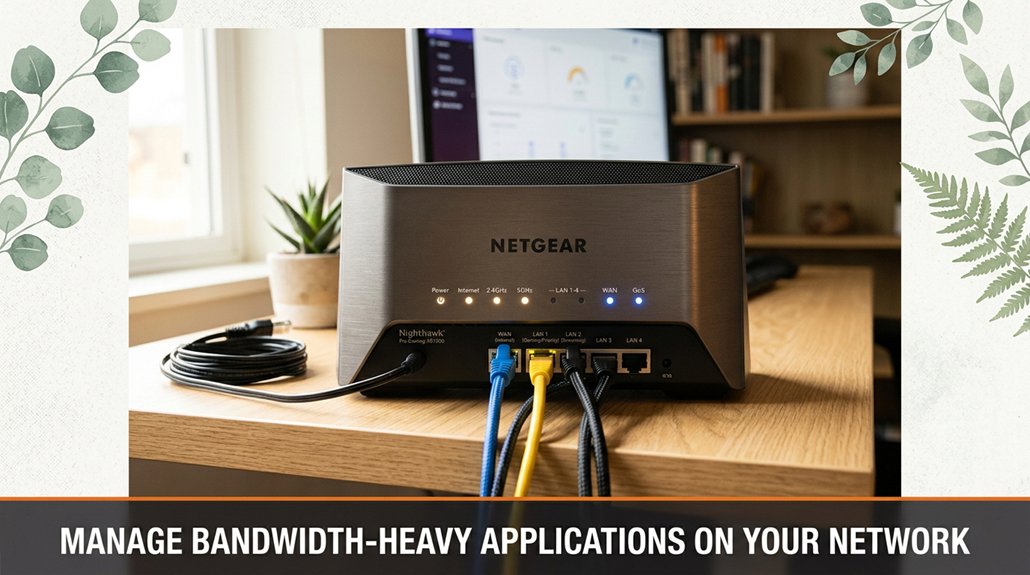
Sometimes, your network feels like it’s running through quicksand, and you’re left wondering which application is secretly devouring all the bandwidth. To address this, first, open your router’s admin panel. Typically, entering your router’s IP address such as 192.168.1.1 or 192.168.0.1 in a web browser and logging in with your admin credentials will grant access.
If you’re unsure how to reach this panel, a quick Google search with your router’s model name, such as “TP-Link Archer A7 admin login,” will guide you.
Once inside, locate the Quality of Service (QoS) settings. This feature serves as your bandwidth control panel, allowing you to prioritize critical applications. For example, you can assign higher priority to real-time video conferencing tools like Zoom or Microsoft Teams, or essential email services like Microsoft Outlook.
Prioritize your applications based on your needs. For remote work, prioritizing video conferencing apps and work-related email clients ensures you get the necessary bandwidth during critical moments.
Conversely, applications like Netflix streaming or large game downloads should be deprioritized when you need to focus.
Don’t just set your bandwidth preferences and forget them. After configuring QoS settings, perform speed tests using services like Speedtest.net or Fast.com to verify improvements.
Note that some routers may handle QoS settings better than others, which may require some trial and error for example, adjusting priority levels or bandwidth allocations.
Remember, the goal is to prevent bandwidth-intensive activities, such as video streaming or large downloads, from hogging your network’s capacity during important work periods.
Giving your essential applications dedicated bandwidth can reduce lag, buffering, and connectivity issues. Trust me, optimizing your network in this way will make a tangible difference, and your future self will appreciate the smoother online experience.
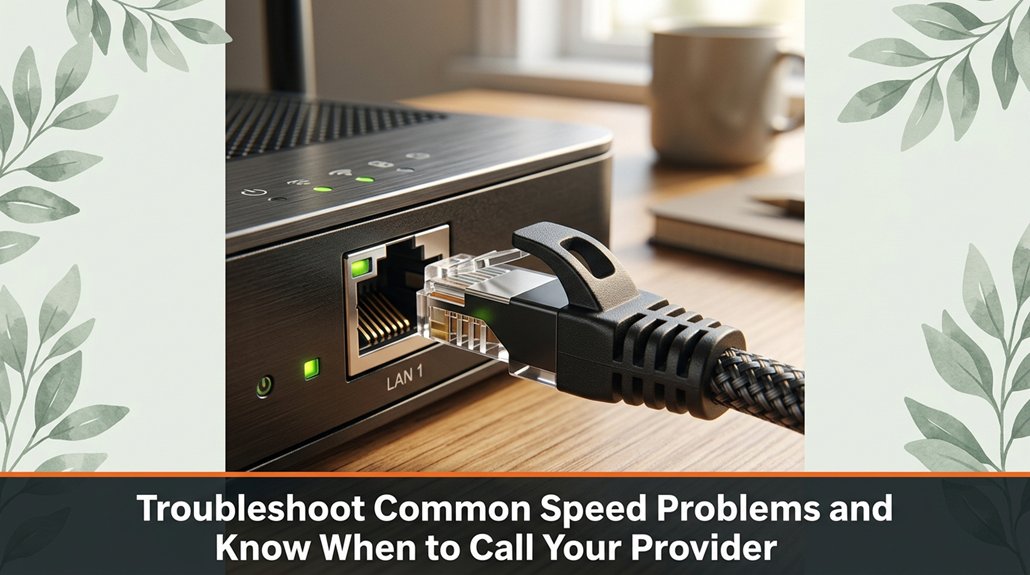
Network hiccups happen, and pinpointing whether it’s your connection or your provider can feel like trying to find a needle in a haystack if the haystack was made of poorly labeled wires and blinking lights.
Here’s what you do:
Sometimes, your internet connection requires a professional tune-up such as firmware updates or hardware replacement to restore optimal speeds.
Alright, so here’s the thing. Once you’ve done all that, your internet isn’t just faster it’s like finally finding the secret shortcut you didn’t know existed. You’re not throwing money at it anymore; you’re tuning precision-engineered speed into your setup. And trust me, once it’s dialed in, you’ll wonder why you ever tolerated the lag like discovering the cup holder in your car actually exists. Now go conquer that remote work marathon slow Wi-Fi isn’t invited anymore.