Physical Address
304 North Cardinal St.
Dorchester Center, MA 02124
Physical Address
304 North Cardinal St.
Dorchester Center, MA 02124

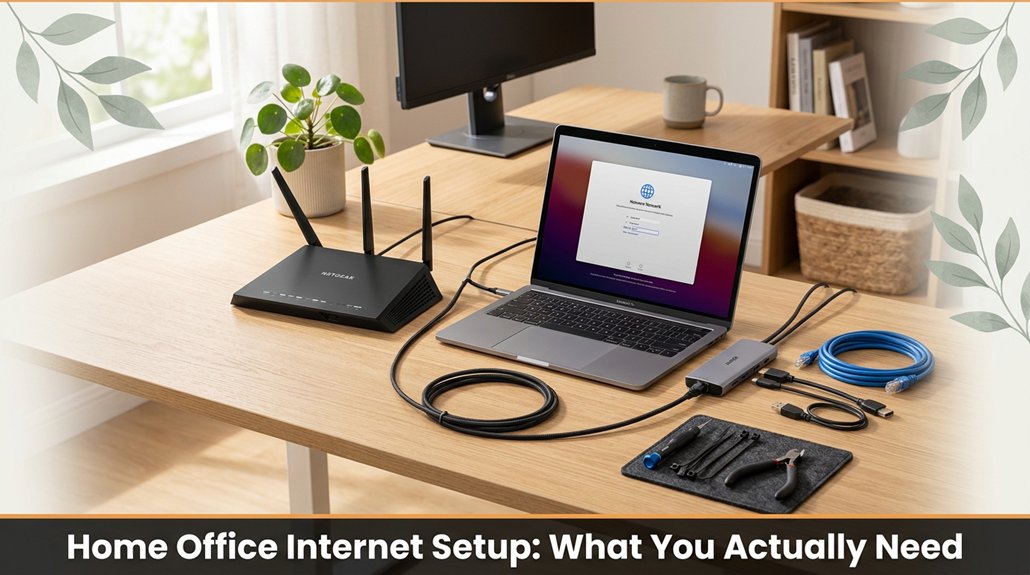
Struggling with unreliable internet during your home office hours? You need a setup that actually works, no matter how many Zoom calls or streaming sessions you’re juggling. Find a central spot in your space high and open to keep signals strong and steady. Make sure your plan offers at least 100 Mbps download and 20 Mbps upload more than enough for work, chats, and Netflix. Regularly update your equipment’s firmware, and if some zones are dead zones, consider switching to a mesh network instead of just adding boosters. Stay tuned, and I’ll show you how to troubleshoot like a pro.
When setting up your home office internet, the hardware you select can determine how smoothly your workday runs no one wants to spend hours troubleshooting a sluggish connection. For your home office internet setup, you need a reliable modem and router, as these two devices form the backbone of your network.
Start by choosing a modem that’s compatible with your internet service provider (ISP). Confirm whether your ISP requires specific models or standards, such as DOCSIS 3.0 or DOCSIS 3.1 for cable internet, or VDSL2 for DSL services. A compatible modem ensures optimal connection speed and stability, preventing unnecessary technical issues.
Choose a modem compatible with your ISP and required standards like DOCSIS or VDSL2 for optimal internet performance.
Next, focus on selecting a quality Wi-Fi router that can adequately cover your workspace, especially if your home office spans large areas or includes multiple devices. Look for routers that support the latest Wi-Fi standards, such as Wi-Fi 6 (802.11ax), which offers higher speeds and better performance in congested environments.
Anticipate your internet needs based on the number of devices: for instance, a router with at least four high-gain external antennas can enhance signal strength and range.
Avoid cheap combination modem-router units, often marketed as “all-in-one” solutions, as they tend to be less reliable and slower than dedicated devices. Instead, opt for a standalone modem with a separate, high-quality router that provides enough bandwidth and coverage for your work tasks.
A good rule of thumb is to look for routers with a minimum of 1,500 square feet coverage and capable of supporting broadband speeds of at least 300 Mbps if you’re working with high-data tasks such as video conferencing, large file transfers, or cloud backups.
Investing in durable hardware designed for continuous use saves you future headaches and ensures your home office remains connected and efficient.
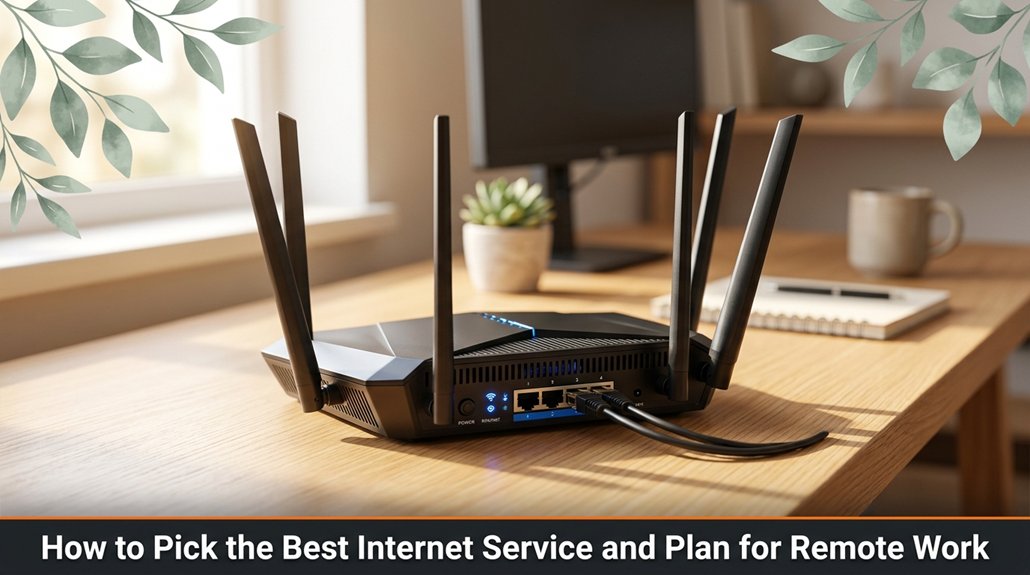
All right, let’s get real picking an internet service plan for your home office isn’t about selecting the cheapest deal or the fastest speed claim your cable provider mentions. You want a connection that’s reliable and steady, not just a flashy promise that may not hold up during critical work moments.
First, check which internet service providers are available in your area. If only one provider is listed, that becomes your starting point. Many regions are served by cable companies like Xfinity or Spectrum, fiber providers such as Verizon Fios or Google Fiber, or satellite options like HughesNet or Viasat. Knowing what’s available helps you focus your research.
Next, consider your specific remote work needs. Are you frequently on Zoom or Microsoft Teams calls throughout the day? If so, you need a plan with download speeds of at least 100 Mbps and upload speeds of 20 Mbps or higher fiber plans often provide symmetrical speeds, which are ideal for video conferencing.
If your work involves streaming high-resolution files or sending large attachments say, 2 GB or more you should prioritize higher upload speeds to prevent delays.
Additionally, choose a plan that doesn’t impose data caps or throttle your speeds after certain usage thresholds. Unlimited data plans or those with generous allowances such as 1 TB or more help ensure you won’t experience interruptions during busy work periods.
Finally, compare plans based on price, contract requirements, installation fees, and customer reviews. Look for providers with a reputation for reliable service and prompt customer support since no promised speed can compensate for unpredictable outages or poor service quality in real-world use.
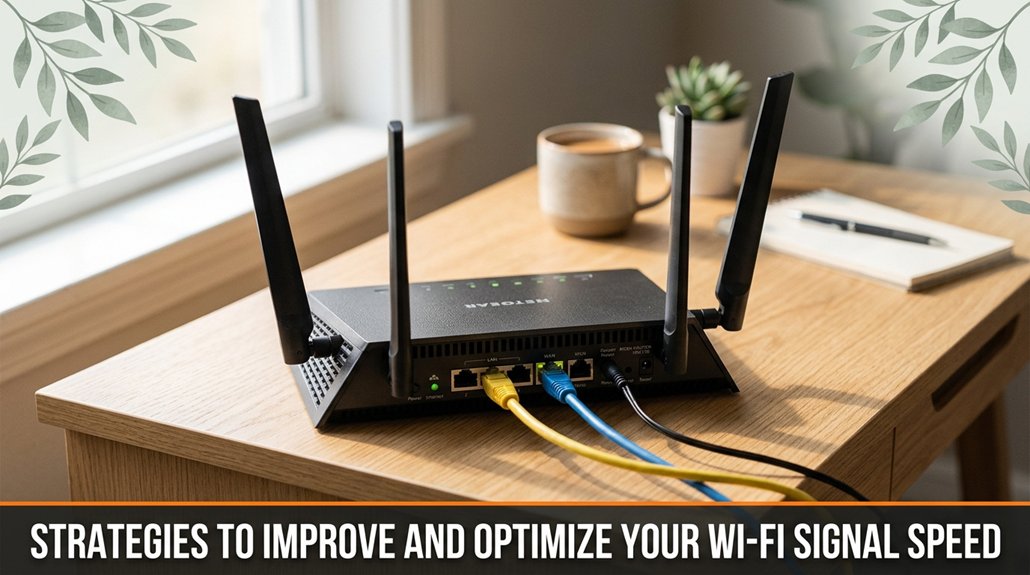
If you’ve ever experienced Wi-Fi dead zones in a corner of your living room that you swear weren’t there yesterday, you’re not alone. Here’s the deal: First, locate your router’s optimal placement usually, the center of your home to ensure even coverage. Avoid hiding it in a closet, behind a bookshelf, or inside a cabinet, as such obstructions significantly weaken signal strength, similar to hiding your car keys in the fridge.
Next, upgrade your router’s firmware regularly often, a simple update can resolve issues causing slow or inconsistent speeds. Use a Wi-Fi analyzer app on your smartphone or computer to identify areas where signals weaken or drop entirely, which can help you pinpoint dead zones or interference sources.
Regularly update your router’s firmware and use a Wi-Fi analyzer app to identify dead zones and interference sources.
Then, reposition your router to maximize coverage. Place it high on a shelf or mounted on the wall, ideally above head height, and keep it unobstructed by walls, large furniture, or electronic devices that emit radio frequency interference. Open spaces between the router and your devices facilitate better signal propagation.
Finally, tweak your Wi-Fi channel settings to avoid crowded frequencies. For example, in the 2.4 GHz band, channels 1, 6, and 11 are typically recommended because they don’t overlap, reducing interference from neighboring networks. On dual-band routers supporting 5 GHz networks, select less congested channels such as 36 or 40 for optimal performance.
Implementing these strategies will improve your Wi-Fi signal strength and speed, making streaming, gaming, and browsing smoother and more reliable.

Sometimes, your Wi-Fi simply can’t deliver reliable coverage regardless of how many settings you tweak or walls you move around. You might find yourself asking, “Shouldn’t this just work?” That’s where mesh networks or signal boosters come into play. If you’re experiencing frequent reconnects, drops during video calls, or needing to position yourself near your router to get acceptable speeds, it’s time to consider an upgrade.
Mesh networks, such as systems like Google Nest Wifi or NETGEAR Orbi, provide seamless coverage over large areas covering homes of 2,000 to 5,000 square feet or more by deploying multiple nodes that communicate dynamically. These nodes eliminate dead zones, ensuring consistent Wi-Fi performance throughout your indoor space.
On the other hand, signal boosters, including Wi-Fi extenders or repeaters like TP-Link RE505X or Linksys RE7000, amplify the existing signal, providing targeted improvements in specific trouble spots.
Before making a purchase, clarify whether your issue stems from insufficient coverage or weak signal strength. If your primary concern is covering a large area such as a multi-story home with thick walls a mesh network offers a scalable, long-term solution that maintains stable connections across multiple rooms.
Conversely, if your problem is weak or inconsistent signals in particular spots, a signal booster can provide an immediate and cost-effective fix. Understanding the nature of your Wi-Fi problems ensures you choose the right technology to improve your internet experience effectively.
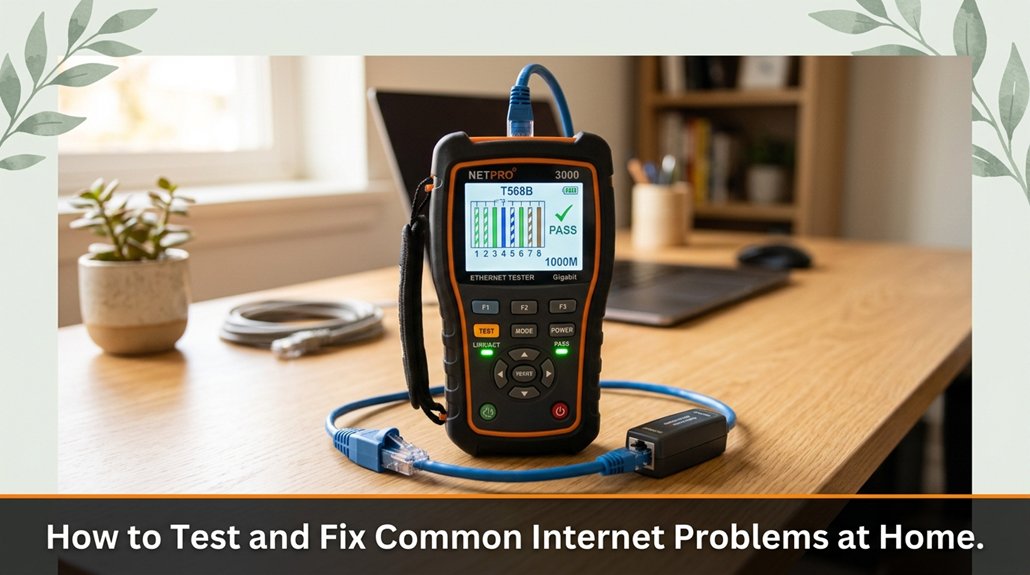
Let’s face it, your internet isn’t cooperating, and you’re ready to troubleshoot like a pro. You grab your smartphone or laptop and run a speed test this helps you determine whether you’re receiving the internet speed promised by your service provider. If the test shows slow speeds, try restarting your router, as sometimes, a quick reboot can resolve temporary connectivity issues.
If your connection remains sluggish, check all physical connections. Ensure that Ethernet cables are firmly plugged into your modem and router, outlets are functioning properly, and there are no loose or damaged cords between your device and the modem.
Next, perform a ping test by opening the Command Prompt on Windows or the Terminal on Mac and typing “ping 192.168.1.1”. If you receive timeouts or notice high latency, this indicates network performance problems that need addressing.
To improve your Wi-Fi signal, move closer to your router preferably within a 10 to 15-foot radius and eliminate potential interference sources such as cordless phones, microwave ovens, or Bluetooth devices operating on 2.4 GHz or 5 GHz frequencies.
If interference and distance aren’t the issues, consider repositioning your router to a central, open location elevated above the floor.
If none of these steps resolve the issue, contact your internet service provider. You might be experiencing a network outage, or your modem such as a cable, DSL, or fiber-optic device may need an upgrade or replacement.
Being prepared with specific information like your modem model number, current speed test results, and a description of the troubleshooting steps you’ve taken can help expedite the support process.
Alright, so setting up your home office internet is kind of like assembling furniture you think the manual says “should take 20 minutes,” and suddenly it’s midnight, and you’re still trying to figure out if that extra screw was even supposed to go there. But once you get the right gear, optimize your Wi-Fi, and test your connection, you’ll wonder why you ever put up with lag. Trust me, future you will thank you with fewer headaches and more productive mornings.